
Embed your form in Webflow
You can embed your Formware form in Webflow in multiple ways depending on how you want it to appear on your site.
This guide covers the most common methods: linking to your form, embedding it directly in a page, or using a full-page embed.
Option 1: Link to your form
Section titled “Option 1: Link to your form”This is the simplest way to add a form to your Webflow site.
- Open your form in Formware.
- Go to the
Sharetab. - Copy your form URL.
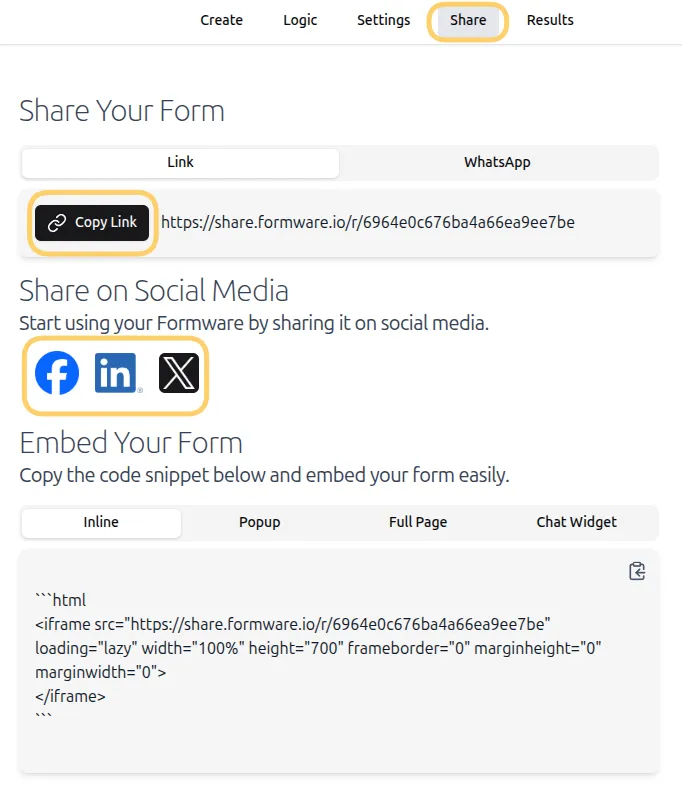
In Webflow:
- Add a Button element to your page.
- Paste your form URL as the button link.
When users click the button, they’ll be taken to your hosted form.
Option 2: Embed your form in a page
Section titled “Option 2: Embed your form in a page”To display your form directly inside your Webflow page:
- Open your form in Formware.
- Go to the
Sharetab. - Select Inline or Full page embed.
- Click Copy to copy the embed code.
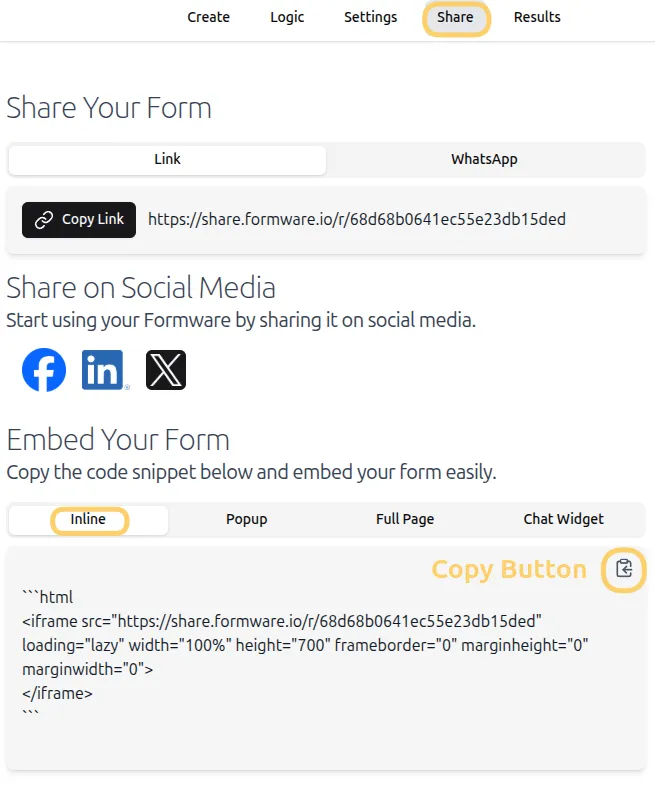
In Webflow:
- Open the Designer.
- Drag a Code Embed element into your layout.
- Paste the embed code into the HTML Embed Code Editor.
- Click Save & Close.
Your form will now appear as part of your page layout.
Option 3: Full page form embed
Section titled “Option 3: Full page form embed”If you want your form to take up an entire page:
- Create a new blank page in Webflow.
- Add a Code Embed element.
- Paste the full page embed code from Formware.
This is useful for landing pages or dedicated form experiences.
Publish and test your form
Section titled “Publish and test your form”After embedding your form:
- Click Publish in Webflow.
- Select your domain and publish the site.
- Open your live site to verify the form appears correctly.
- Submit a test response to confirm everything is working.
All responses will appear in the Results tab in your Formware dashboard.