
How to Add a WhatsApp Widget to Your Website (Step-by-Step)
Want to add a WhatsApp widget to your website and start conversations instantly?
A WhatsApp form widget lets visitors click a chat-style button, fill out a quick form, and send their details directly to your WhatsApp — perfect for capturing leads, bookings, or inquiries.
In this guide, you’ll learn how to embed a WhatsApp widget using Formware, customize it, and start receiving responses in real time.
Quick Answer
Section titled “Quick Answer”To add a WhatsApp widget to your website:
- Create a form in Formware
- Go to Share → Embed Your Form → Chat Widget
- Copy the embed code
- Paste it into your website (HTML, WordPress, or builder)
Your widget will appear as a floating WhatsApp-style button that opens your form in a popup.
Why Use a WhatsApp Widget on Your Website?
Section titled “Why Use a WhatsApp Widget on Your Website?”A WhatsApp widget helps you turn website visitors into real conversations instantly.
Common use cases:
- Lead generation – capture inquiries from landing pages
- Customer support – let users reach you faster than email
- Bookings & appointments – collect details before starting chat
- Small businesses – manage all communication directly in WhatsApp
Unlike traditional contact forms, responses are delivered instantly to WhatsApp, helping you respond faster and convert more leads.
Step 1: Get Your WhatsApp Widget Embed Code
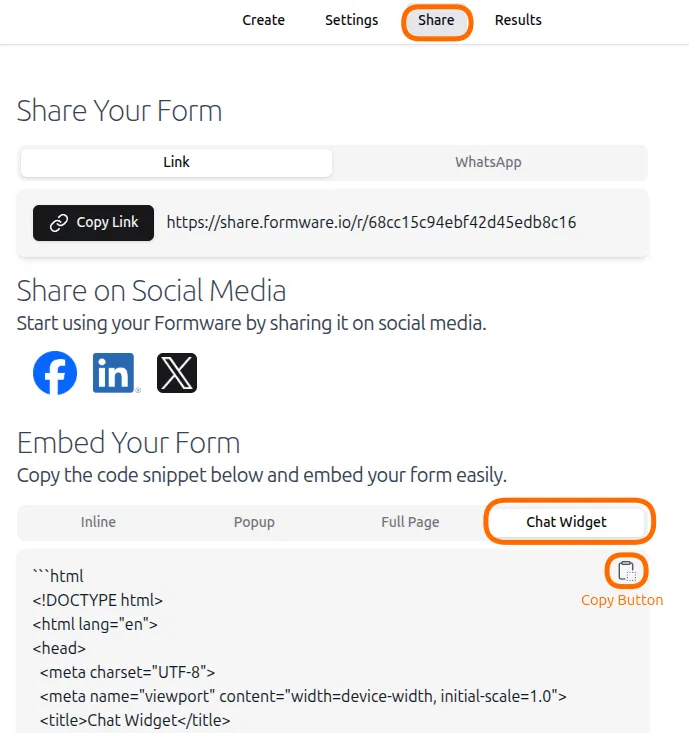
Section titled “Step 1: Get Your WhatsApp Widget Embed Code”Open your form and click Share to navigate to the Share tab.
In the Embed Your Form section, click on the Chat Widget tab. You will see a code snippet that creates a floating WhatsApp-style button that opens your form in a popup.
Step 2: Add the WhatsApp Widget to Your Website
Section titled “Step 2: Add the WhatsApp Widget to Your Website”Depending on your website platform:
Webflow / Framer / Wix: Paste this snippet inside a “Custom Code” or “Embed” block — usually before the closing
</body>tag.Next.js / React / Vue: Add the snippet dynamically with
dangerouslySetInnerHTML, or include the logic in a script tag inside your layout file.
You only need to add it once — the widget will appear automatically across all pages.
Before embedding, make sure your form is ready → Create a form
You can also customize the design → Customize your form
WordPress
Section titled “WordPress”Follow these steps to add a WhatsApp chat widget to your Wordpress site:
1. Add a Custom HTML block
Section titled “1. Add a Custom HTML block”Go to Appearance → Themes → Editor and open the template where you want the widget.
Add a Custom HTML block and paste the embed code.
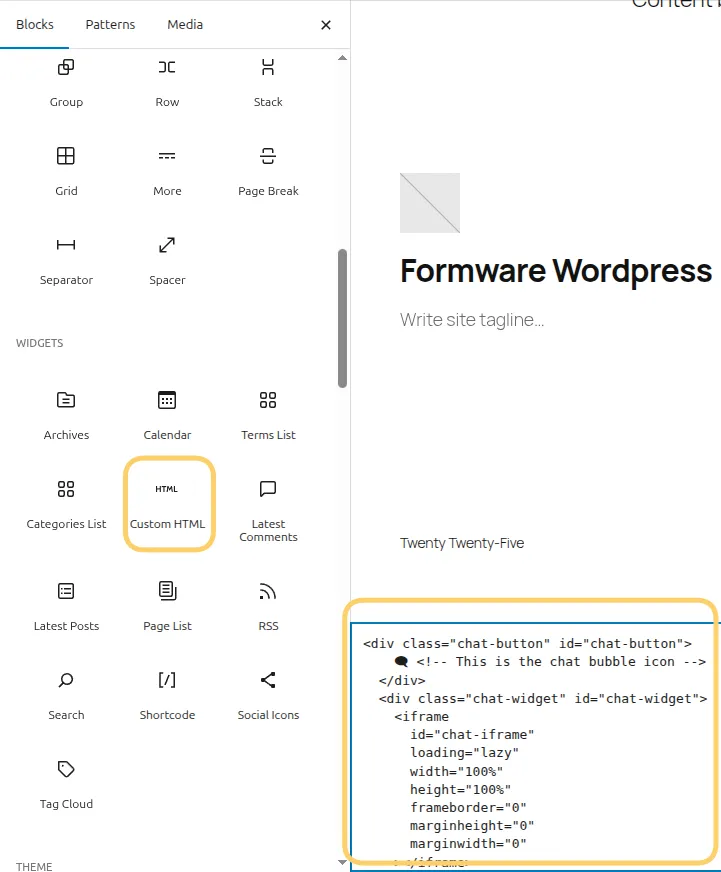
For reference, this is the html code to be copied:
<div class="chat-button" id="chat-button">    🗨    <!-- This is the chat bubble icon, replace with your desired icon --></div><div class="chat-widget" id="chat-widget">    <iframe        id="chat-iframe"        loading="lazy"        width="100%"        height="100%"        frameborder="0"        marginheight="0"        marginwidth="0"    ></iframe></div><script>    (function () {        const iframeSrc = "YOUR_FORM_URL";        const chatButton = document.getElementById("chat-button");        const chatWidget = document.getElementById("chat-widget");        const chatIframe = document.getElementById("chat-iframe");        let chatWidgetOpen = false;
        chatIframe.src = iframeSrc;
        const toggleChatWidget = () => {            chatWidgetOpen = !chatWidgetOpen;            chatWidget.classList.toggle("open", chatWidgetOpen);        };
        chatButton.addEventListener("click", toggleChatWidget);
        document.addEventListener("click", (event) => {            if (!event.target.closest(".chat-widget") && !event.target.closest(".chat-button")) {                chatWidgetOpen = false;                chatWidget.classList.remove("open");            }        });    })();</script>
Replace YOUR_FORM_URL with your actual form link.
2. Add Custom CSS
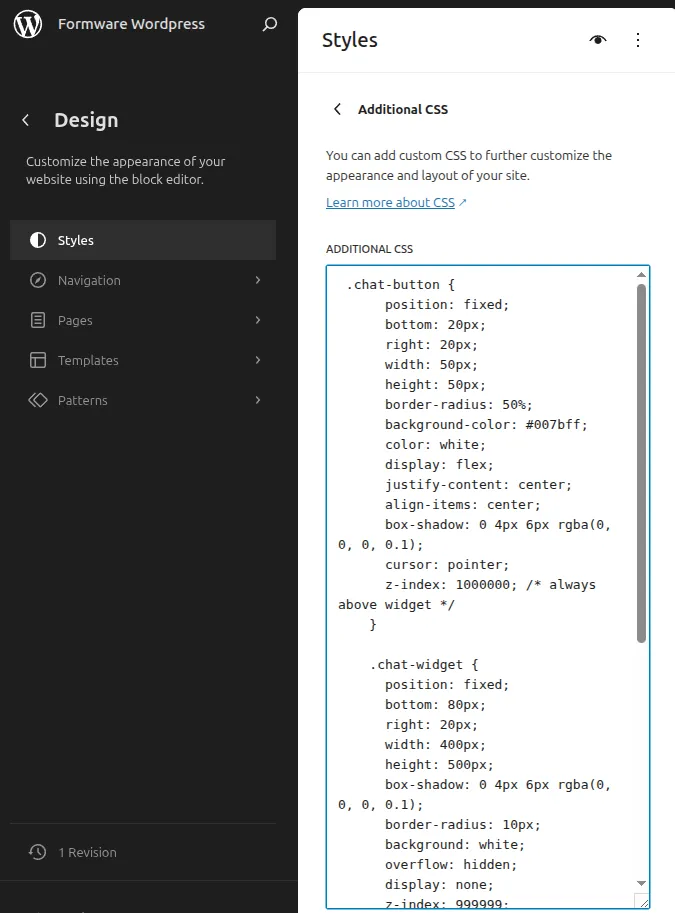
Section titled “2. Add Custom CSS”Go to Appearance → Themes → Editor → Styles → Additional CSS. Here, paste the contents of the <style> from the sample Code snippet. Here is an example:
.chat-button {    position: fixed;    bottom: 20px;    right: 20px;    width: 50px;    height: 50px;    border-radius: 50%;    background-color: #007bff;    color: white;    display: flex;    justify-content: center;    align-items: center;    box-shadow: 0 4px 6px rgba(0, 0, 0, 0.1);    cursor: pointer;    z-index: 1000000; /* always above widget */}
.chat-widget {    position: fixed;    bottom: 80px;    right: 20px;    width: 400px;    height: 500px;    box-shadow: 0 4px 6px rgba(0, 0, 0, 0.1);    border-radius: 10px;    background: white;    overflow: hidden;    display: none;    z-index: 999999;}
.chat-widget.open {    display: block;}
@media (max-width: 768px) {    .chat-widget {        top: 0;        right: 0;        width: 100dvw;        height: calc(100dvh - 75px); /* 90px = 50px icon + 20px margin + 5px breathing room */        border-radius: 10px 10px 0 0; /* rounded only at top */        box-shadow: 0 4px 10px rgba(0, 0, 0, 0.2);    }}
This is how the above CSS looks in Wordpress:
Add Required WhatsApp Script
Section titled “Add Required WhatsApp Script”Add this script before closing your </body> tag:
<script src="https://media.formware.io/widgets/formware-whatsapp-redirect.min.js"></script>This script ensures your website can communicate with the widget and send responses correctly to WhatsApp.
Step 3: Test Your WhatsApp Widget
Section titled “Step 3: Test Your WhatsApp Widget”- Open your website.
- You should see the green WhatsApp-style button in the bottom-right corner.
- Click it — your form should appear as a popup chat window.
- Fill it out to test submissions. Complete responses will be automatically forwarded to WhatsApp if linked, and also appear in the
Resultstab in your Formware dashboard.
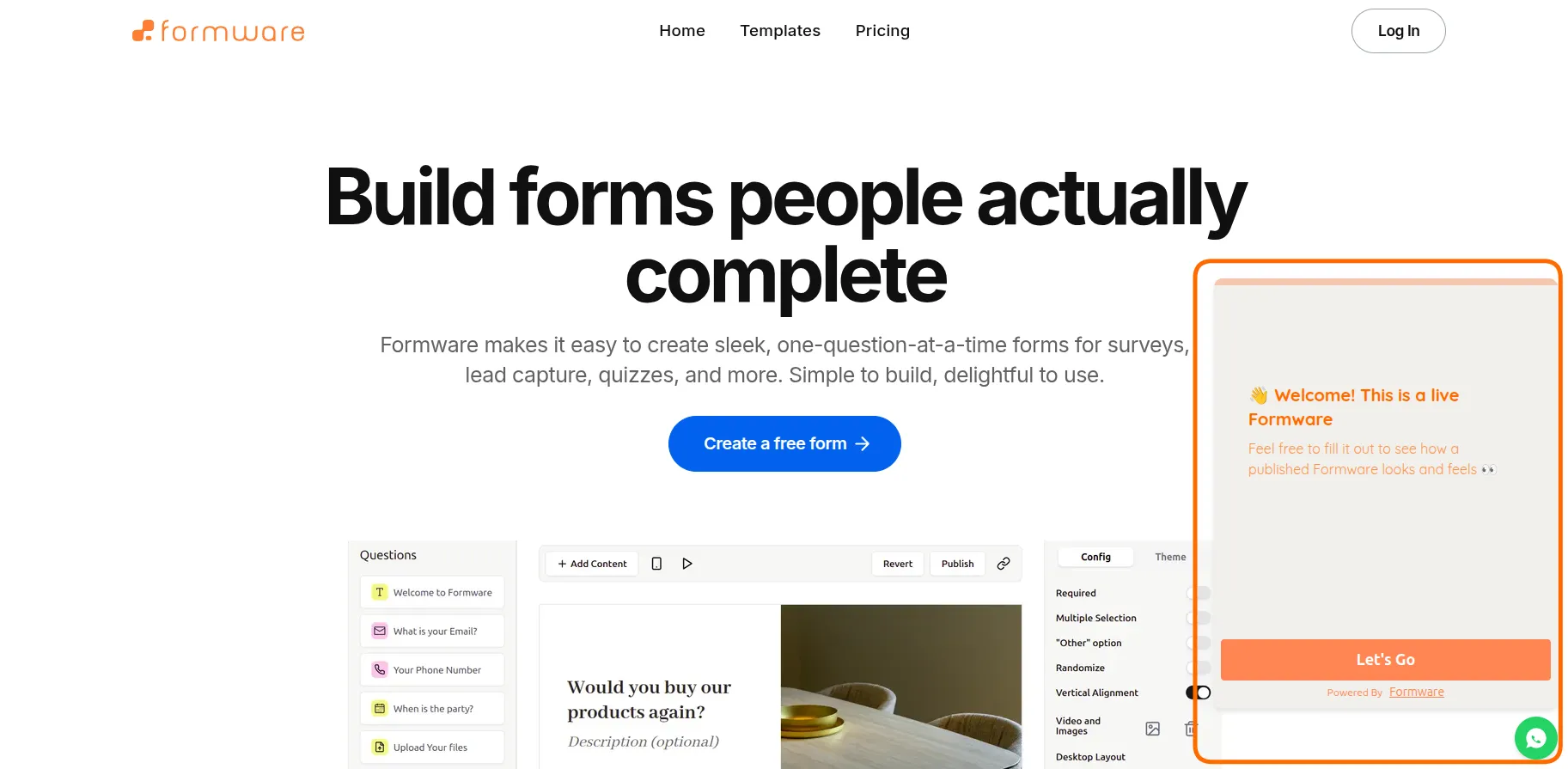
Here’s how the WhatsApp widget looks on the homepage of Formware:
Customize Your WhatsApp Widget
Section titled “Customize Your WhatsApp Widget”You can easily customize the widget:
- Color → change
background-color - Position → adjust
bottom,left, orright - Size → modify width and height
Example (move to bottom-left):
bottom: 20px;right: auto;left: 20px;Start Collecting Leads on WhatsApp
Section titled “Start Collecting Leads on WhatsApp”Your WhatsApp Form Widget is now live 🎉
Start collecting leads, bookings, or inquiries — directly from your website visitors, with all responses synced to Formware and WhatsApp.
👉 Create your form and get started for free
Can I add a WhatsApp widget without coding?
Section titled “Can I add a WhatsApp widget without coding?”Yes. Website builders like Webflow, Wix, and WordPress allow you to paste the code without advanced development.
Does the widget work on mobile devices?
Section titled “Does the widget work on mobile devices?”Yes. The widget is responsive and adapts to mobile screens automatically.
Can I customize the WhatsApp button design?
Section titled “Can I customize the WhatsApp button design?”Yes. You can change colors, size, and position using CSS.
Do responses go directly to WhatsApp?
Section titled “Do responses go directly to WhatsApp?”Yes. When WhatsApp forwarding is enabled, submissions are instantly sent to your connected number.
Can I use this on multiple pages?
Section titled “Can I use this on multiple pages?”Yes. Add the script once, and the widget will appear across your site.