
Embed Your Form
You can embed your Formware form directly on your website using an iframe. This allows visitors to view and submit your form without leaving your site. Simply copy the iframe embed code from Formware and place it on the page where you want your form to appear.
Get the Embed Code
Section titled “Get the Embed Code”- Open your form in Formware.
- Click the
Sharetab. - Copy the iframe HTML snippet displayed in the panel.
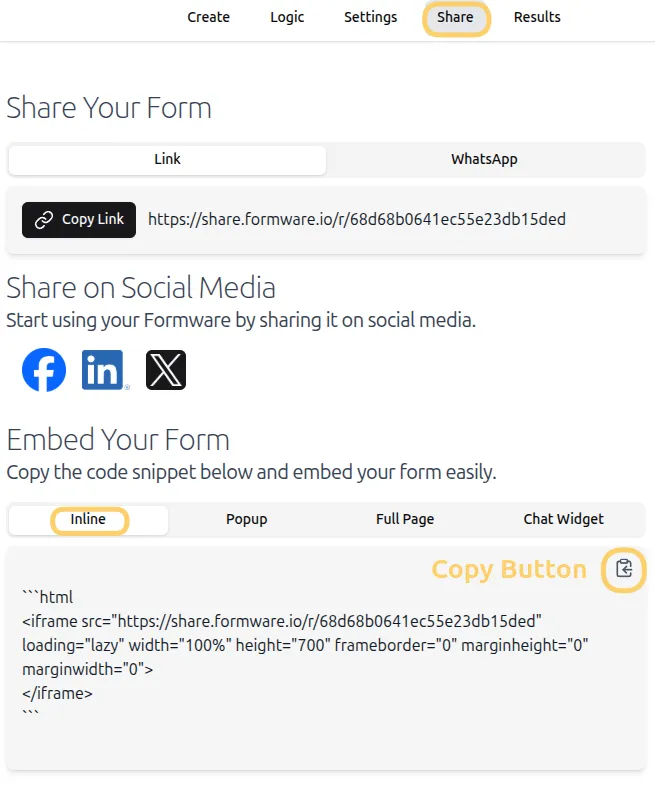
This snippet automatically displays your form on your website and keeps it synced with Formware.
Embed your form on different platforms
Section titled “Embed your form on different platforms”You can embed your form on most website builders and frameworks using the iframe code. The exact steps depend on your platform.
Website builders (no-code)
Section titled “Website builders (no-code)”- Webflow / Framer / Wix:
Add the iframe code in a Custom Code or Embed block, usually placed before the closing</body>tag.
For step-by-step instructions, see:
Content management systems
Section titled “Content management systems”- WordPress:
Use a Custom HTML block in the editor or add it to a reusable template to display the form across multiple pages.
→ View detailed WordPress guide
Developer frameworks
Section titled “Developer frameworks”- Next.js / React / Vue:
Add the iframe directly using an<iframe>element or render it dynamically (for example, withdangerouslySetInnerHTML).
You only need to add the iframe once — your form will appear automatically wherever the code is placed.
Test Your Embedded Form
Section titled “Test Your Embedded Form”- Open your website page where the iframe is embedded.
- Verify that your form loads correctly.
- Fill out a test submission to ensure responses appear in the Formware dashboard.
Both partial and complete submissions are recorded in the Results tab.
Here’s how the iframe embed looks on the homepage of Formware:
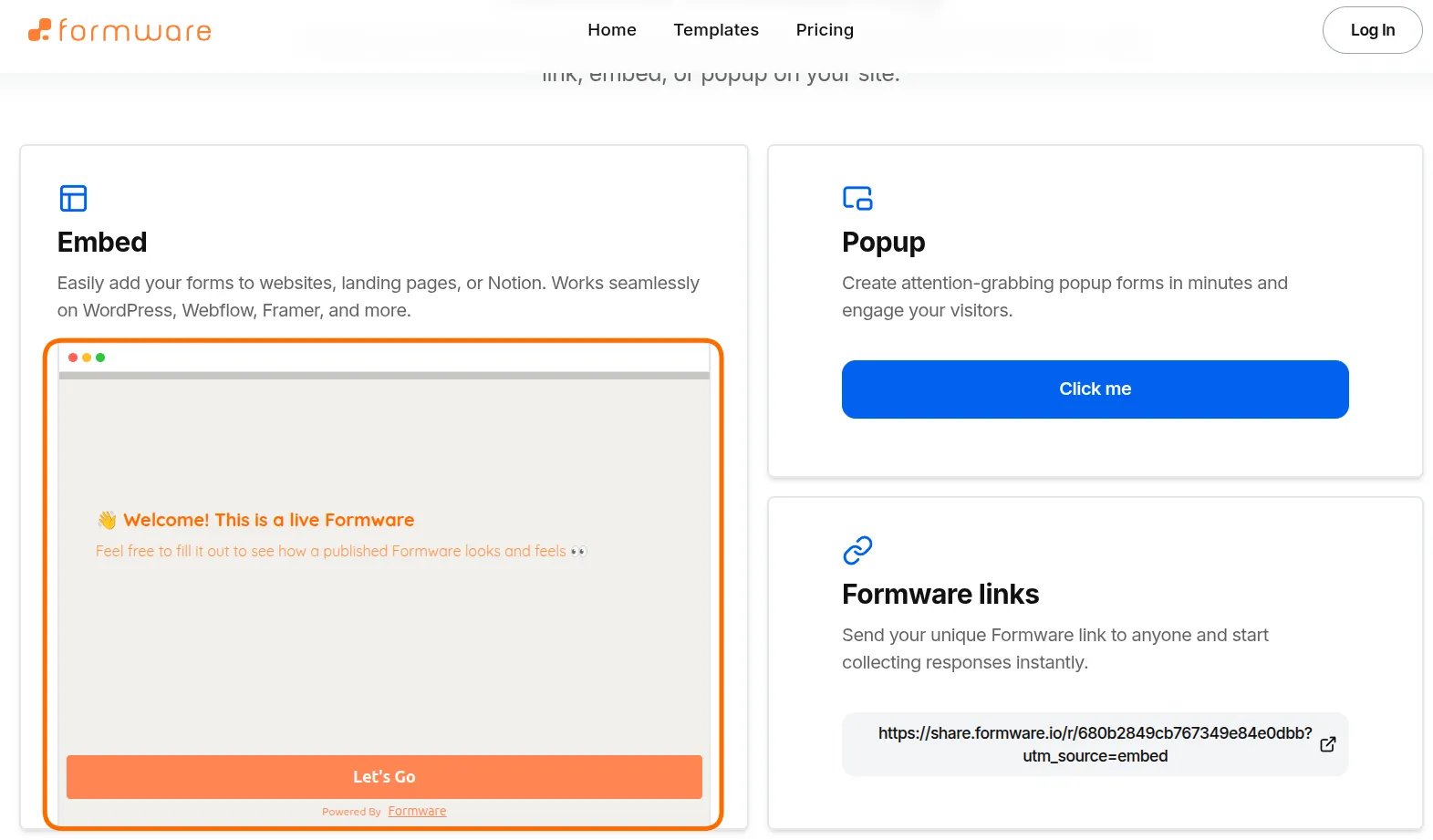
Your Formware form is now live on your website. Start collecting leads, inquiries, or bookings directly from visitors — all responses will sync automatically with your Formware account.