
Add a Background Image to Your Form
Background images help improve the visual appeal of your form and allow you to match it with your brand’s design.
You can add or update the background image from the Theme section in the right-hand Design panel. To add images, GIFs, or videos inside your form questions, see this guide.
How to add a background image
Section titled “How to add a background image”To add a background image, click the + button next to the Background Image section.
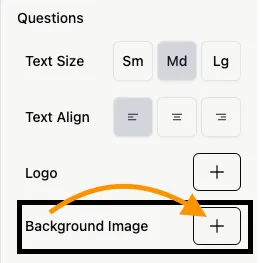
You can either upload an image file or provide a public image URL. If the URL is invalid or inaccessible, the image will not load.

Preview and adjust the background
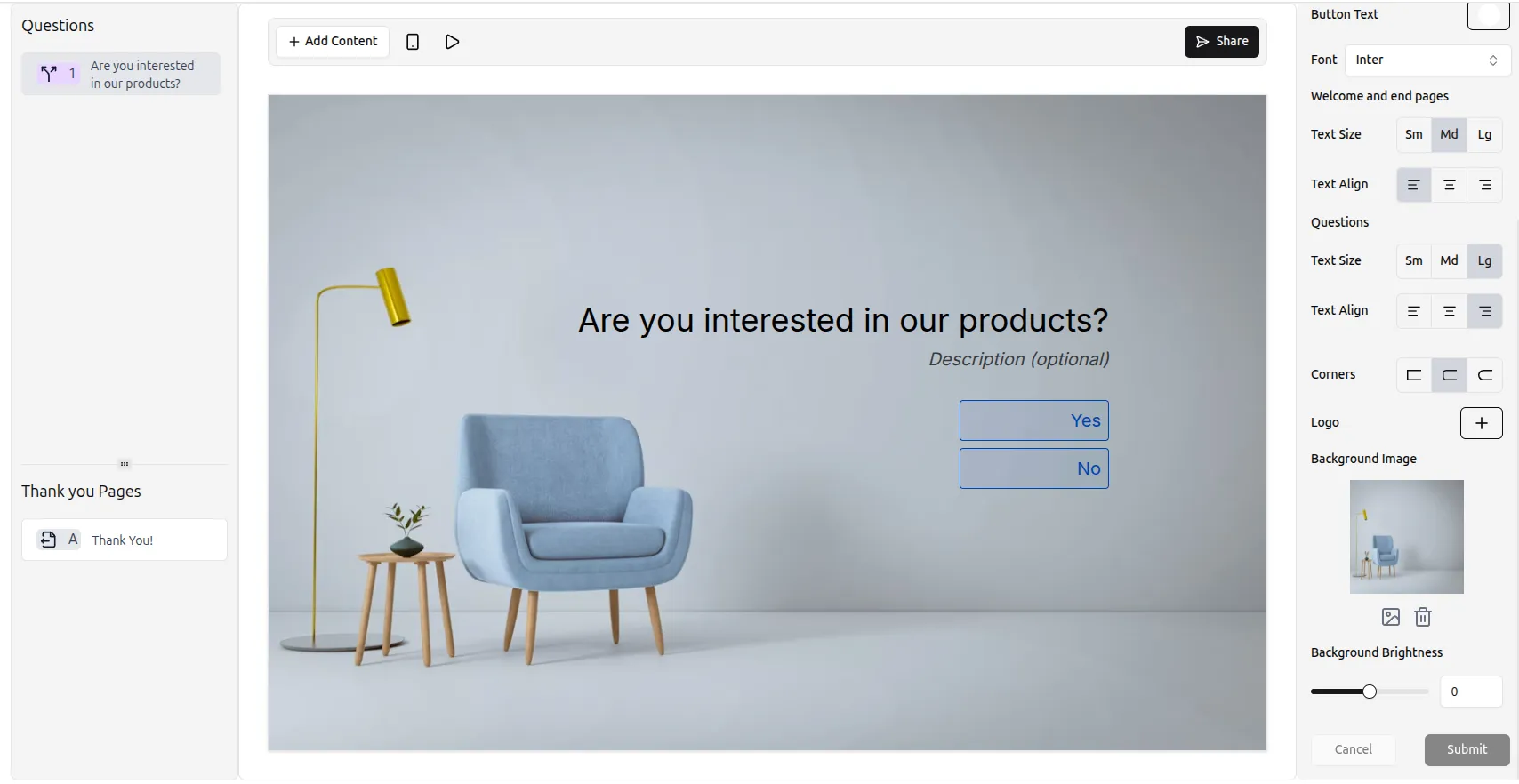
Section titled “Preview and adjust the background”Once added, the image will appear as the background across all questions in your form. If you have also added a logo, the background image will appear behind it.
Change or remove the background image
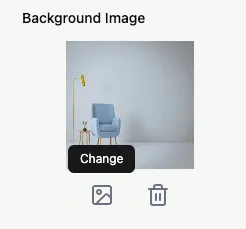
Section titled “Change or remove the background image”- Click the image icon to upload a different background
- Click the trash icon to remove the current background
Adjust background settings
Section titled “Adjust background settings”You can fine-tune the appearance of your background image using the available customization controls, such as brightness.
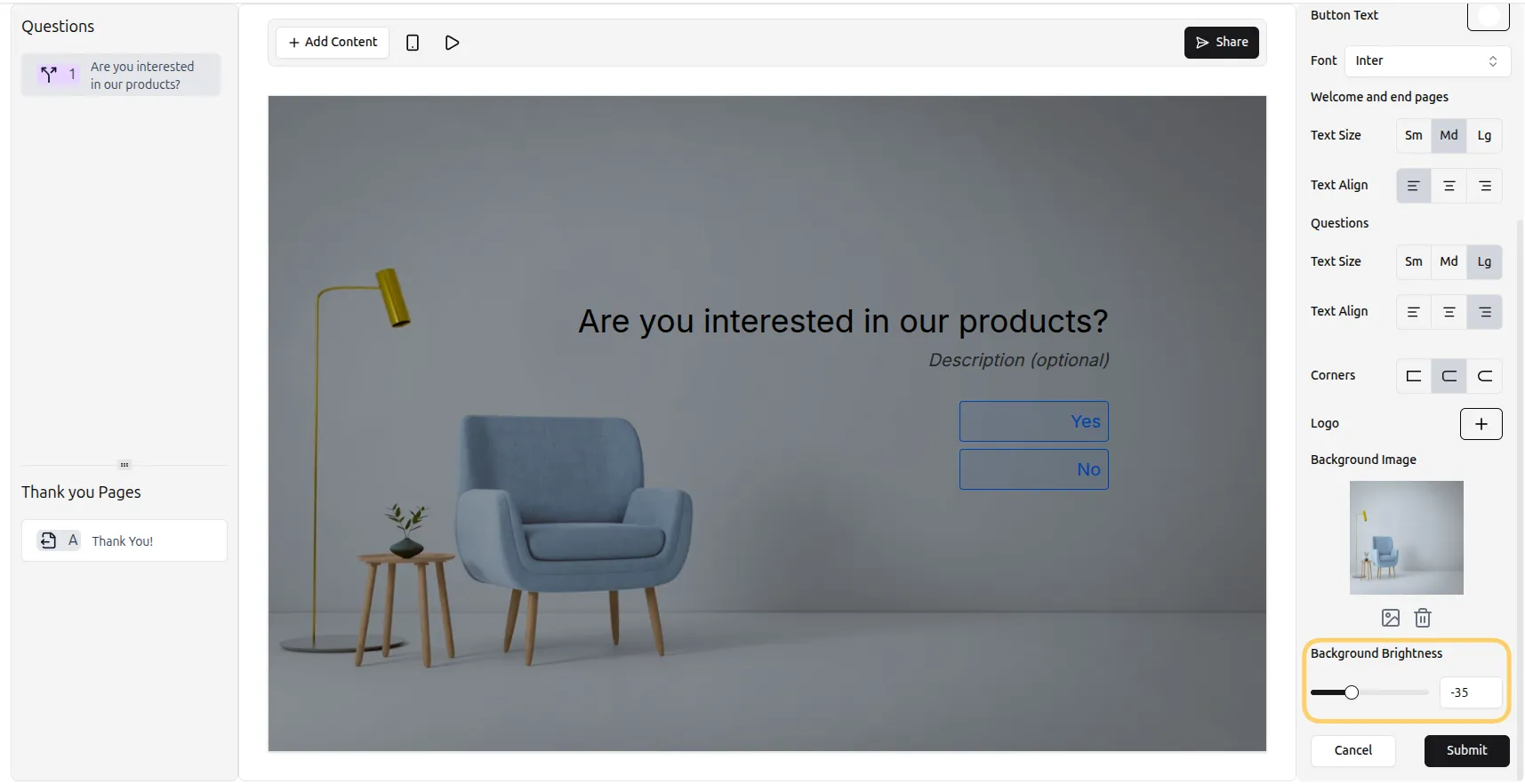
Once you’re satisfied with the changes, click Submit to apply them.