
Add Images and GIFs to Your Forms
Adding visual elements like images and animated GIFs is one of the most effective ways to increase form completion rates and reinforce your brand identity. Formware allows you to embed high-quality media directly into any question block.
How to Add Media to a Question
Section titled “How to Add Media to a Question”Open the Media Gallery
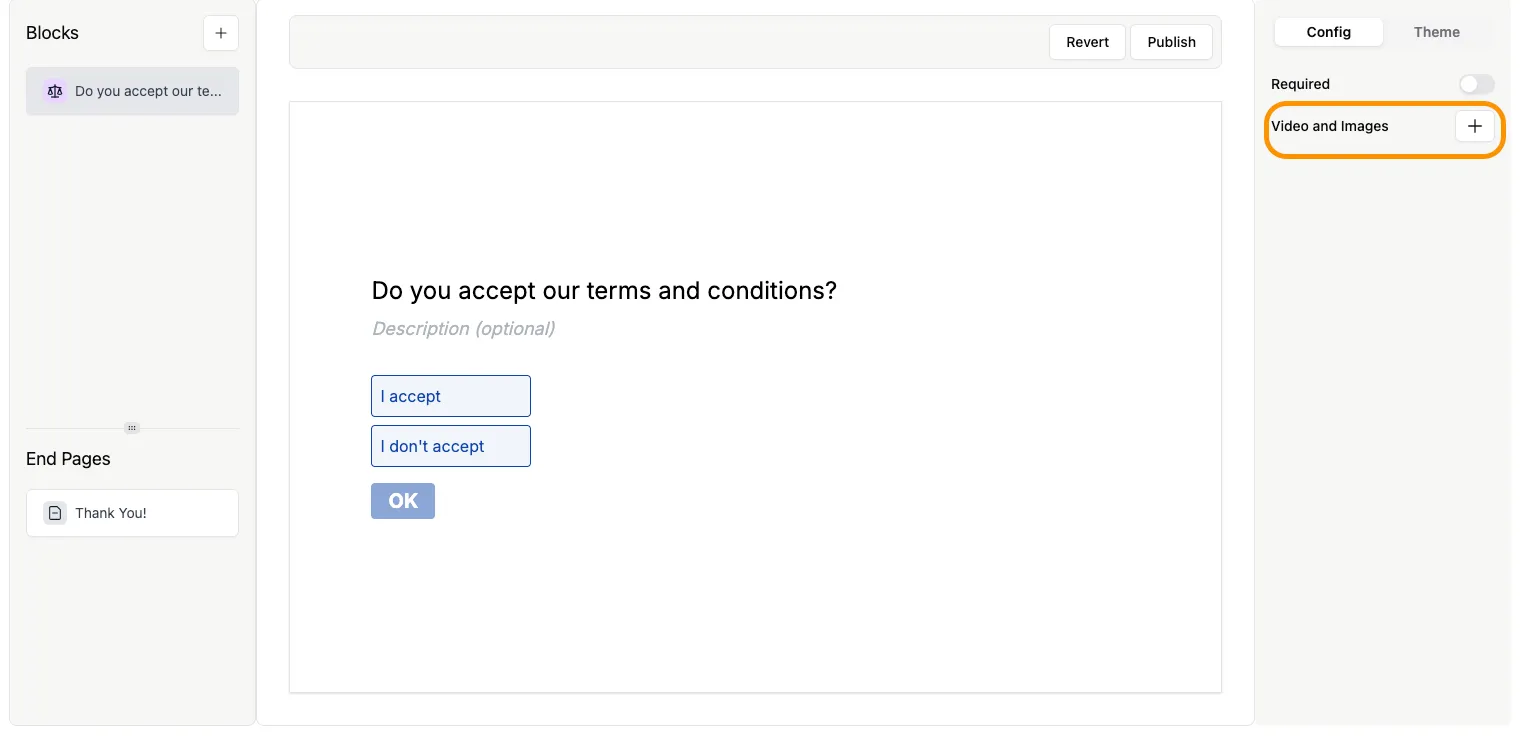
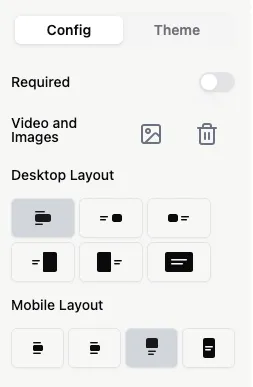
Section titled “Open the Media Gallery”In the form builder, click on the question you wish to customize. In the Question Settings panel on the right, locate the Video and Images section and click the “+” button.
Upload Your Media
Section titled “Upload Your Media”You can upload a file directly from your computer. Click the Upload tab and either drag and drop your file into the designated area or click to browse your local files.
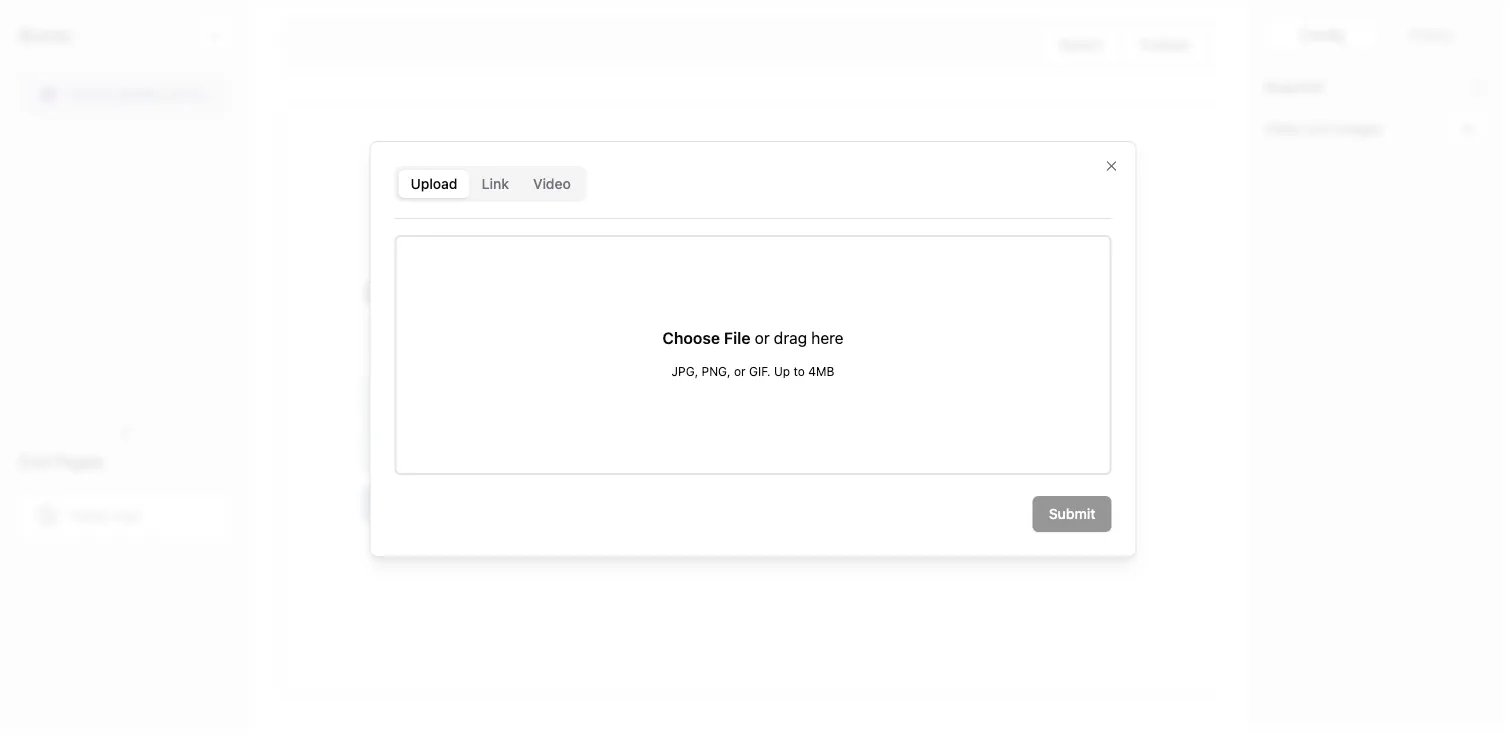
Supported Formats and Requirements: Formware supports JPEG, PNG, and both static and animated GIF files. The maximum file size is 4 MB. We also support transparent backgrounds, which allows your images to blend seamlessly if you’ve configured a specific Theme background color.
Use an Image URL
Section titled “Use an Image URL”If your images are hosted elsewhere (like Unsplash or a company server), navigate to the Link tab. Paste the direct URL of the image file into the field.
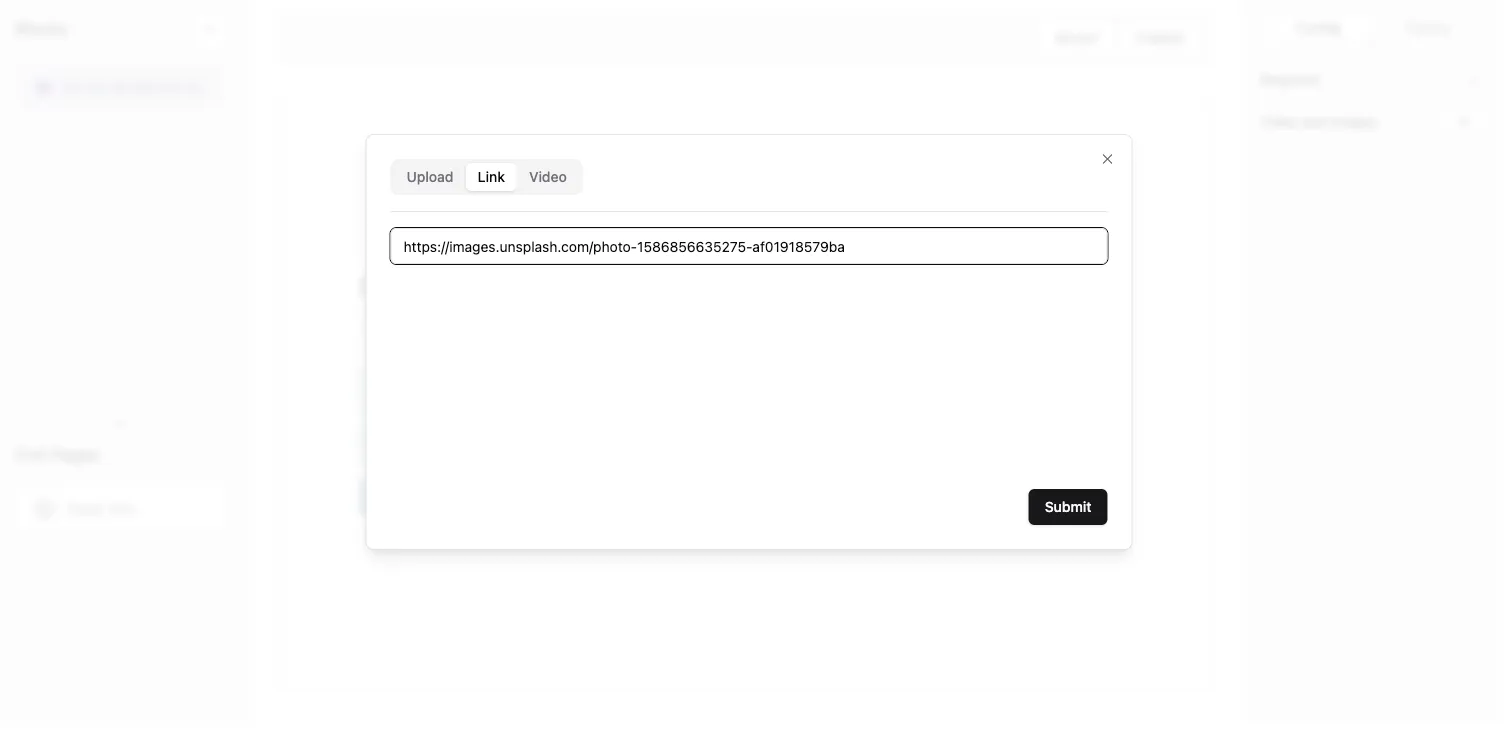
Note: The URL must point directly to an image file. If the link is broken or doesn’t return an image, the changes won’t be reflected in your form.
Confirm and Preview
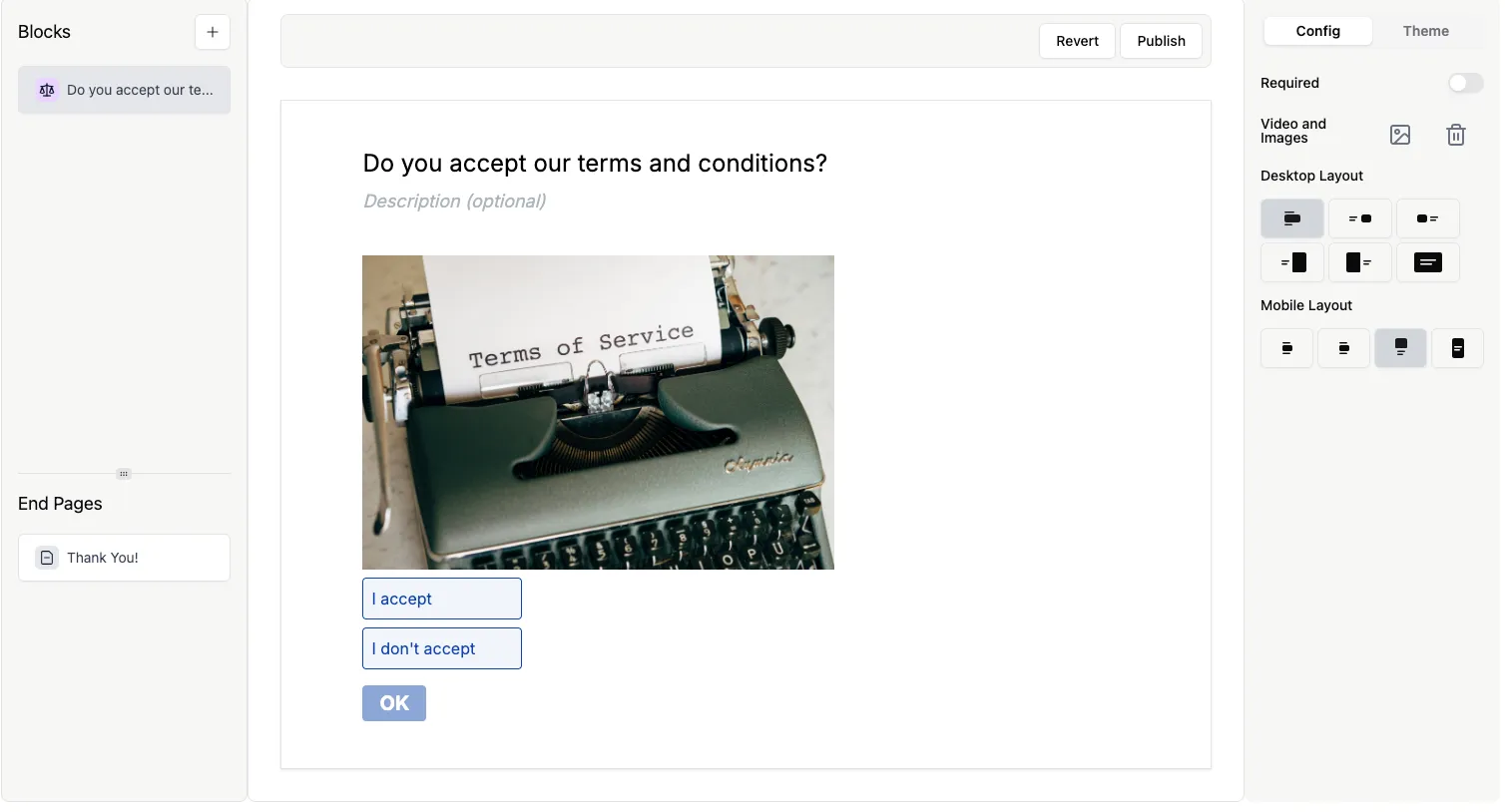
Section titled “Confirm and Preview”Click the submit button, and the media will automatically load into your question block for preview.
Customizing Your Layout
Section titled “Customizing Your Layout”Once your media is added, you can control how it appears to your respondents. Because user experience varies by screen size, Formware allows you to set different layouts for different devices.
Select Device Layouts
Section titled “Select Device Layouts”In the Question Settings, use the layout icons to choose how the image sits in relation to the text. Simply click on the layout icon of your choice in the menu.
Managing Media
Section titled “Managing Media”You can update your visuals at any time. Simply use the Change button to swap the file or the Remove button to delete the media from the question entirely.