
Preview Your Form Before Publishing
Previewing your form lets you see exactly how it will appear to respondents. You can test the layout, question flow, and mobile responsiveness before making your form live.
Step 1: Open the Create Panel
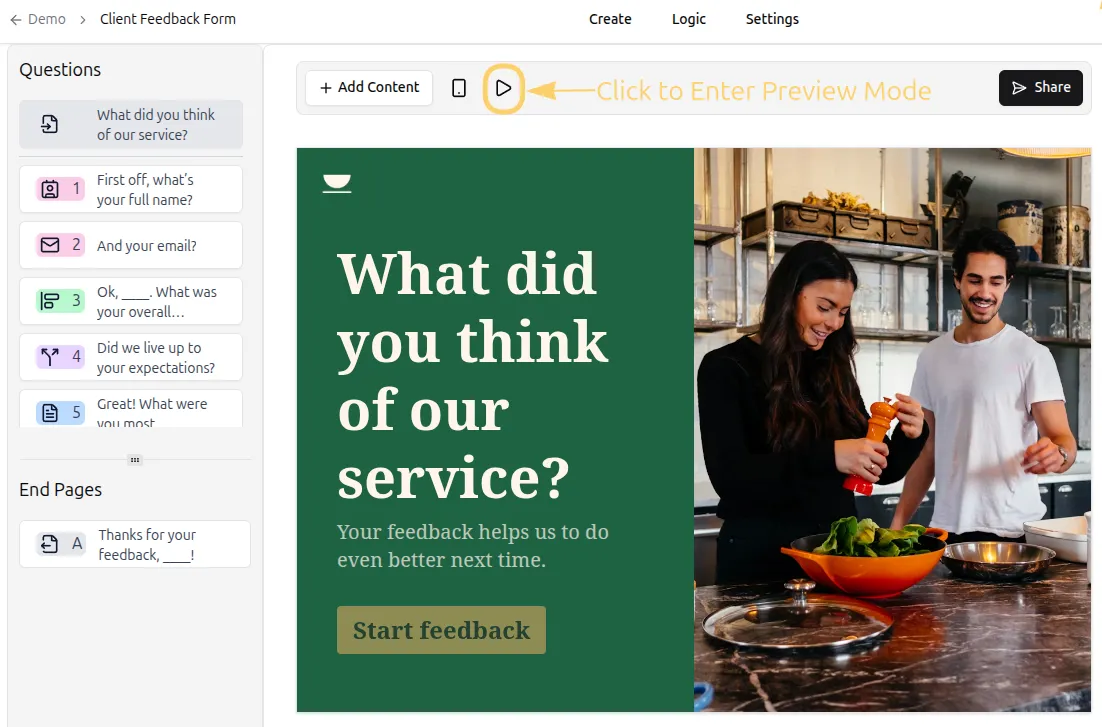
Section titled “Step 1: Open the Create Panel”Log in to Formware and open the form you want to preview. The preview mode is available in the Create panel toolbar.
Step 2: Enter Preview Mode
Section titled “Step 2: Enter Preview Mode”Click the Play icon in the toolbar to enter preview mode. This will display your form as it will appear to respondents.
- You can navigate through your form just like a respondent would.
- Ensure all questions, required fields, and logic are functioning as expected.
Step 3: Preview on Desktop or Mobile
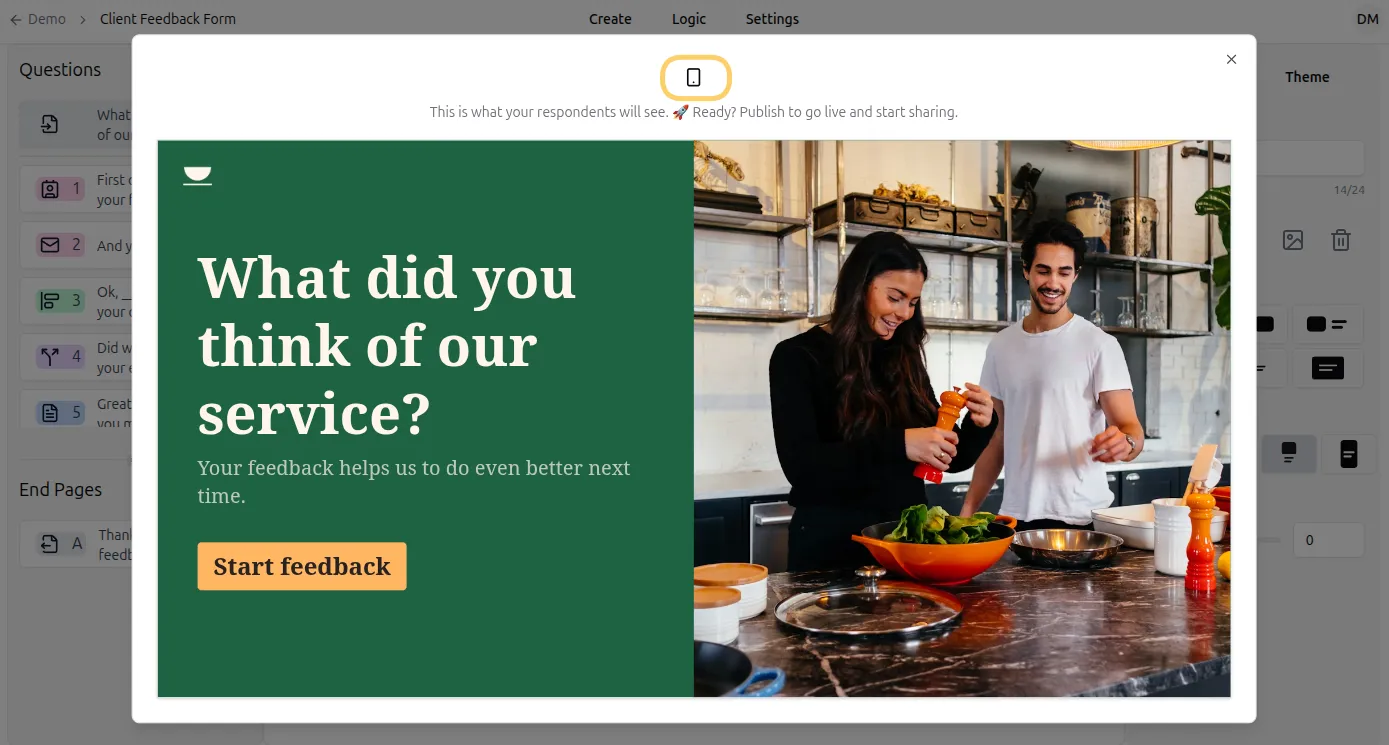
Section titled “Step 3: Preview on Desktop or Mobile”Use the mobile icon in the preview toolbar to switch to mobile view. This lets you:
- Check layout and formatting on smaller screens
- Test how buttons and input fields appear on mobile devices
Previewing on both desktop and mobile helps you catch issues before publishing.
Step 4: Exit Preview Mode
Section titled “Step 4: Exit Preview Mode”Click the X button in the preview popup to exit preview mode and return to the editor. Any unsaved changes are retained in the editor.
Once you have tested your form in preview mode, make sure to publish it so that it can be shared with your audience or respondents.
Learn more about publishing your form in Publish Your Form.