
Add SEO Preview Information to a Form
When you share your Formware link on social media or messaging apps, the platform generates a visual preview. By optimizing your SEO settings, you can ensure your form looks professional, stays on-brand, and encourages higher click-through rates.
How it Works
Section titled “How it Works”To customize your metadata, open your form in the editor, click on the Settings tab in the top navigation bar, and select SEO from the left-hand menu.
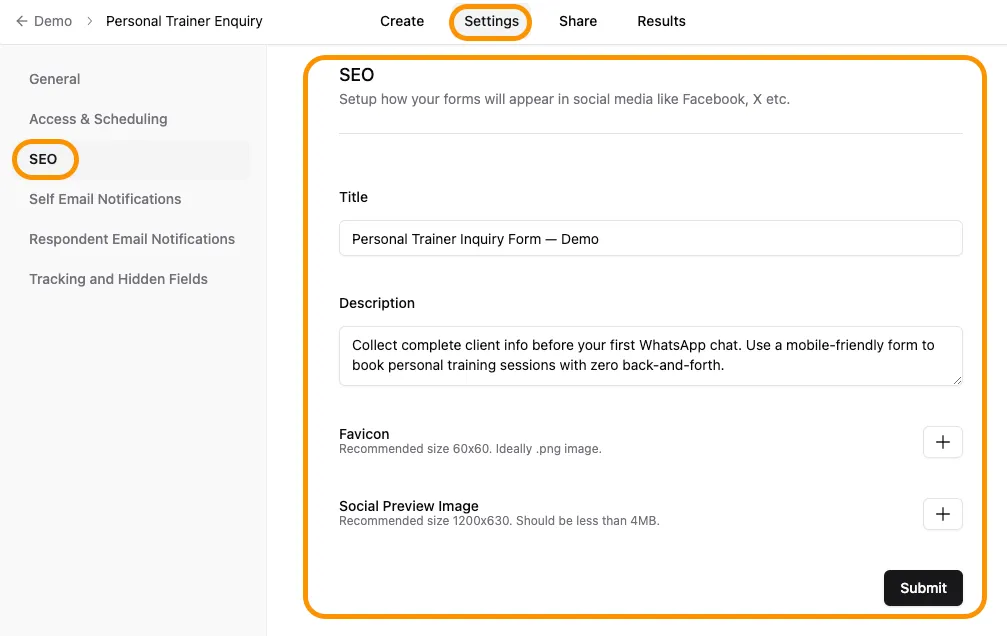
By default, this matches the internal name of your Formware. You can edit it here to create a more compelling headline for external audiences and search engines.
Description
Section titled “Description”This is the text snippet displayed below the title in search results and social media cards. This field is empty by default; adding a clear summary or call-to-action (CTA) helps users understand what your form is about before they click.
Preview Image & Favicon
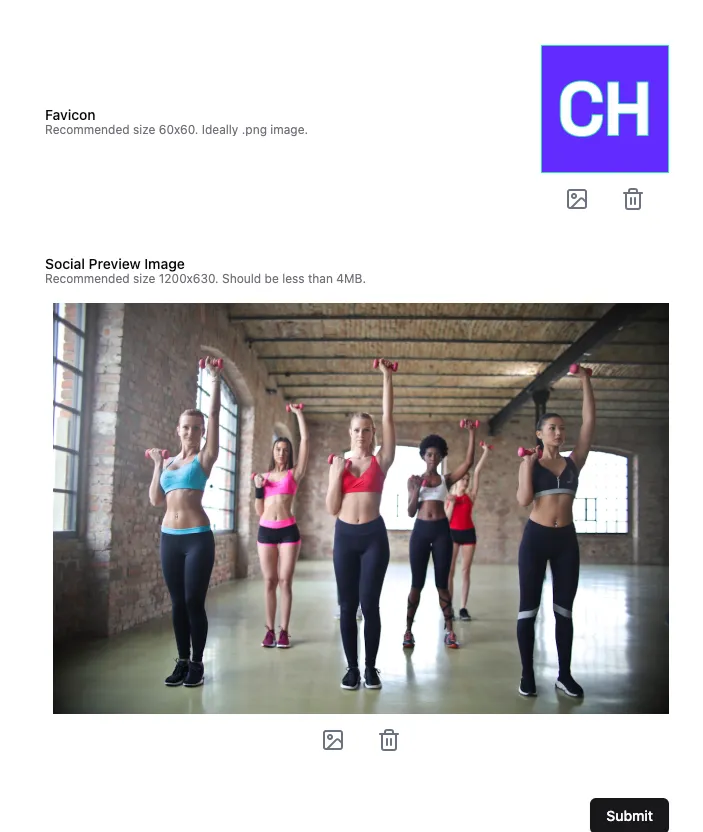
Section titled “Preview Image & Favicon”These assets define the visual identity of your shared links:
- Favicon: The small icon that appears in browser tabs and bookmark bars.
- Preview Image (Open Graph): The thumbnail shown when your link is shared on platforms like WhatsApp, Facebook, or Slack.
Examples of Meta Information in Action
Section titled “Examples of Meta Information in Action”Once you have uploaded your assets, your SEO panel will show a summary of the active visuals. You can click the image icon next to the file to upload a replacement or the trash can icon to delete it.
Platform Previews
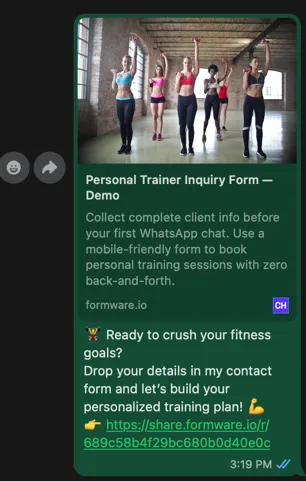
Section titled “Platform Previews”Here is how your form appears when shared across different ecosystems:
On X (formerly Twitter):

On WhatsApp:
Troubleshooting: Why isn’t my preview updating?
Section titled “Troubleshooting: Why isn’t my preview updating?”If you update your SEO settings (title, description, or images) after you have already shared the link, you may notice that platforms continue to show the old information. This is usually due to caching.
Why This Happens
Section titled “Why This Happens”- Cached Previews: Social media and messaging apps “save” a snapshot of your link to speed up loading. They may continue showing the old data until their internal cache refreshes.
- File Size Limits: Specifically on WhatsApp, the preview image will not display if the file size is larger than 300 KB. Make sure your image is compressed before uploading.
How to Fix It
Section titled “How to Fix It”- Use Debugging Tools: Use the LinkedIn Post Inspector or the Facebook Sharing Debugger to force the platform to “scrape” your new data.
- Duplicate Your Form: If you need an immediate fix, duplicate the form. The new URL will not have any cached data associated with it.
- Clear App Cache: On mobile apps like WhatsApp, clearing the app’s cache in your phone settings can sometimes force an update.