
Number Question
The Number question allows respondents to enter numeric values only. This is ideal for collecting quantities, ages, scores, or other numeric data.
By setting minimum and maximum values, you can enforce valid ranges and ensure that responses meet your requirements.
Common use cases
Section titled “Common use cases”Use a Number question when you want to:
- Collect ages, quantities, or numeric ratings
- Ask for numeric measurements or counts
- Validate numeric input with minimum or maximum limits
- Use numeric responses for calculations or conditional logic
How to add a Number question
Section titled “How to add a Number question”- Open your form in the Formware editor.
- Click the
+ Add Contentbutton. - Select Number from the question types.
- Enter your question text and optionally add a description or instructions.
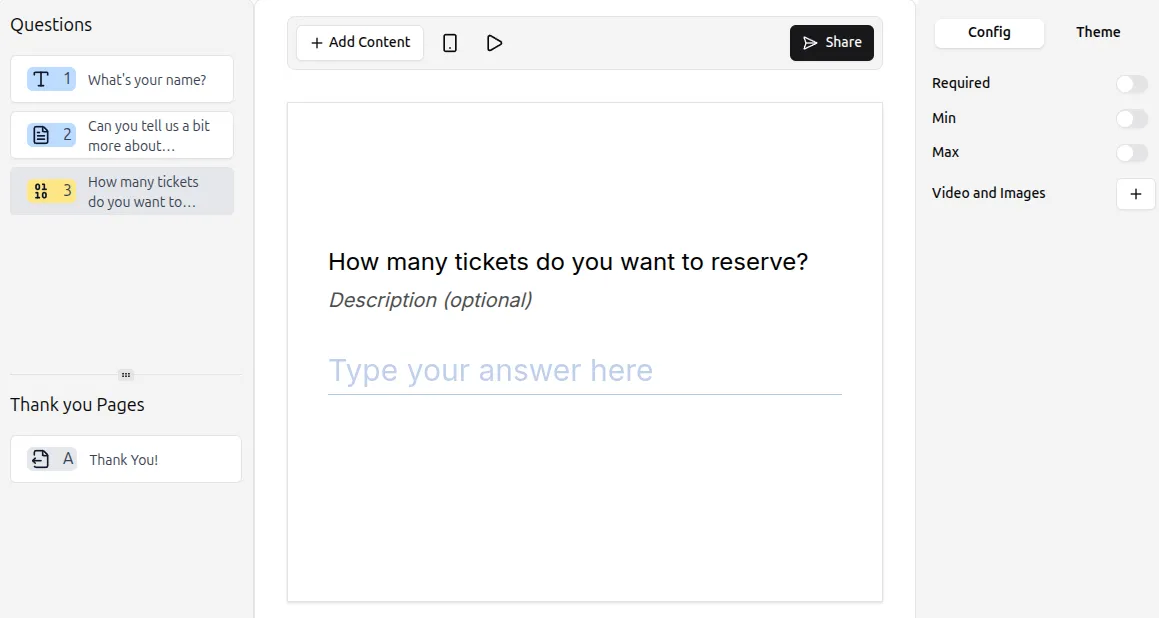
Respondents can enter numeric values directly in the input field.
Configuring Number question settings
Section titled “Configuring Number question settings”The Config tab in the right-hand panel allows you to adjust the following options:
Make the question required
Section titled “Make the question required”Enable the Required toggle to ensure respondents cannot skip the question.
Set minimum and maximum values
Section titled “Set minimum and maximum values”You can control valid numeric input:
- Toggle Min value and enter the minimum allowed number.
- If a respondent enters a number below this value, an error message is displayed.
- Toggle Max value and enter the maximum allowed number.
- If a respondent enters a number above this value, an error message is displayed.
These limits ensure data integrity and prevent invalid input.
Example: Using Min Value
Section titled “Example: Using Min Value”You can enforce a minimum numeric value to ensure valid input.
For instance, suppose you want respondents to enter a number 5 or higher:
- In the Config tab, toggle Min value and set it to 5.
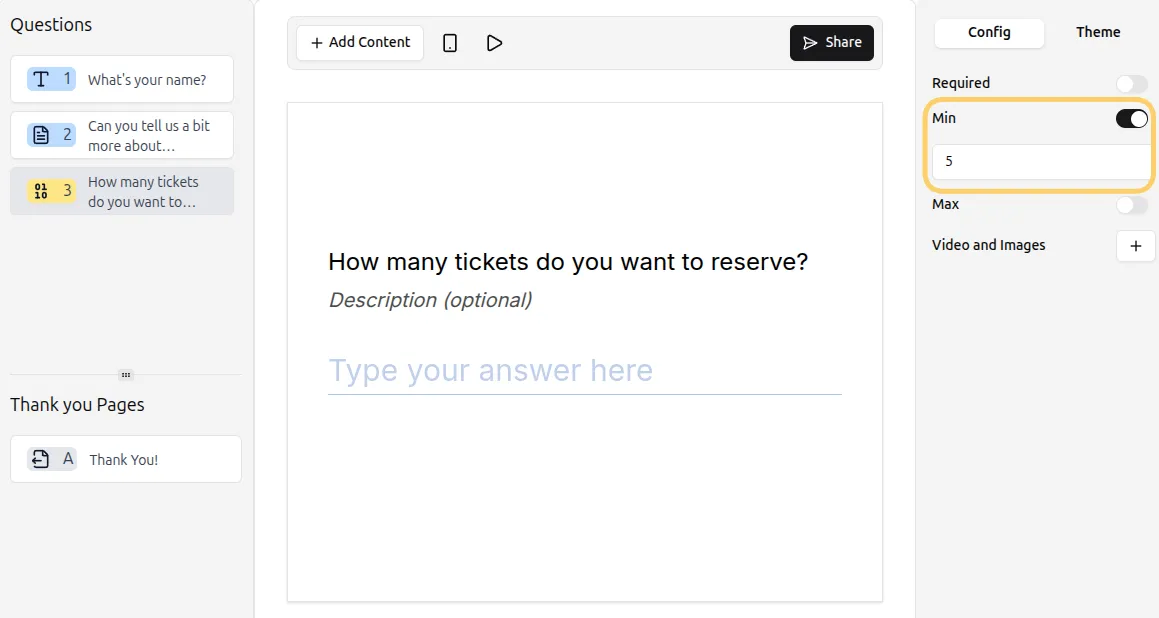 Min value set to 5 in the Number question settings.
- When a respondent enters a number below 5 (e.g., 3), the form displays an error:
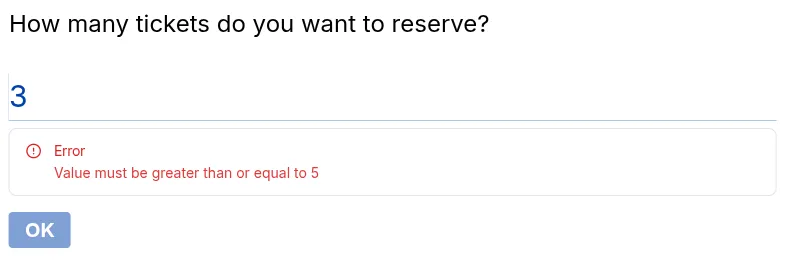 Error shown when the respondent enters 3, below the minimum value.
This validation ensures that only numbers equal to or greater than the minimum are accepted.
Add media (optional)
Section titled “Add media (optional)”Enhance your question with visuals:
- Click Add next to Videos and Images in the question settings.
- Upload relevant images or videos.
For more guidance on visuals, see: Add Images and GIFs
Tips for Number questions
Section titled “Tips for Number questions”- Clearly indicate the expected numeric range in your question or description.
- Use min and max values to prevent invalid input.
- Combine with conditional logic to show or hide questions based on numeric responses.