
Add Questions to Your Form
Once your form is created, you can add questions to collect information from respondents. Formware provides a variety of question types to suit different data collection needs.
Step 1: Open the Form Editor
Section titled “Step 1: Open the Form Editor”- Log in to Formware.
- Open the form you want to edit.
Step 2: Open the Question Library
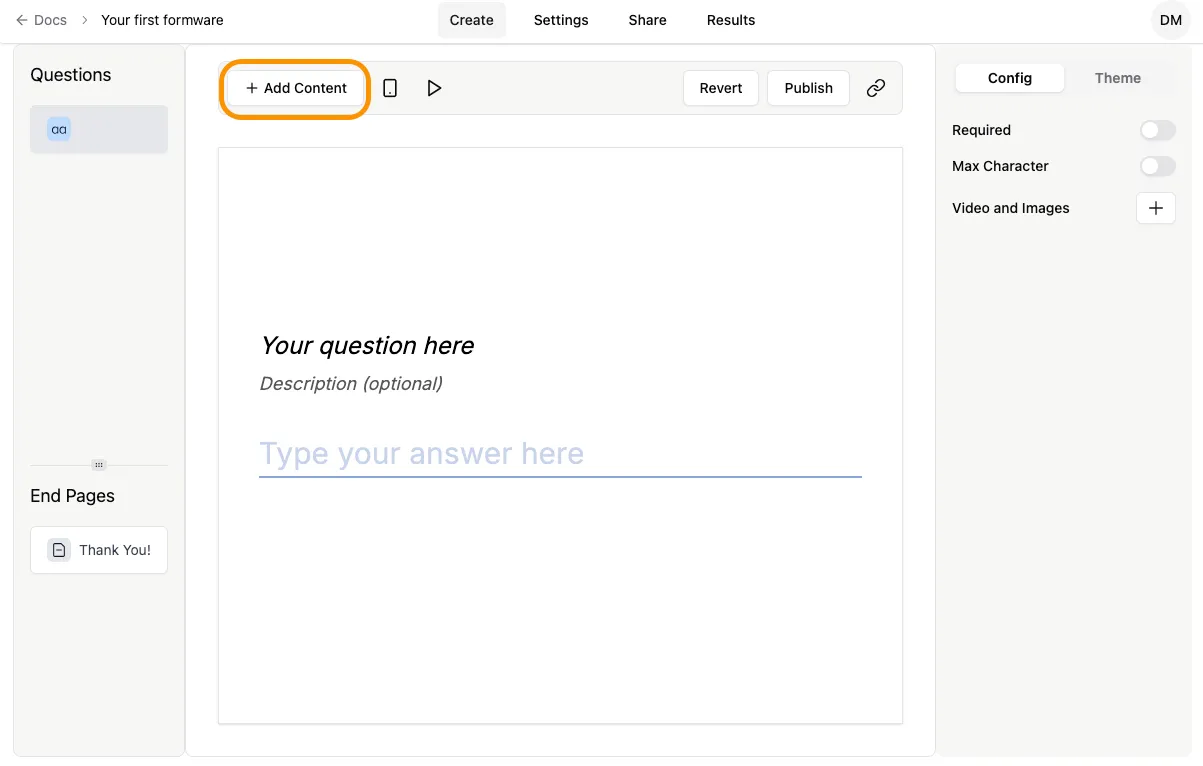
Section titled “Step 2: Open the Question Library”Click the + Add Content button located above the form preview. This opens the library panel where all available question types are displayed.
Step 3: Select a Question Type
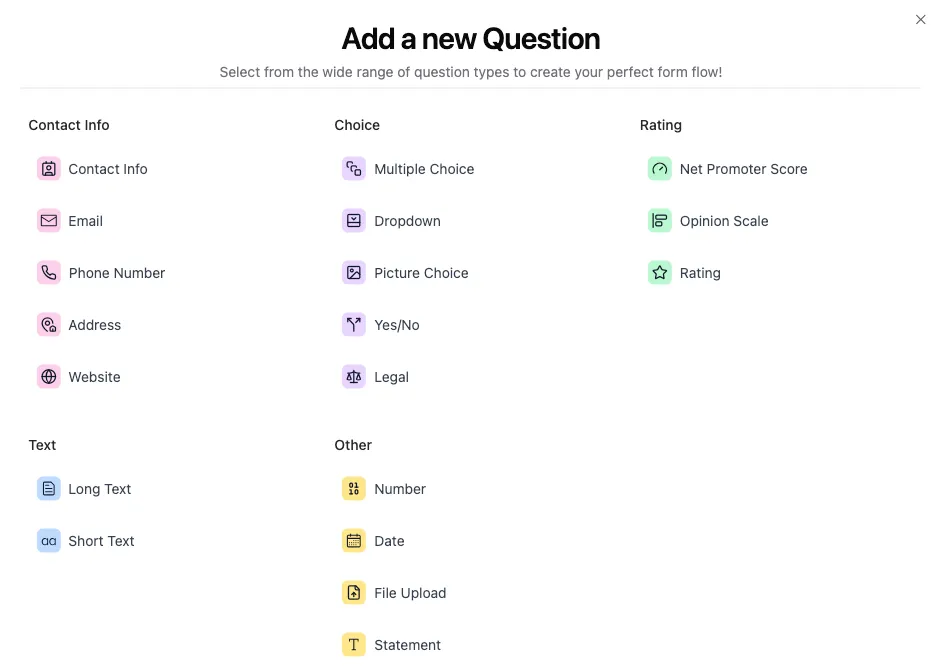
Section titled “Step 3: Select a Question Type”From the library, select the question type that fits the information you want to collect. Common examples include:
- Multiple Choice – let respondents select one or more options.
- Short Text – for names, titles, or short answers.
- Email – for collecting email addresses.
- Phone Number – for international phone input.
- Contact Info – gather full contact details in a single question.
- File Upload – allow respondents to submit documents or images.
Step 4: Add the Question to Your Form
Section titled “Step 4: Add the Question to Your Form”Click the question type, and it will be inserted into your form. You can then:
- Edit the question title and description.
- Toggle required/optional fields.
- Reorder questions using drag-and-drop.
Tips for Adding Questions
Section titled “Tips for Adding Questions”- Plan your form flow – group similar questions together for a smooth respondent experience.
- Start with required information – add mandatory fields first to ensure essential data is collected.
- Use descriptive titles – clear labels help respondents understand what information is needed.