
Share Your Form using WhatsApp Business Tools
You can share your form directly through WhatsApp Business by adding your form link to automated messages. This allows you to send your form to customers instantly when they message you.
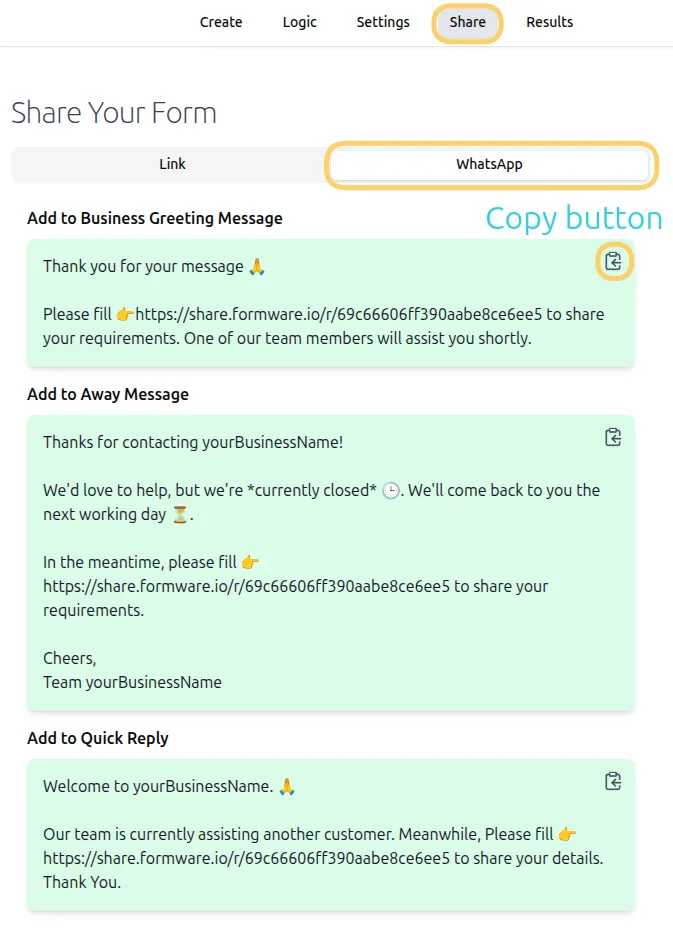
Copy a message template
Section titled “Copy a message template”- Open your form in the editor.
- Go to the Share tab.
- Navigate to the WhatsApp section.
- Choose a template:
- Greeting message
- Away message
- Quick reply
- Copy the template and customize the message as needed.
These templates include your form URL, so you can quickly reuse them in WhatsApp.
Add the message to WhatsApp Business
Section titled “Add the message to WhatsApp Business”Once your message is ready:
- Open the WhatsApp Business app.
- Tap the menu (⋮) in the top-right corner.
- Go to Business Tools.
- Choose where to add your message:
- Greeting message – sent when a customer messages you for the first time
- Away message – sent when you’re unavailable
- Quick replies – reusable responses for common questions
- Paste your customized message and save.
After setup, WhatsApp will send these messages automatically based on your configuration.
When to use each option
Section titled “When to use each option”- Greeting message: Share your form with new contacts automatically
- Away message: Collect responses even when you’re offline
- Quick replies: Quickly send your form link during conversations