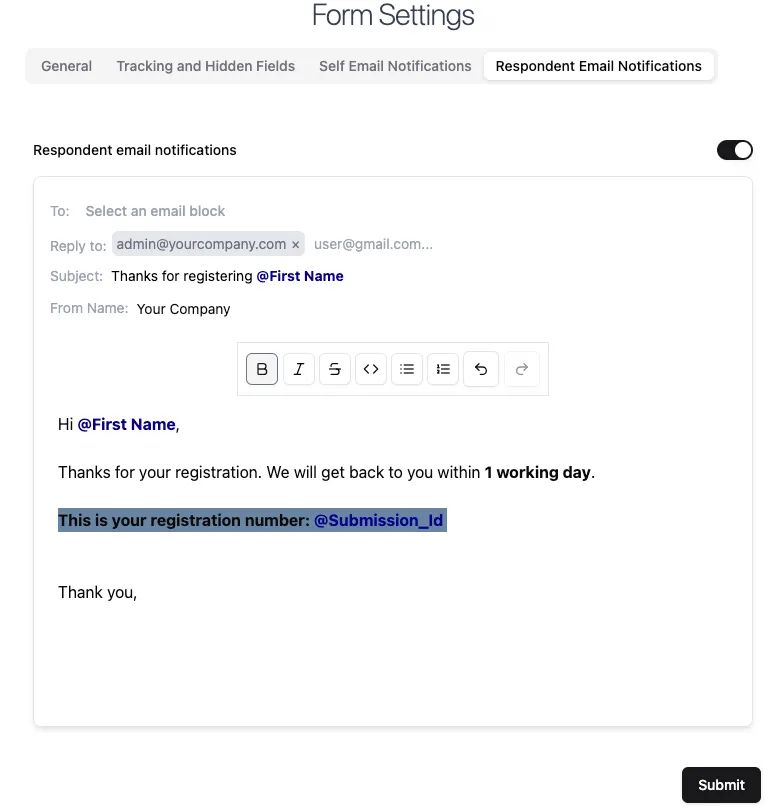
Respondent Email Notifications
Respondent email notifications automatically send emails to users after they submit your form. Use them to:
- Confirm form submissions
- Share a summary of responses
- Provide a score for quizzes or tests
- Deliver next steps or follow-up instructions
Formware also supports self email notifications for alerting yourself when a submission occurs.
How to enable respondent email notifications
Section titled “How to enable respondent email notifications”- Open your form in the editor
- Go to Settings → Respondent Email Notifications
- Toggle Respondent Email Notifications on
- Save your changes
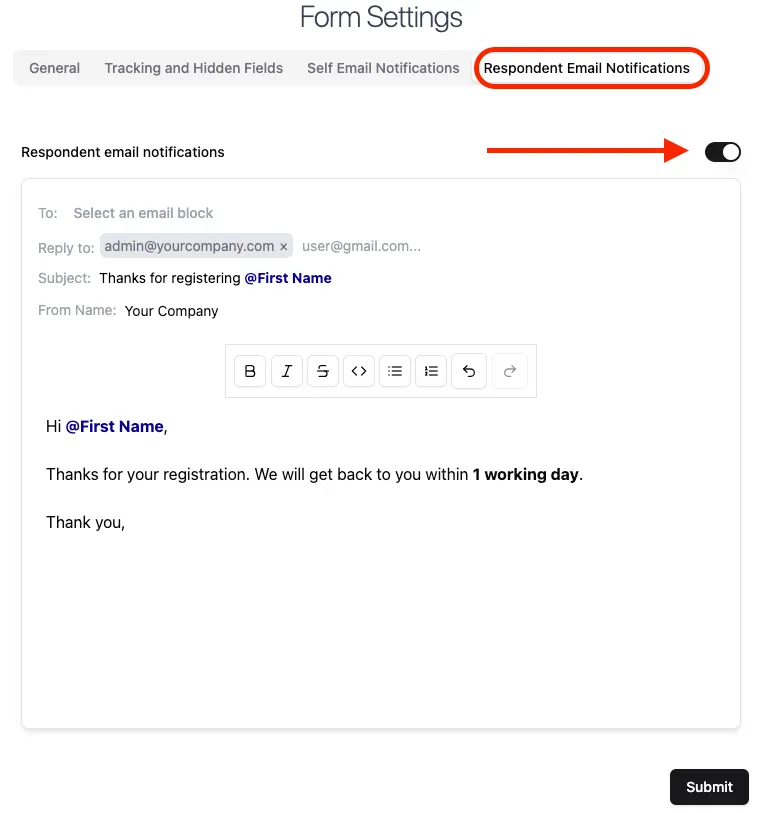
Once enabled, emails will automatically be sent to respondents after each completed submission.
Customizing email notifications
Section titled “Customizing email notifications”You can customize your emails to include dynamic data from your form. The following fields can be modified:
To (recipient)
Section titled “To (recipient)”Use an email field from your form to dynamically send the notification to the respondent. Only responses to email-type questions can be used for the To field.
Reply-To
Section titled “Reply-To”By default, the Reply-To is set to your Formware account email. You can:
- Keep the default
- Add one or more custom email addresses (comma-separated)
This allows respondents to reply directly to your inbox.
Subject
Section titled “Subject”The default subject is: Your Formware Submission for @Form_Name
You can customize it by typing any text or using @ to insert dynamic form data, such as submission ID or respondent name.
From Name
Section titled “From Name”Emails are sent from Formware (noreply@formware.io) by default. You can customize the From Name, but the email domain cannot be changed.
Email Body
Section titled “Email Body”You can:
- Edit text to personalize the message
- Insert dynamic values from your form using
@ - Apply formatting such as bold, italic, or lists