
Hidden Fields & UTM Tracking (Pass Data via Form URL)
Hidden fields let you pass data into your form through the form URL. This allows you to capture additional context about respondents, personalize their experience, and improve how you analyze form submissions.
What is a hidden field?
Section titled “What is a hidden field?”A hidden field is a value that is included in your form but not visible to the respondent. It helps you track users and use existing data without asking them to fill it out again.
Common use cases include:
- Track traffic sources (e.g. social media, website, campaigns)
- Pass known user data (such as name or email) into responses
- Personalize form content using recall information
- Capture UTM parameters for marketing attribution
Create a hidden field
Section titled “Create a hidden field”To set up hidden fields:
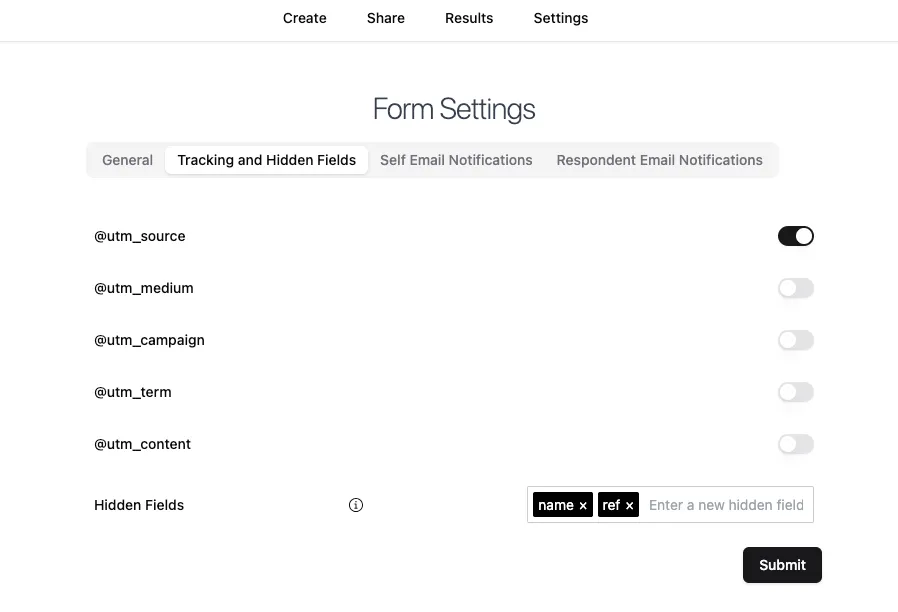
- Open your form and go to the
Settingstab - Navigate to
Tracking & Hidden Fields - Toggle UTM parameters as needed
- Add custom field names in the Hidden Fields input section
In this example, you can enable utm_source and add custom fields like name and ref.
After making your changes, click Submit to save.
Pass data through your form URL
Section titled “Pass data through your form URL”Once your hidden fields are set up, you can pass values through your form’s shareable URL.
Find your form link in the Share tab:
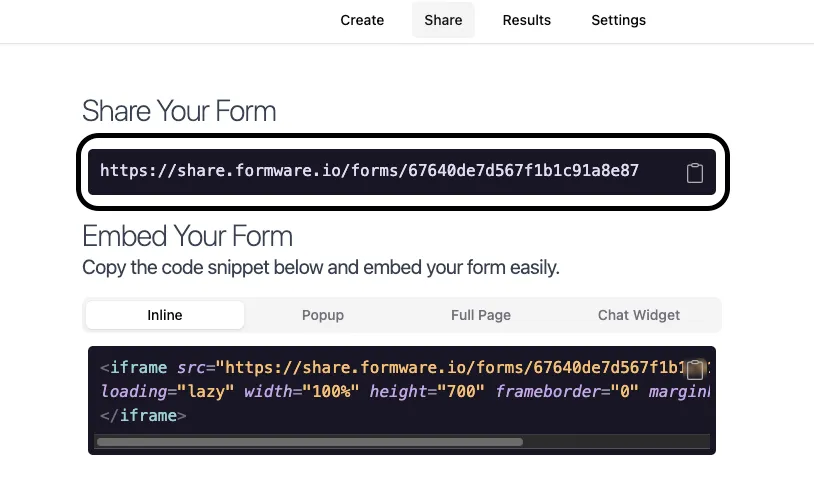
Before sharing the link, append parameters and values to the URL.
There are two ways to do this:
- Manually – add parameters directly to the URL (ensure values are URL encoded)
- Automated – use tools like CRMs or email platforms to generate dynamic links with prefilled data
Hidden fields in form results
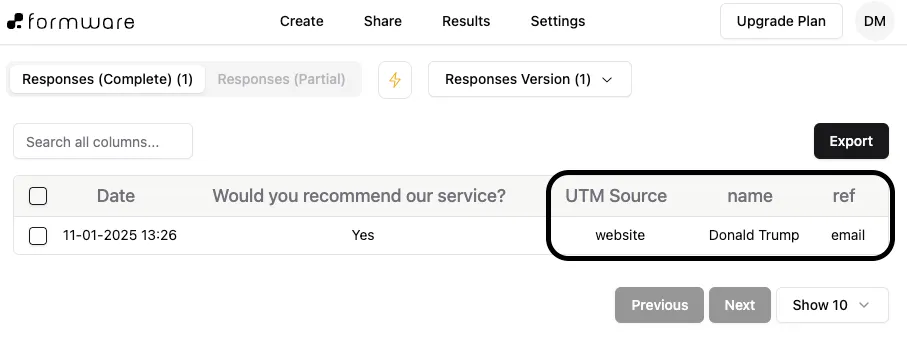
Section titled “Hidden fields in form results”Hidden field values appear alongside other responses in the Results tab after a form is submitted.
Mention a hidden field
Section titled “Mention a hidden field”You can use hidden field values inside your form using recall information.
Hidden fields in embedded forms
Section titled “Hidden fields in embedded forms”If you’re embedding your form on a website, you can still pass hidden field values via the URL.
Read more here → Use hidden fields in embedded forms