
Multiple Choice question type
The Multiple Choice question type allows respondents to select one or more answers from a list of options. It is commonly used in surveys, quizzes, forms, and feedback collection.
Options are presented as buttons. If you want the same list with a checkbox UX instead, use the Checkbox question type.
How to add a Multiple Choice question
Section titled “How to add a Multiple Choice question”- Open an existing form or create a new form and click the
+ Add Contentbutton. - Select Multiple Choice.
- Enter your question text and optional description.
- Add your answer choices in the editor.
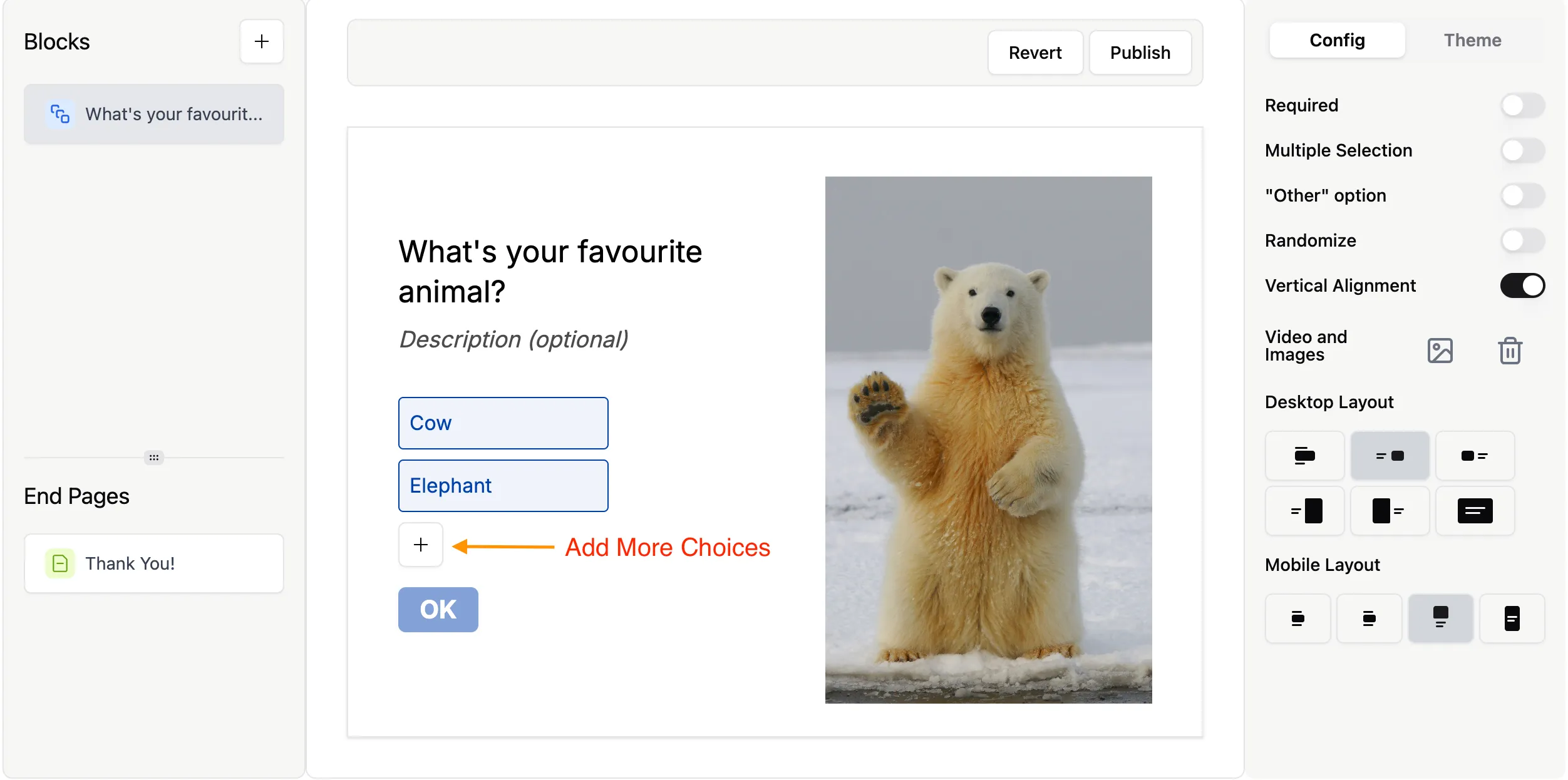
To remove a choice:
- Hover over the option
- Click the
xicon
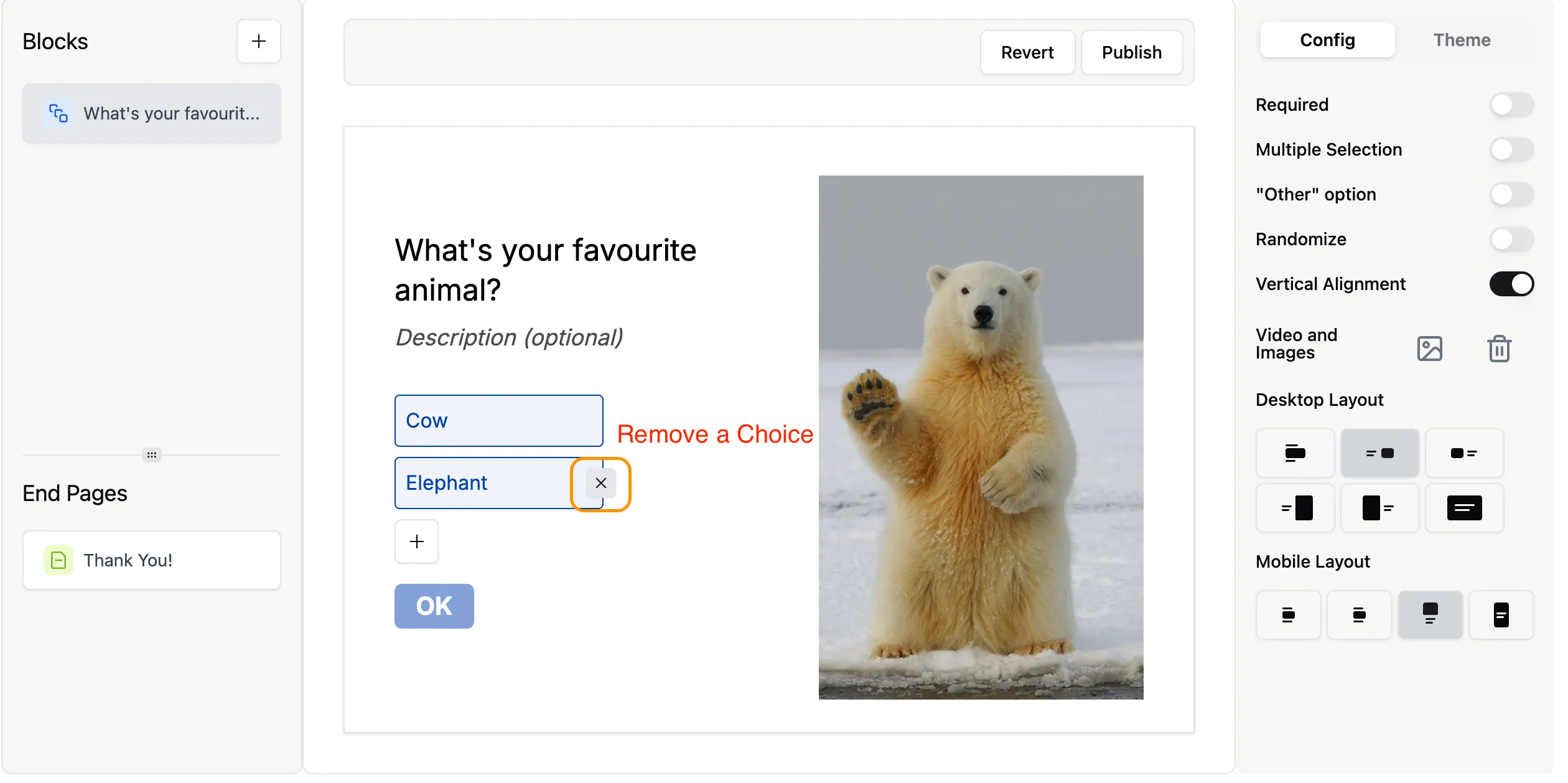
By default, respondents can select one option. You can enable multiple selections in the settings.
For a general walkthrough, see Add questions to your form. To see the full range of inputs you can use, browse the question types overview.
Configure Multiple Choice settings
Section titled “Configure Multiple Choice settings”All settings are available in Question settings on the right-hand panel.
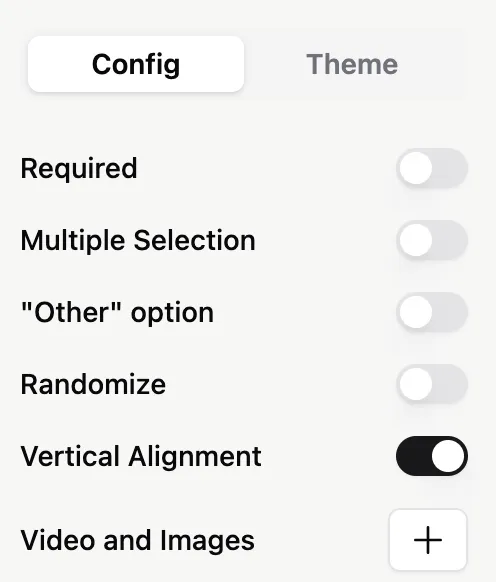
Allow multiple selection
Section titled “Allow multiple selection”Enable this option to let respondents choose more than one answer.
Randomize options
Section titled “Randomize options”Display answer choices in a random order to reduce bias in responses.
Other option
Section titled “Other option”Add an “Other” choice so respondents can enter a custom answer not listed.
Vertical alignment
Section titled “Vertical alignment”Control how options are displayed:
- On: Options appear in a vertical list
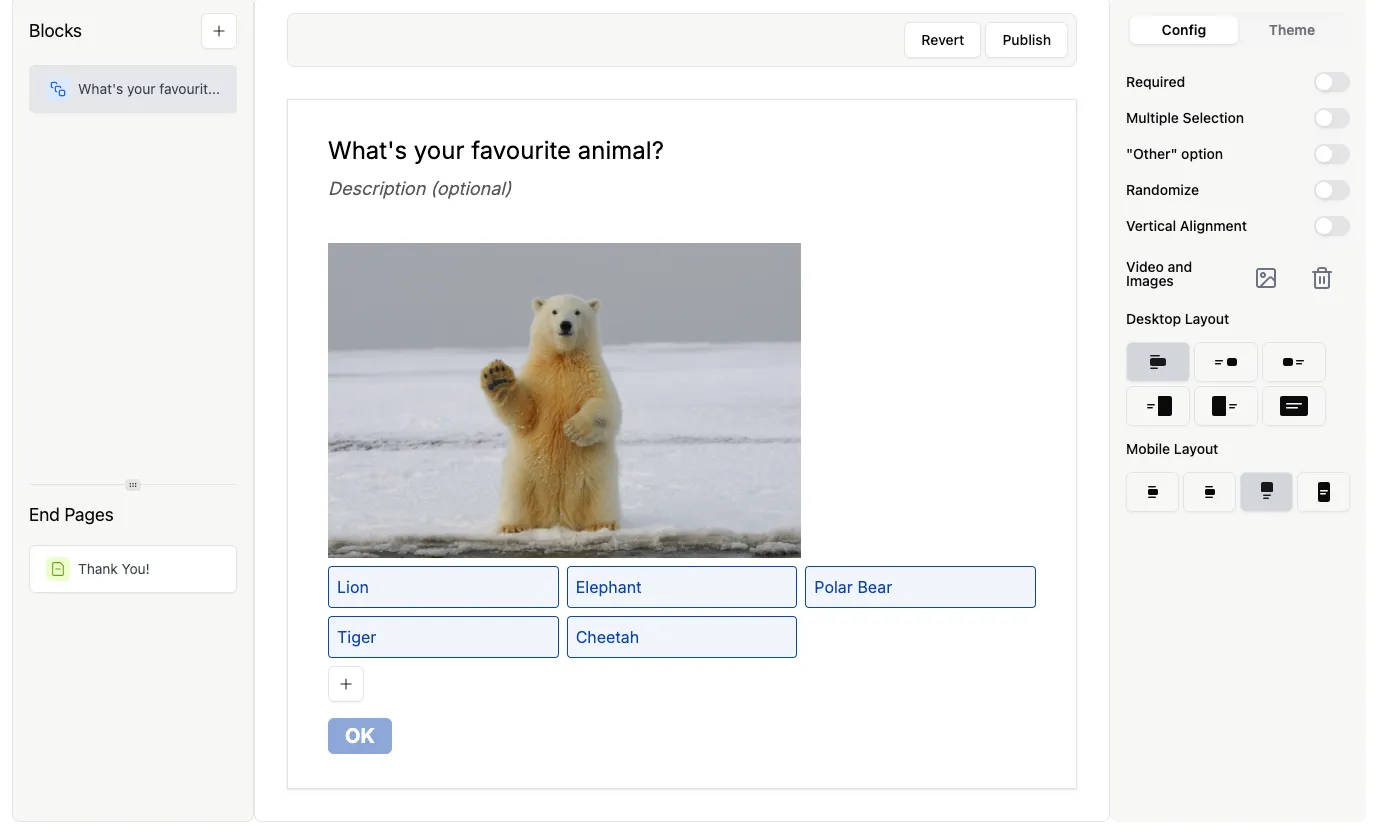
- Off: Options appear horizontally
Here’s how a question looks when vertical alignment is toggled off.
Make the question required
Section titled “Make the question required”Toggle the Required switch so respondents cannot continue without answering. For single-select questions this ensures a choice is made; with multiple selection enabled, it ensures respondents pick at least one option. Leave Required off for optional questions, such as “How did you hear about us?”. See Make questions required.
Add an image or video
Section titled “Add an image or video”You can add an image, GIF, or video to your Multiple Choice question — for example, to illustrate the choices or reinforce your branding. See Add images and GIFs.
How many choices can you add?
Section titled “How many choices can you add?”There is no limit to the number of choices you can include. However, for better readability, consider grouping options into smaller sets when possible. For long lists, a Dropdown question can be a more compact alternative.
Use Multiple Choice answers in conditional logic
Section titled “Use Multiple Choice answers in conditional logic”Multiple Choice answers can be used as conditions in conditional logic. Multiple Choice questions use the is and is_not operators — see condition types for the full list.
A couple of examples:
- With skip logic, respondents who select “Yes, keep me posted” jump to an Email question that collects their address — everyone else skips straight to the next question.
- With show or hide questions, a follow-up question only appears to respondents who picked a specific option.
All conditional logic configuration is available on the Free plan.
Recall answers later
Section titled “Recall answers later”You can reference a respondent’s Multiple Choice answer later in the form — in question text of follow-up questions or on the Thank You Page — using Recall Information. For example: “Great, you chose the {{…}} plan — let’s get you set up.”
Multiple Choice vs. related question types
Section titled “Multiple Choice vs. related question types”- Checkbox — the same list of choices, presented as checkboxes instead of buttons; single select only, and a common pick for consent questions.
- Picture Choice — let respondents choose between images instead of text labels.
- Dropdown — a compact select list for long option sets. Note that Dropdown answers cannot be used as logic conditions, while Multiple Choice answers can.
- Yes/No — a single binary question, without additional options.
- Legal — a dedicated question type for terms acceptance and legal acknowledgements.
Next steps
Section titled “Next steps”Preview your form to test the question, then publish your form or share your Formware URL.