
Rating question type
Use the Rating question type to quickly collect opinions, satisfaction scores, or any feedback that fits on a visual scale.
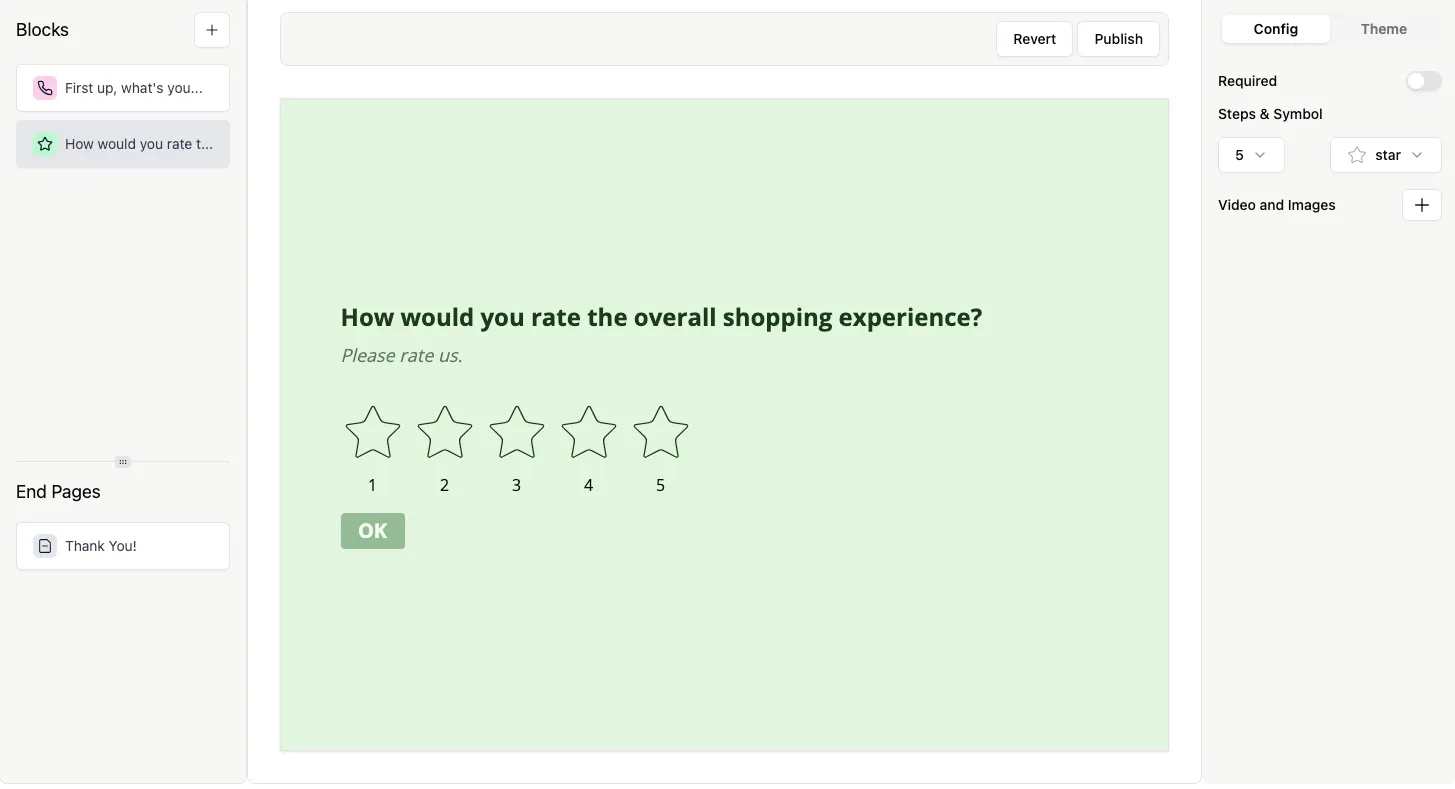
How to add a Rating question
Section titled “How to add a Rating question”- Open your form and click the
+ Add Contentbutton to view all available question types. - Select Rating.
- Enter your question text and optionally add a description to guide respondents.
Configure your Rating question
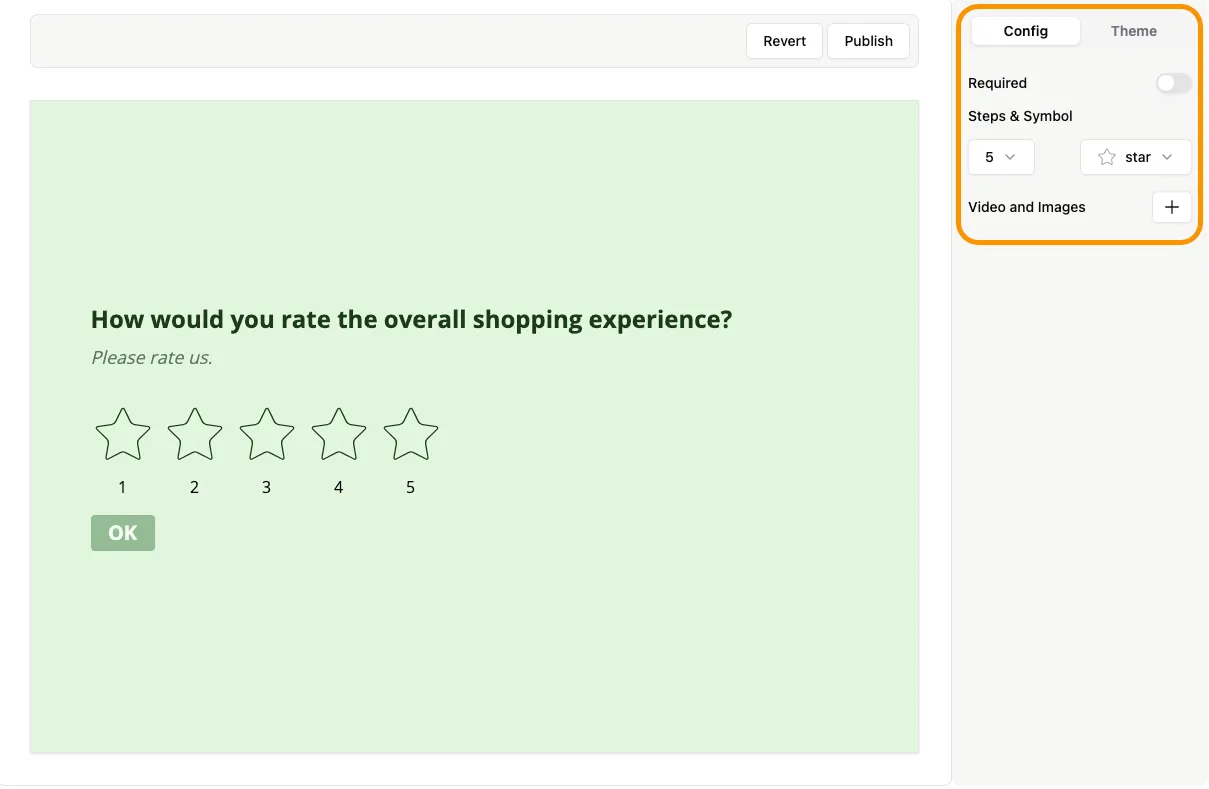
Section titled “Configure your Rating question”All settings are available in the Config tab of the right-hand sidebar.
You can:
- Set the question as Required.
- Choose the number of rating options (e.g., 1–5, 1–10).
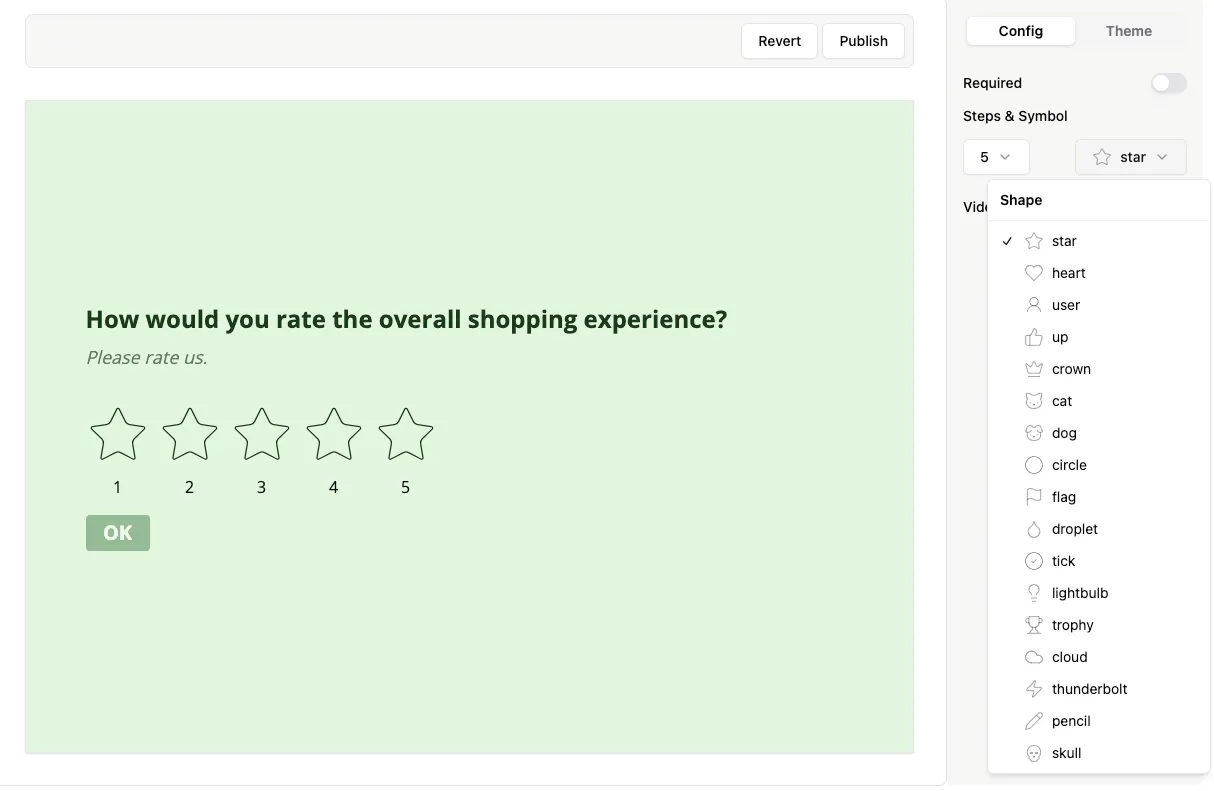
- Select symbols such as stars, hearts, crowns, or custom emojis.
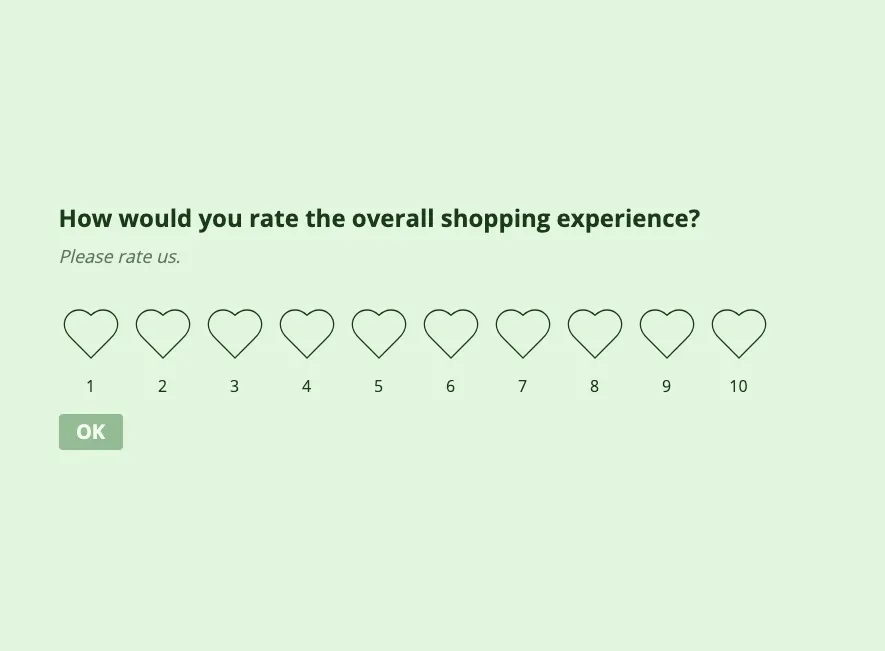
Here’s an example of a 1–10 scale using heart symbols:
Add images to your Rating question
Section titled “Add images to your Rating question”You can enhance your Rating question with images or GIFs to make it more engaging. Learn how to add visuals in our Add Images and GIFs guide.