
Dropdown Question
The Dropdown question allows respondents to select a single option from a predefined list. Dropdowns are ideal when you have multiple answer choices and want to keep the form clean and organized.
This question type works well for:
- Country, city, or region selection
- Favorite items, categories, or preferences
- Any multiple-choice question with many options
How to add a Dropdown question
Section titled “How to add a Dropdown question”- Open your form in the Formware editor.
- Click the
+ Add Contentbutton. - Select Dropdown from the list of question types.
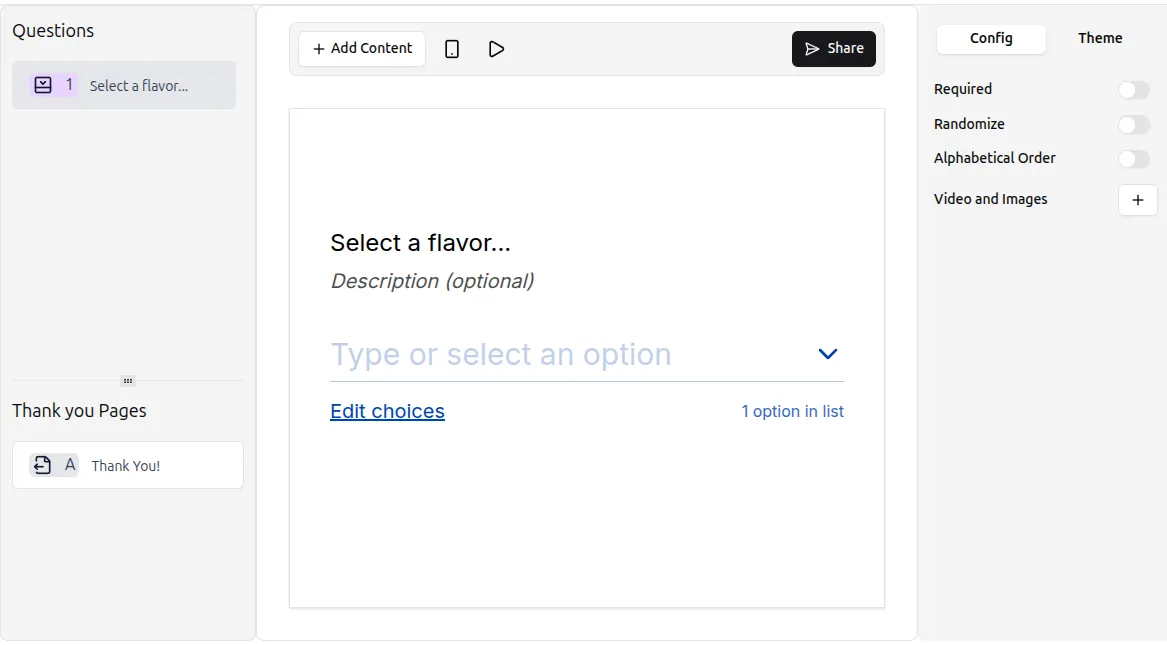
Adding options to your Dropdown
Section titled “Adding options to your Dropdown”- Click Edit choices in the question editor.
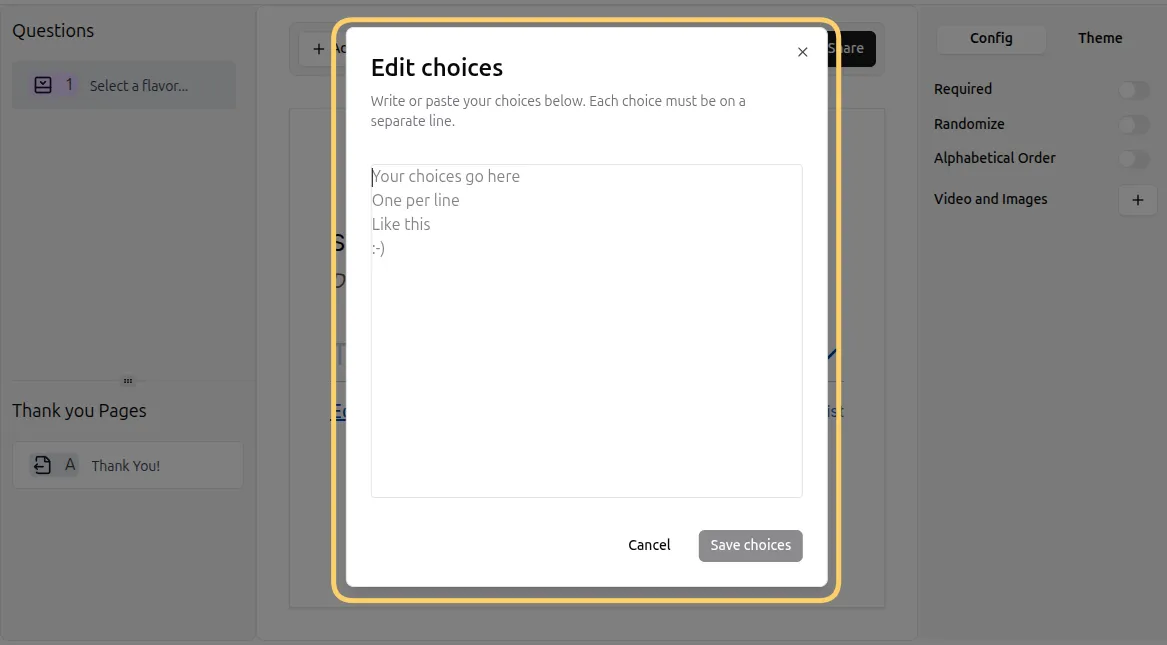 Edit options view for your Dropdown question.
- Type or paste your list items, placing each item on its own line.
- Example:
VanillaChocolateStrawberryMint- You can also copy and paste a list from a spreadsheet or text file directly into the choices field.
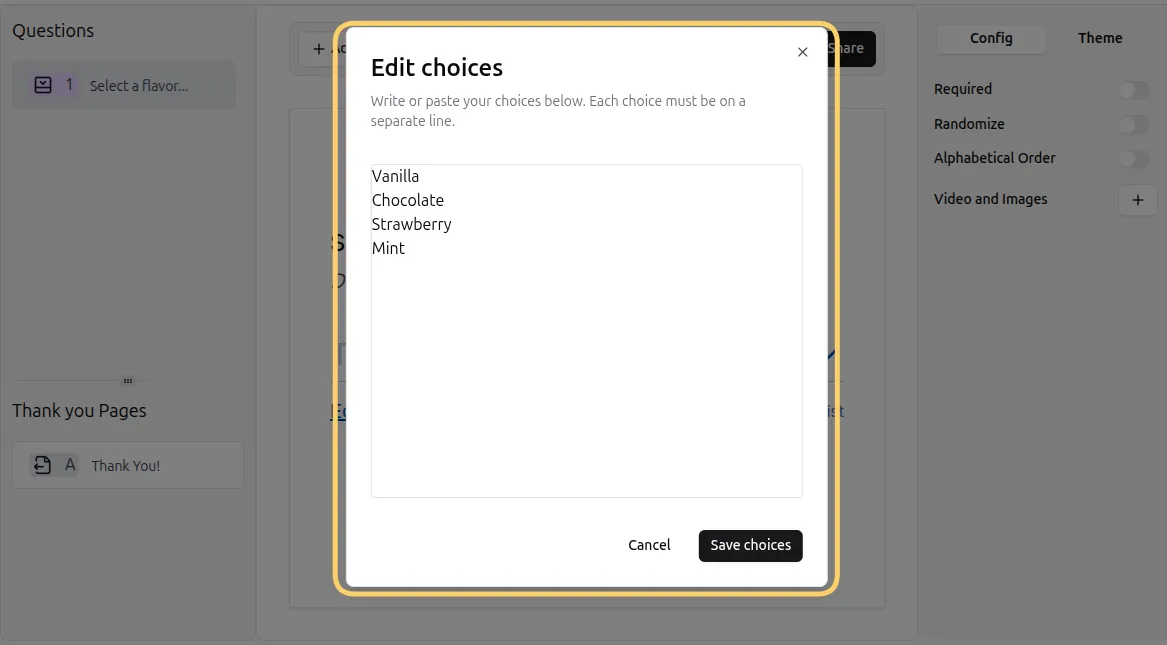 Add options for your Dropdown question.
Configuring Dropdown question settings
Section titled “Configuring Dropdown question settings”The Config tab on the right-hand panel allows you to:
Make the question required
Section titled “Make the question required”Enable the Required toggle to prevent respondents from skipping this question.
Randomize or alphabetical order
Section titled “Randomize or alphabetical order”- Randomize – Shuffles the order of options each time the form is displayed.
- Alphabetical Order – Sorts options alphabetically.
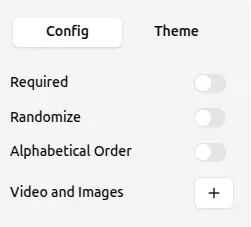 Configure your Dropdown question.
Tips for Dropdown questions
Section titled “Tips for Dropdown questions”- Keep option lists concise to avoid overwhelming respondents.
- Alphabetize or randomize when order matters or to avoid bias.
- Use Dropdowns instead of multiple-choice when you have many options to save space.
- For longer lists, consider combining with search-enabled Dropdowns (if supported) for better usability.