Add Your Brand Logo to a Form
Incorporating your brand logo is the best way to build trust and ensure a seamless experience for your respondents. When added, your logo appears across your entire Formware, including the Welcome and Ending screens.
How to Add a Logo
Section titled “How to Add a Logo”To begin branding your form, navigate to the Theme tab in the right-hand panel of the editor. Locate the Logo section and click the “+” button.
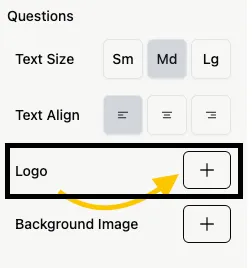
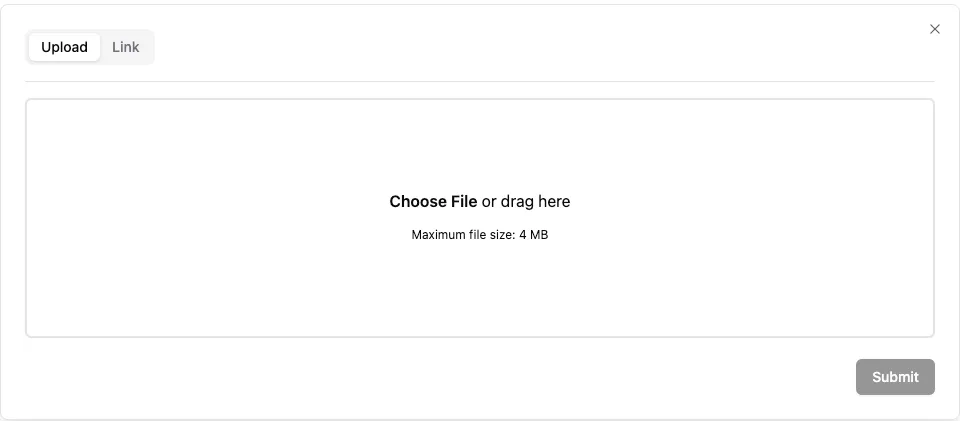
You can choose between two methods to add your imagery:
- Upload: Select a file directly from your device.
- Link: Paste a direct image URL.
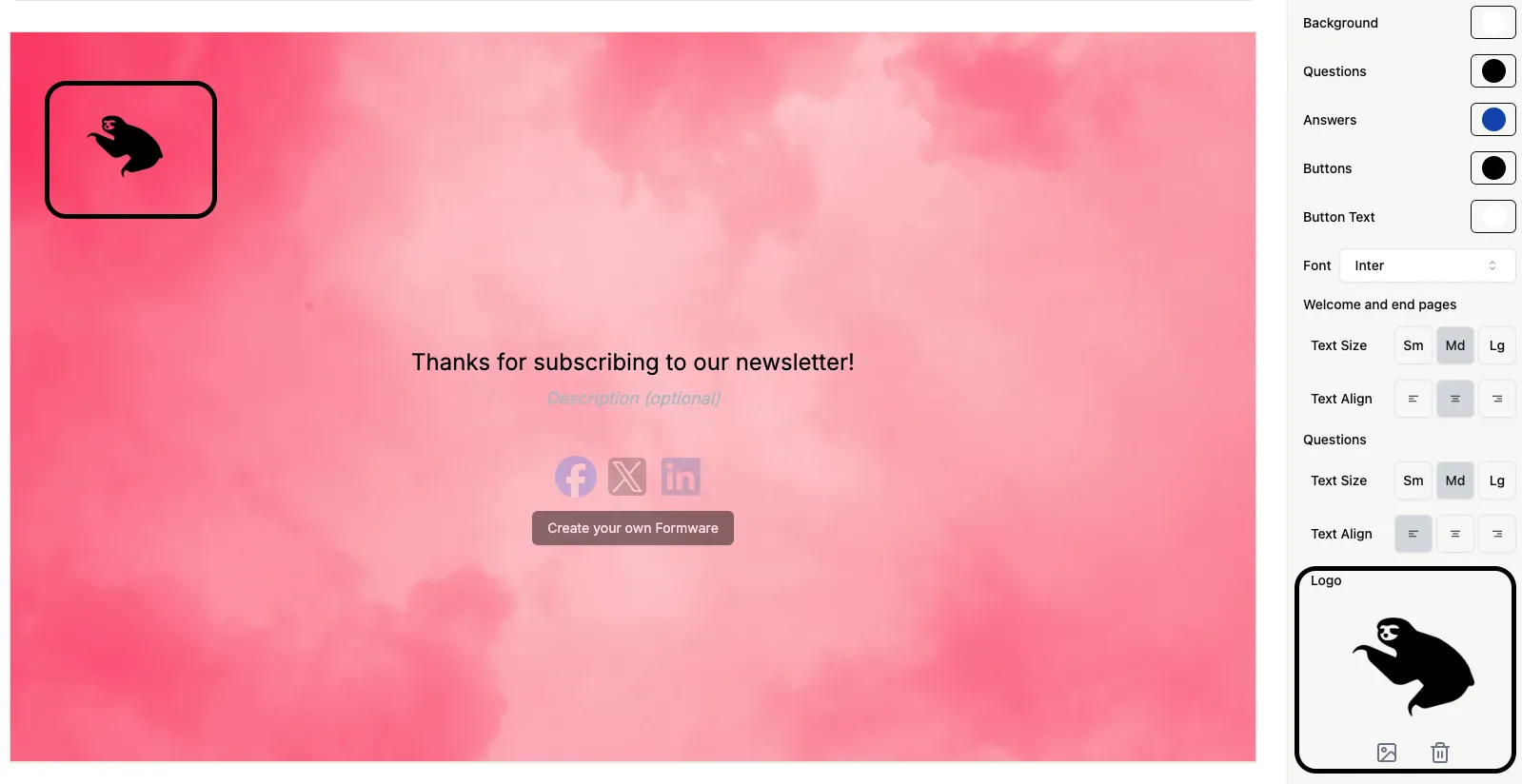
Once added, your logo will appear in the top-left corner by default.
Customizing Logo Appearance
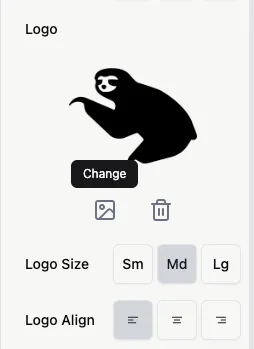
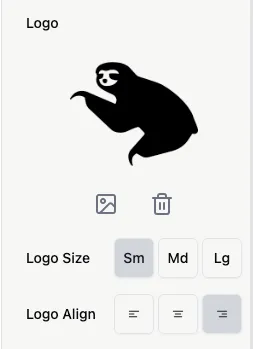
Section titled “Customizing Logo Appearance”You can modify or remove your logo at any time using the icons in the Theme panel. Click the image icon to swap the file or the trash can icon to delete it.
Size and Alignment
Section titled “Size and Alignment”Use the logo customization buttons to adjust the size and positioning of your logo. You can choose to add a small, a medium or a large logo, and you can also switch between left-aligned, center-aligned and right-aligned positions.
- Size: Choose between Small, Medium, or Large.
- Alignment: Position your logo to the Left, Center, or Right.
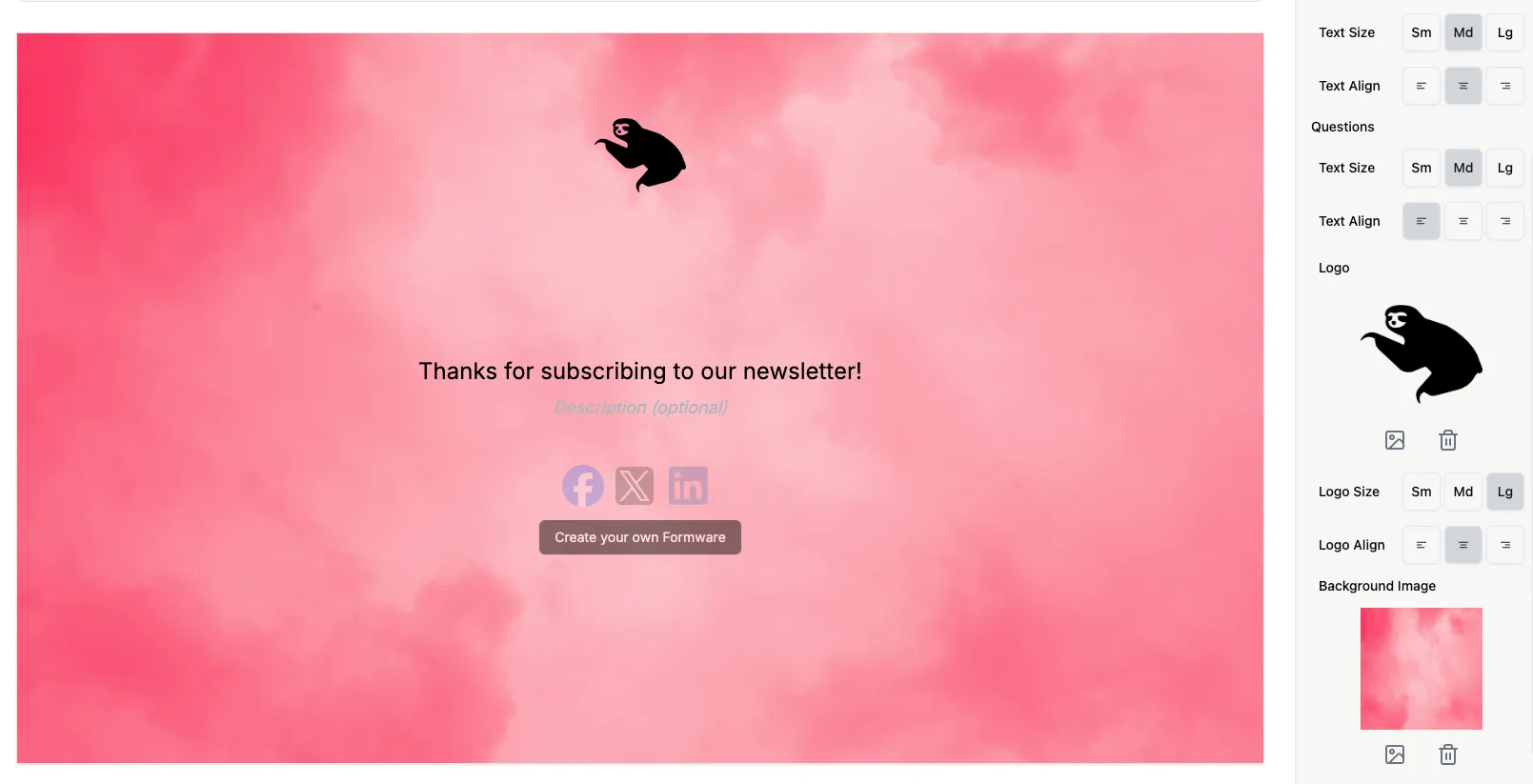
Below is an example of a Large, Center-aligned logo:
Saving Your Changes
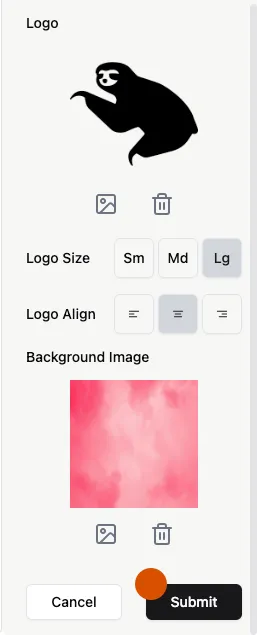
Section titled “Saving Your Changes”After adjusting the settings to your liking, click the Submit button to apply the changes to your form.
People will see your logo throughout your Formware, including the Welcome and Ending screens.