
Long Text Question
The Long Text question allows respondents to provide detailed answers in a text area, making it ideal for collecting opinions, feedback, or explanations.
This question type is best suited for open-ended questions where responses may require multiple sentences or paragraphs.
Common use cases
Section titled “Common use cases”Use a Long Text question when you want to:
- Collect detailed feedback or suggestions
- Allow respondents to share personal experiences or opinions
- Ask open-ended survey questions
- Capture explanations or descriptions in forms
How to add a Long Text question
Section titled “How to add a Long Text question”- Open your form in the Formware editor.
- Click the
+ Add Contentbutton. - Select Long Text from the question types.
- Enter your question text and optionally include a description or instructions.
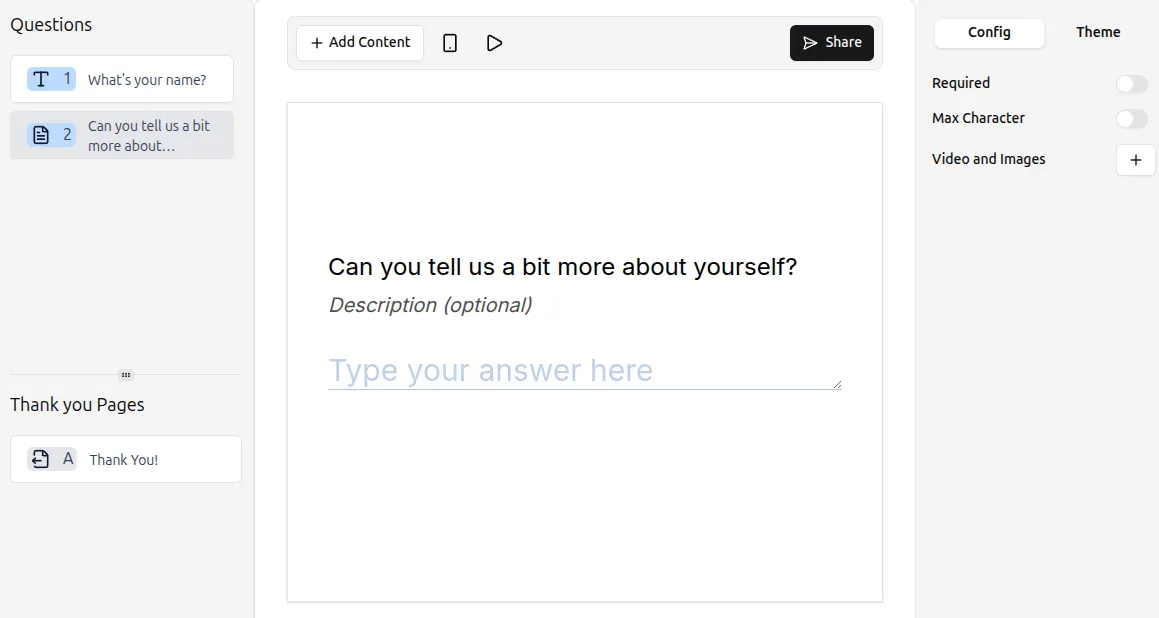
Respondents can type extended answers directly into the text area.
Configuring Long Text settings
Section titled “Configuring Long Text settings”The Config tab in the right-hand panel allows you to adjust the following options:
Make the question required
Section titled “Make the question required”Enable the Required toggle to prevent respondents from skipping this question.
Set a character limit
Section titled “Set a character limit”By default, Long Text responses have no character limit. To restrict the length:
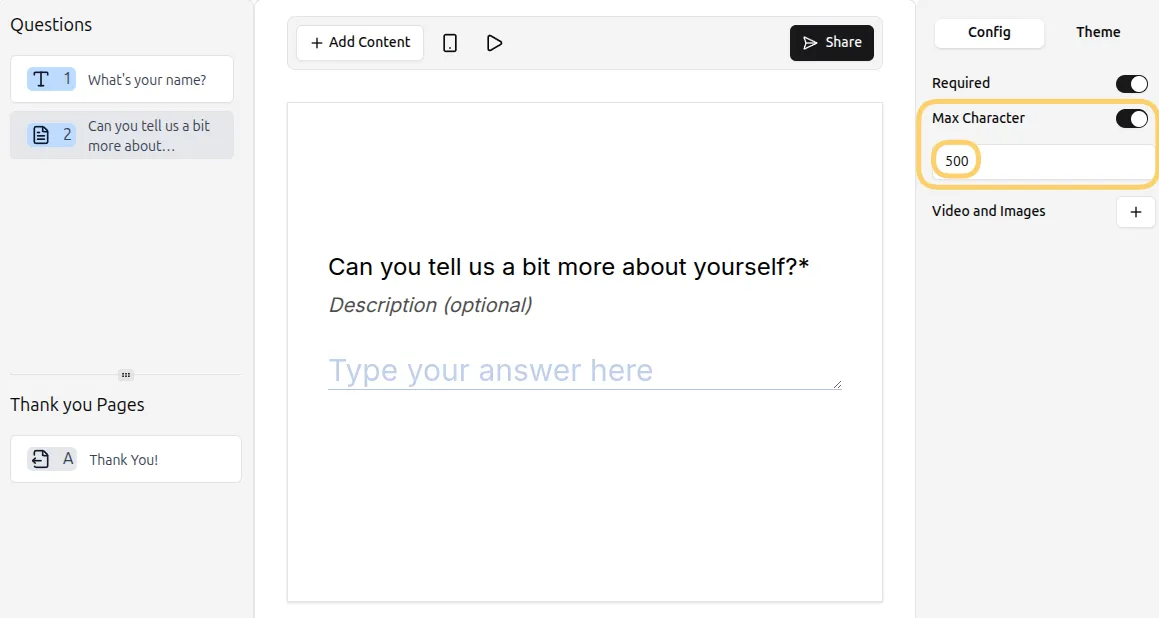
- Toggle Max characters in the settings.
- Enter the maximum number of characters allowed (e.g., 500 characters).
This ensures responses stay concise when needed.
Add media (optional)
Section titled “Add media (optional)”Enhance your question with images or videos:
- Click Add next to Videos and Images in the question settings.
- Upload relevant media to provide context or examples.
For more guidance, see: Add Images and GIFs
Tips for Long Text questions
Section titled “Tips for Long Text questions”- Keep your prompt clear to encourage thorough answers.
- Use a character limit when you need concise responses.
- Consider combining with other question types to guide respondents through your form efficiently.