
Creating Your First Formware
Formware features an intuitive drag-and-drop interface designed to help you build professional forms in minutes. Whether you are creating a simple contact form or a complex survey, the process begins on your dashboard.
To start, click the Add Form button and enter a name for your form in the popup. Once you hit enter, you’ll be taken directly into the form builder.
Adding Questions
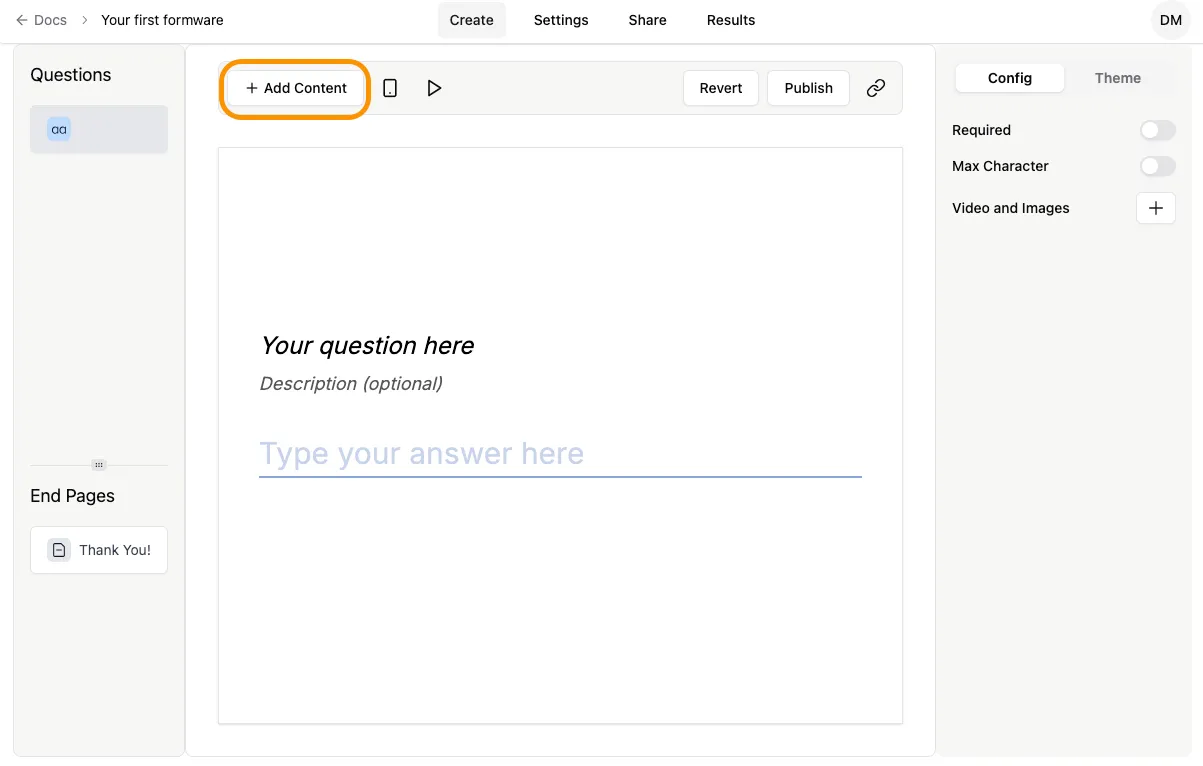
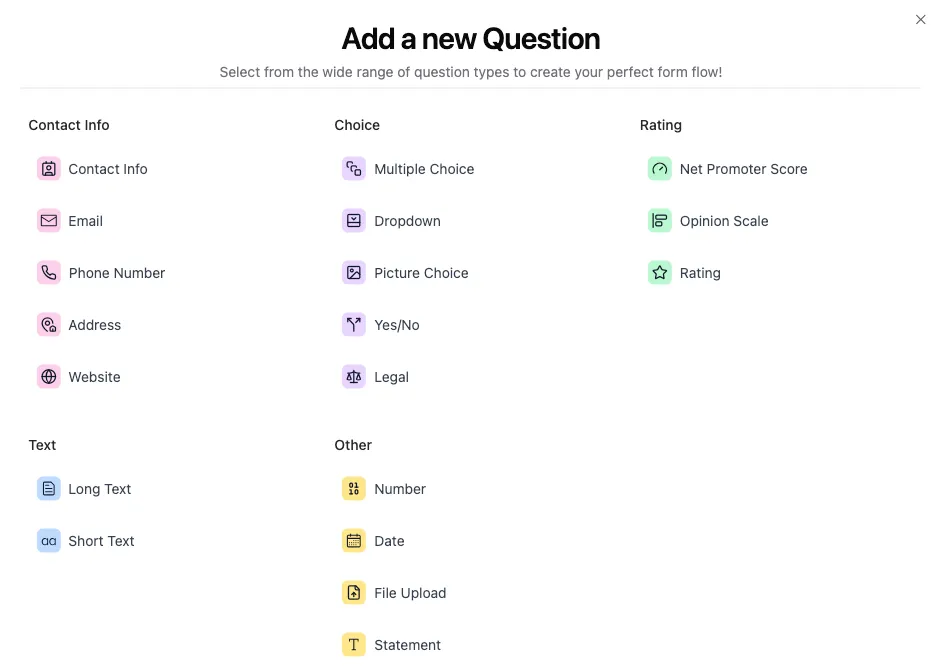
Section titled “Adding Questions”To build out your form, click the + Add Content button located above the central preview panel. This opens the block library where you can see all available question types.
From the library panel, select the question type that matches the data you want to collect (e.g., Multiple Choice, Email, or Short Text).
Customizing Question Settings
Section titled “Customizing Question Settings”To set your Question Title, simply click the placeholder text that says Your question here. You can do the same for the Description field to provide extra context to your respondents.
The Config Tab
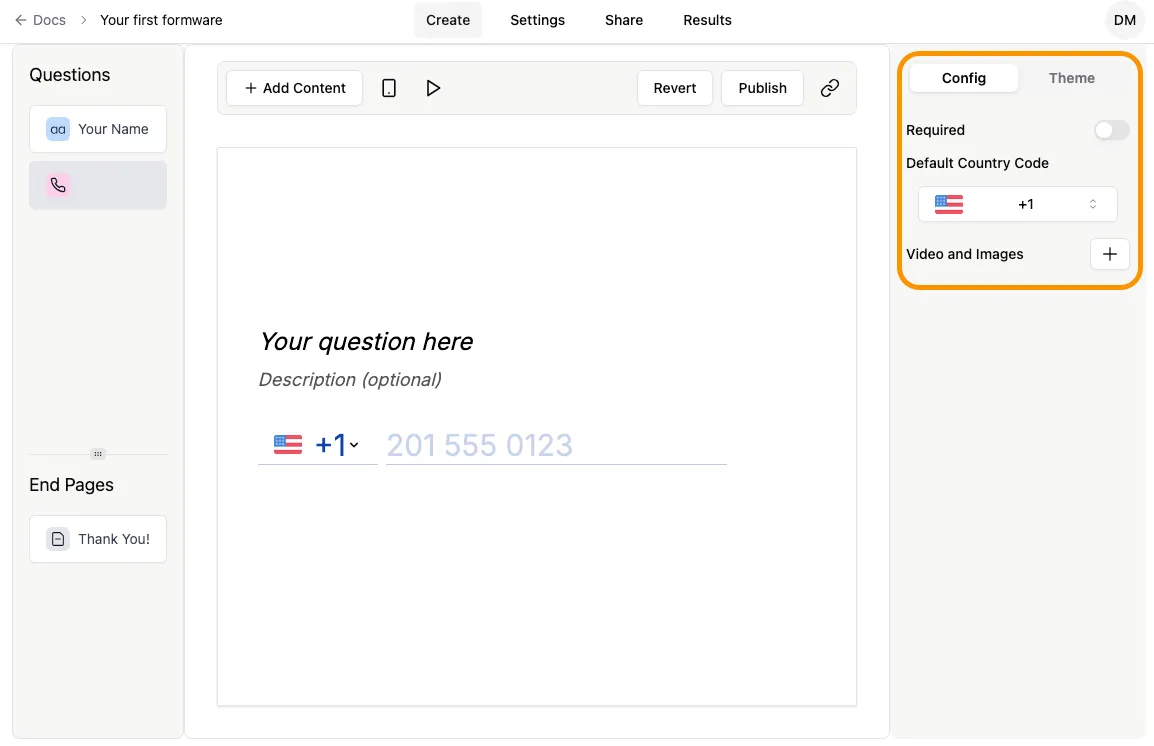
Section titled “The Config Tab”Every question type comes with specific behavior settings found in the Config tab on the right-hand panel. Depending on the block you’ve selected, you can:
- Mark as Required: Ensure users don’t skip the question.
- Validation: Set minimum/maximum values for numbers or specific date formats.
- Input Handling: Set default country codes for phone numbers or randomize choices for multiple-choice questions.
- Selection Mode: Toggle between single-select and multi-select for dropdowns and lists.
Tracking & Hidden Fields
Section titled “Tracking & Hidden Fields”For more advanced workflows, you can use Hidden Fields. These allow you to pass invisible data through your form URL—ideal for tracking marketing UTM parameters, identifying specific traffic sources, or personalizing the form experience by pre-filling known user data.
Design and Branding
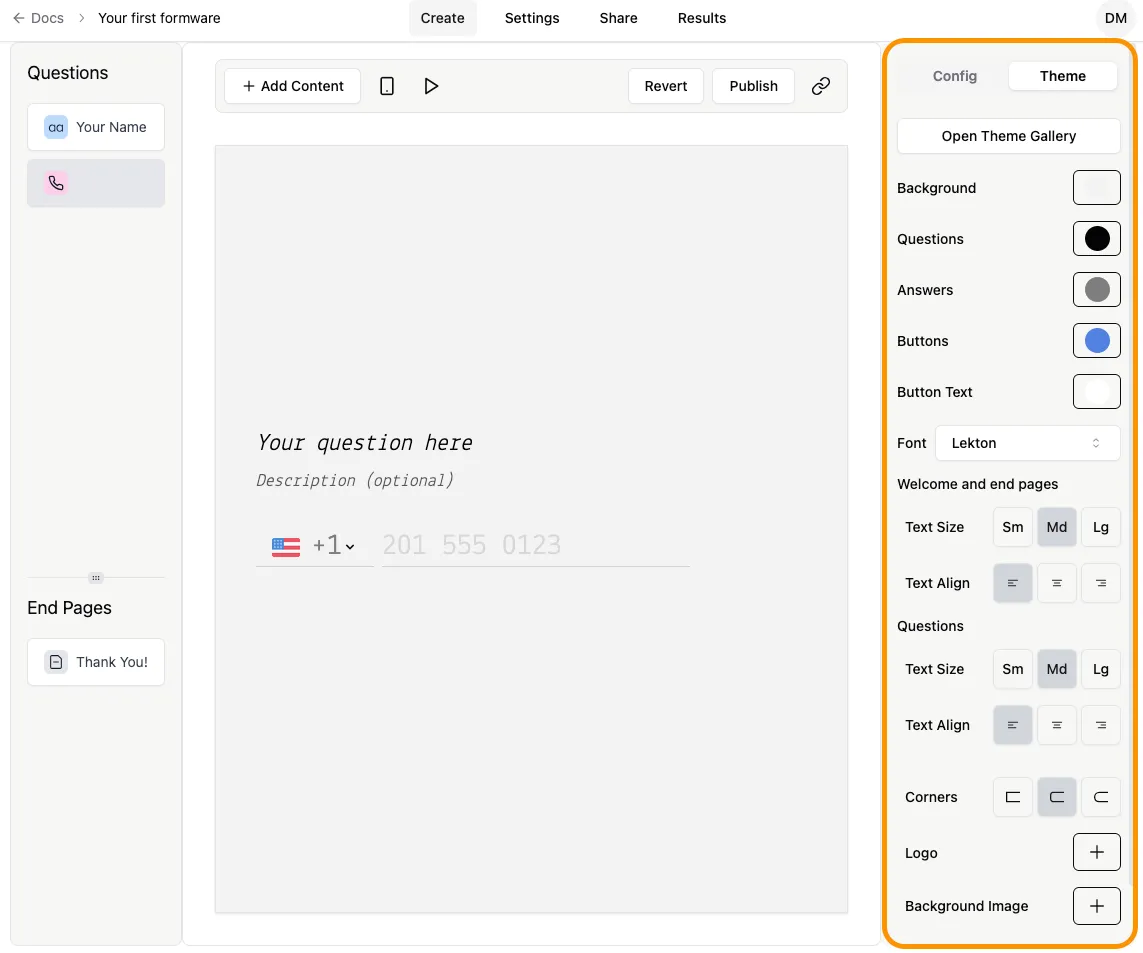
Section titled “Design and Branding”You can easily customize your Formware theme to align with your brand identity. From the Theme tab, you can adjust your color palette, select typography, and upload background images.
Publishing and Sharing
Section titled “Publishing and Sharing”When you are satisfied with your design and question flow, it’s time to go live. Navigate to the Share tab to find your publishing options:
- Direct Link: Perfect for sharing via email, SMS, or social media.
- Website Embed: Copy the code snippet to place the form directly onto your web page.
- Popup: Create a non-intrusive popup for lead generation.