
Email Question
The Email question allows you to collect email addresses with built-in validation. It ensures respondents enter a properly formatted email before they can continue, helping you capture clean and usable data.
Use this question when you need to:
- Build contact or mailing lists
- Collect emails for follow-ups
- Enable newsletter or campaign signups
How to add an Email question
Section titled “How to add an Email question”- Open your form and click the
+ Add Contentbutton - Select Email from the list of question types
- Enter your question text and (optionally) add a description
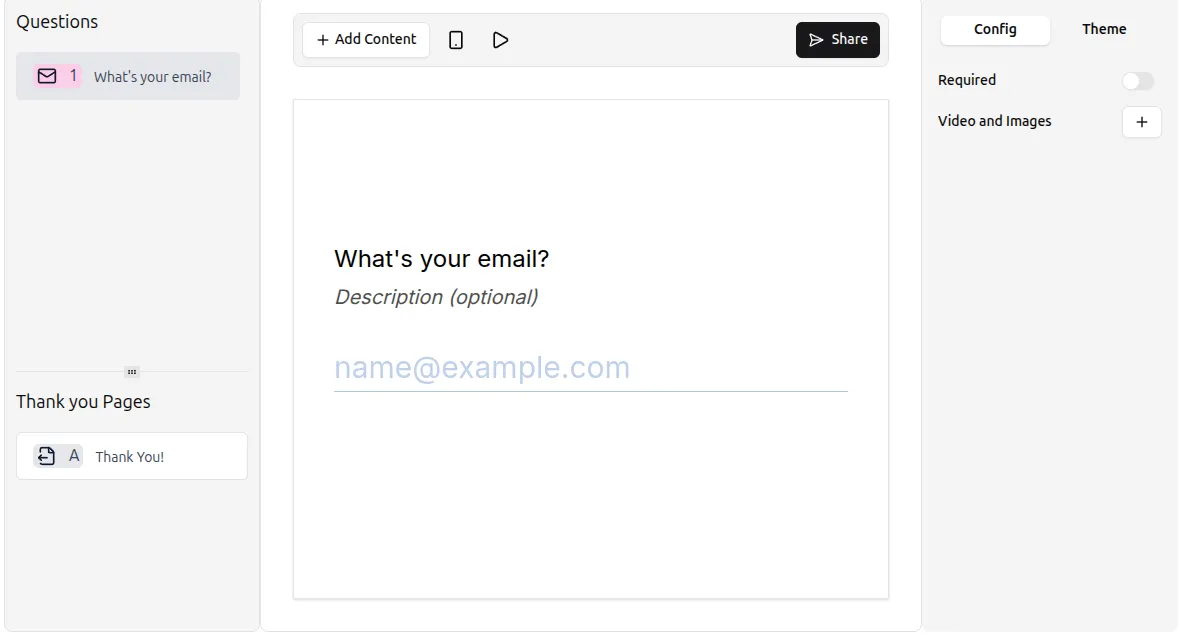
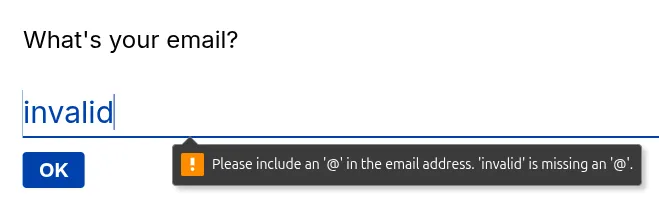
The Email question automatically validates responses. If a respondent enters an invalid email format, they will see an error message and won’t be able to proceed until it’s corrected.
Use Preview mode to test how validation works.
Email settings
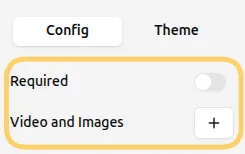
Section titled “Email settings”You can customize the Email question from the Config tab in the right-hand panel.
Make the email required
Section titled “Make the email required”Enable the Required toggle to ensure respondents must provide an email before submitting the form.
This is useful when the email is essential for:
- Contacting respondents
- Sending confirmations
- Identifying submissions
Add images or videos
Section titled “Add images or videos”You can add visuals to provide context or improve engagement:
- Click Add next to Videos and Images in the question settings
- Upload an image or video
For more details, see the guide on adding visuals: Add Images and GIFs