
Yes/No Question
The Yes/No question is a simple way to collect binary responses. It presents respondents with two fixed choices: Yes and No.
This question is a streamlined variant of the Multiple Choice question, designed for quick, decision-based inputs without additional configuration.
Use this question when you need to:
- Ask simple confirmation questions
- Collect approvals or consent
- Create branching or conditional flows
Add a Yes/No question
Section titled “Add a Yes/No question”- Open your form and click the
+ Add Contentbutton - Select Yes/No from the list of question types
- Enter your question text and (optionally) add a description
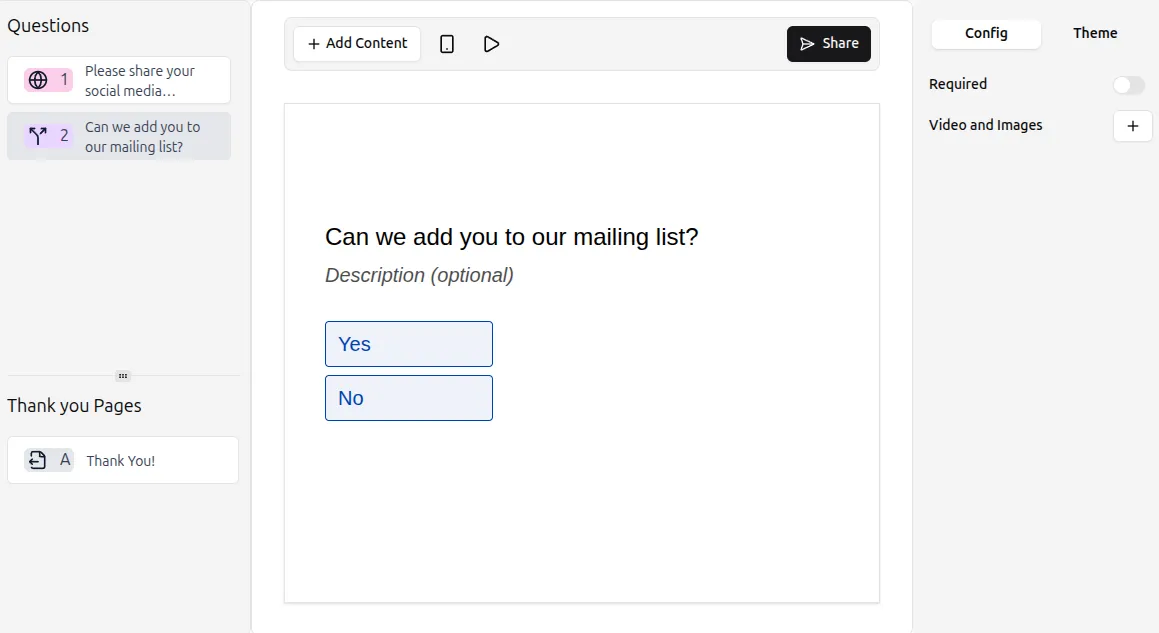
Respondents can select either Yes or No to proceed.
How Yes/No works
Section titled “How Yes/No works”The Yes/No question includes two predefined options:
- Yes
- No
These options:
- Cannot be renamed
- Cannot be removed
- Cannot have additional choices added
If you need more flexibility (such as custom labels or more than two options), use the Multiple Choice question instead.
When to use Yes/No vs Multiple Choice
Section titled “When to use Yes/No vs Multiple Choice”Both question types allow users to select from options, but they serve different purposes.
Use Yes/No when:
Section titled “Use Yes/No when:”- You need a quick binary answer (e.g., Yes or No)
- You want to simplify decision-making for respondents
- You are building conditional logic or branching flows
- You don’t need to customize answer labels
Use Multiple Choice when:
Section titled “Use Multiple Choice when:”- You need more than two options
- You want to customize answer labels (e.g., Agree / Disagree)
- You want to include additional choices or variations
- You need more flexibility in response options
Choosing the right question type helps keep your form simple and improves completion rates.
Use Yes/No for logic and branching
Section titled “Use Yes/No for logic and branching”Yes/No questions are commonly used to control form flow using conditional logic.
For example:
- Show follow-up questions only if the answer is Yes
- Skip sections when the answer is No
- Route respondents to different paths based on their selection
This makes them ideal for building dynamic and personalized form experiences.
Yes/No settings
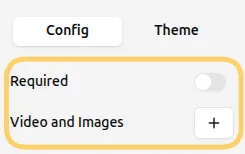
Section titled “Yes/No settings”You can customize the question from the Config tab in the right-hand panel.
Make the question required
Section titled “Make the question required”Enable the Required toggle to ensure respondents must select either Yes or No before continuing.
Add images or videos
Section titled “Add images or videos”You can enhance your question with visuals:
- Click Add next to Videos and Images in the question settings
- Upload an image or video
For more details, see the guide on adding visuals: Add Images and GIFs