
Legal Question
The Legal question allows you to include important disclaimers, terms, or consent notices in your form. Respondents must select either I accept or I don’t accept to proceed, making it ideal for collecting agreement to policies, terms of service, or legal acknowledgments.
This question type is designed to ensure compliance and clarity when gathering consent from your audience.
Common use cases
Section titled “Common use cases”Use a Legal question when you need to:
- Display terms and conditions or service agreements
- Collect explicit consent for legal or privacy requirements
- Ensure respondents acknowledge disclaimers before submitting a form
- Trigger conditional flows based on acceptance
How to add a Legal question
Section titled “How to add a Legal question”- Open your form in the Formware editor.
- Click the
+ Add Contentbutton. - Select Legal from the question types.
- Enter your legal text or disclaimer in the editor.
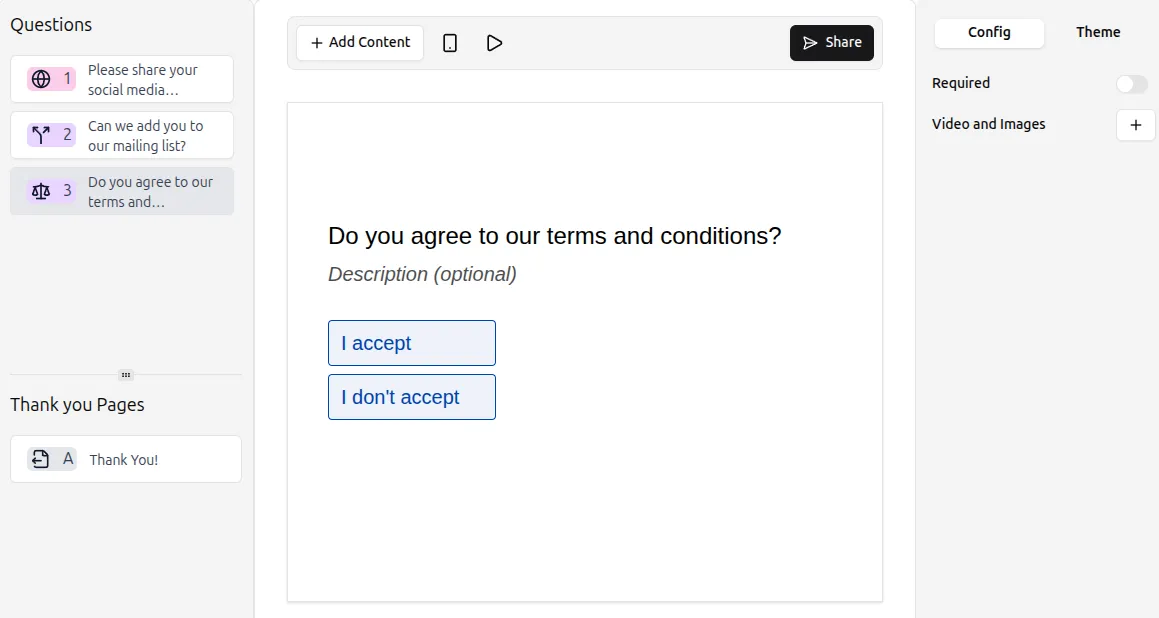
Respondents can select I accept or I don’t accept to proceed.
Understanding the Legal question
Section titled “Understanding the Legal question”The Legal question includes two predefined options:
- I accept
- I don’t accept
These options:
- Cannot be renamed
- Cannot be removed
- Cannot have additional choices added
This ensures clarity and prevents ambiguity in consent responses.
Using Legal questions for conditional logic
Section titled “Using Legal questions for conditional logic”You can use Legal questions to control the form flow:
- Show follow-up questions only if the respondent selects I accept
- Stop submission or display a message if the respondent selects I don’t accept
- Route respondents to different sections based on agreement
This makes the Legal question essential for compliance-driven forms and consent collection.
Configuring Legal question settings
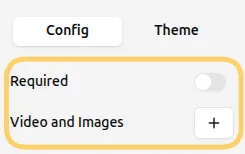
Section titled “Configuring Legal question settings”Adjust the Legal question from the Config tab in the right-hand panel.
Make the question required
Section titled “Make the question required”Enable the Required toggle to ensure respondents must select an option before continuing.
Add supporting visuals
Section titled “Add supporting visuals”You can include images or videos alongside your legal text:
- Click Add next to Videos and Images in the question settings.
- Upload relevant media to provide additional context.
For more details on enhancing questions with visuals, see: Add Images and GIFs