
Picture Choice question
The Picture Choice question is a visual version of Multiple Choice. You can use it to make striking forms that fit your brand.
Add a Picture Choice question to your form
Section titled “Add a Picture Choice question to your form”1. Open the form that you would like to edit and click on the + Add question button to open the list of available question types.
2. Select Picture Choice.
3. Now you can write your question text and add a description below if you like. For your choices, clicking on the label below the image area allows you to add text to your picture choices.
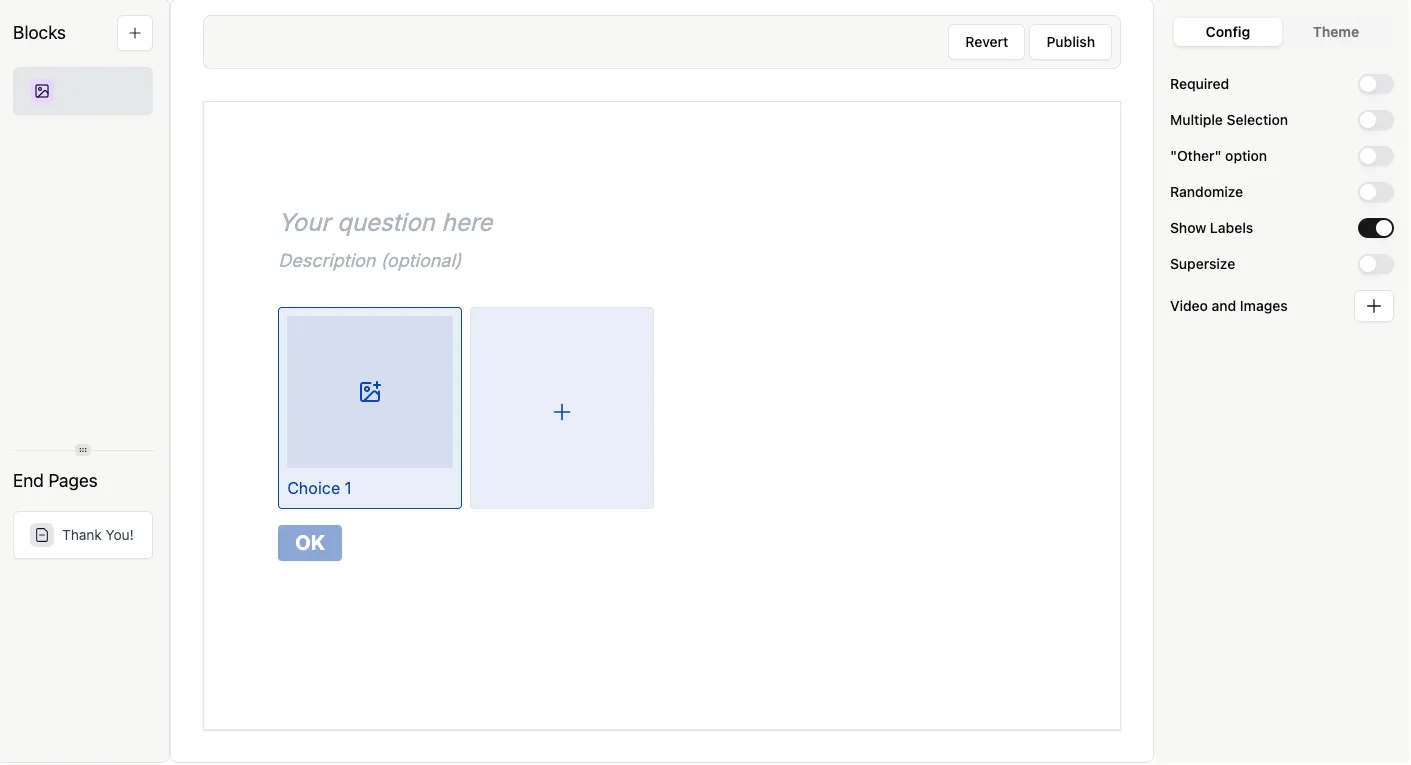
4. To add images to your picture choices, click on the image icon in each choice.
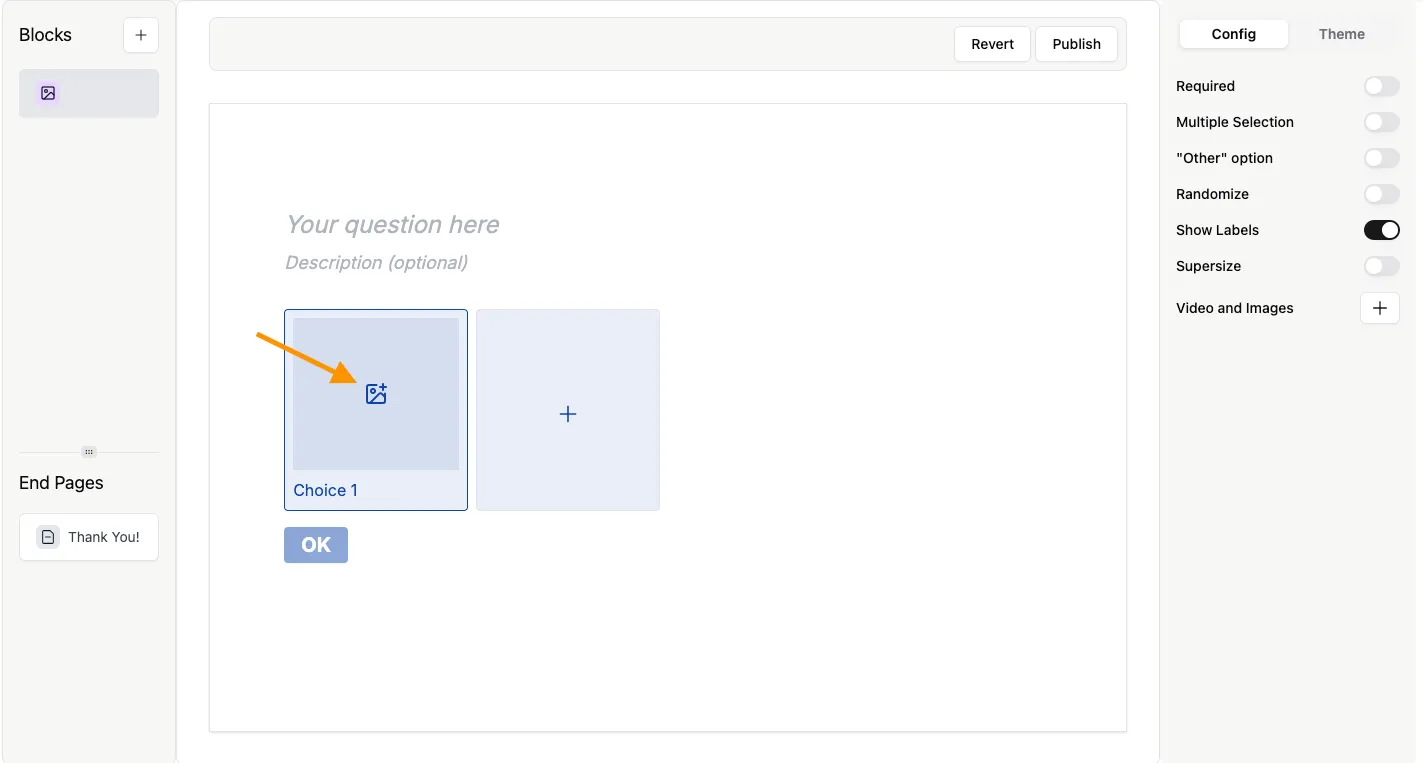
This will open the image tool, where you can either provide a URL to an image, from sources such as Unsplash, or upload your own image. Read more about images here.
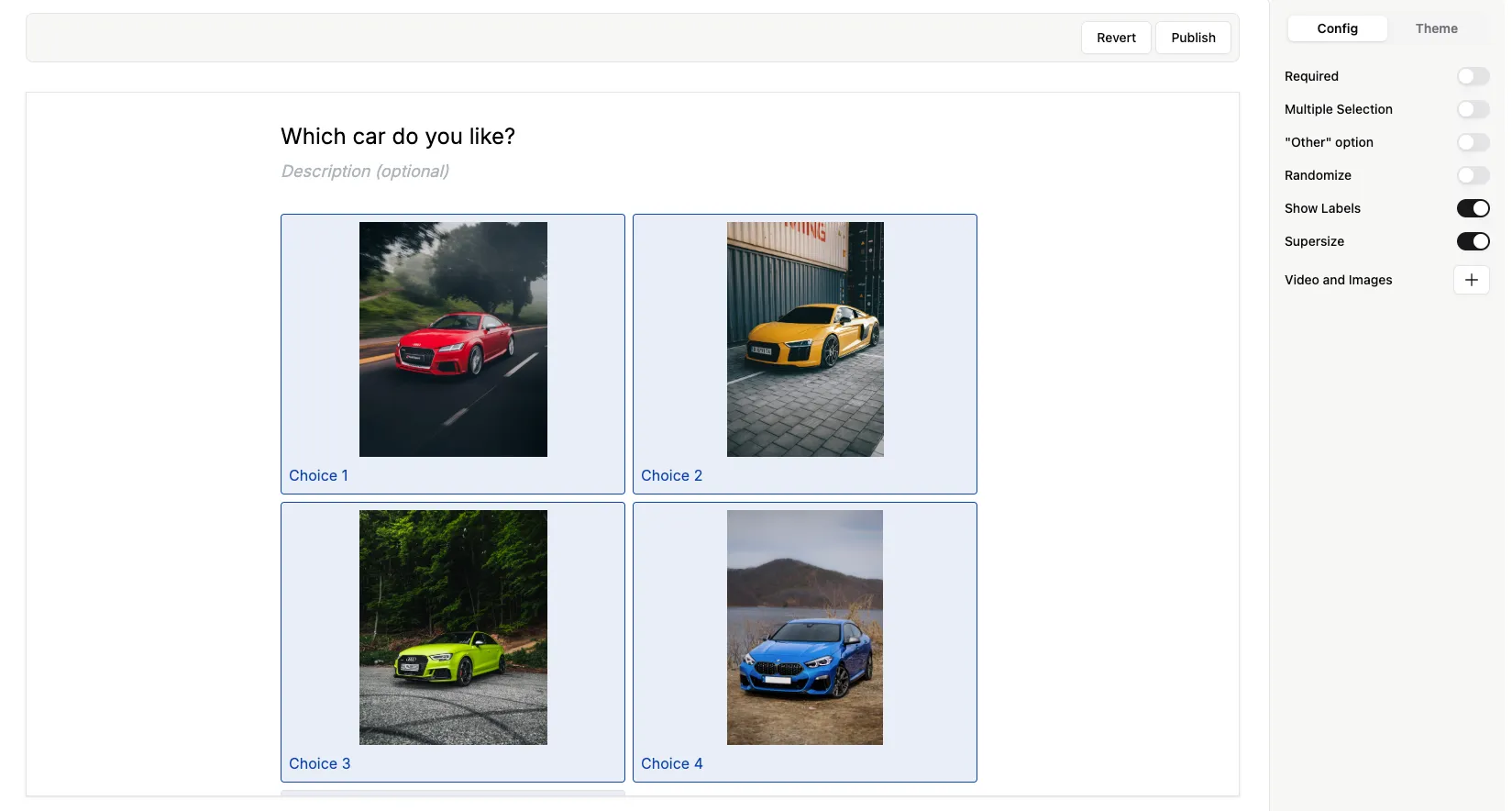
This is how your form will look after adding a couple of image choices.
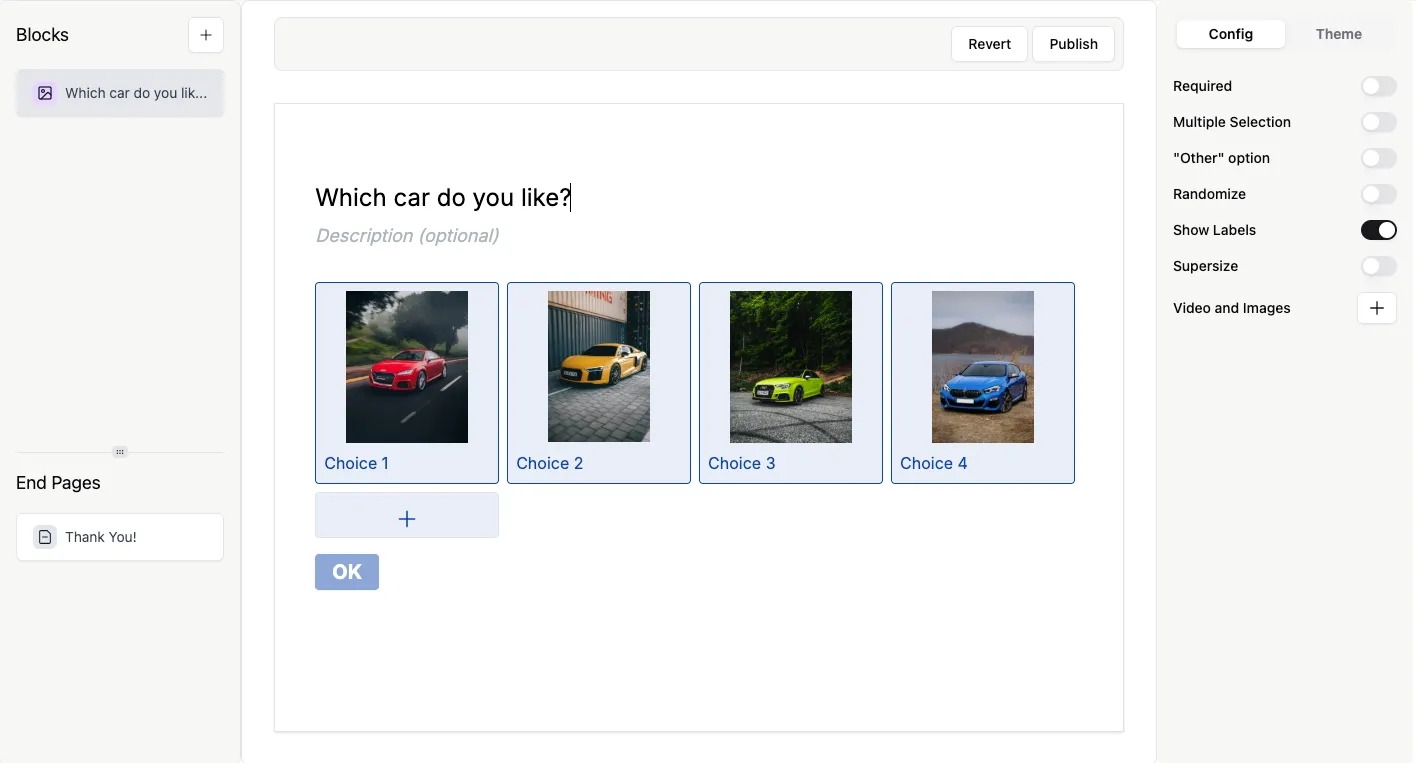
Picture Choice Settings
Section titled “Picture Choice Settings”You can see the Question settings menu on the right side of the screen in the Config tab.
Here you can set your question as Required, turn the picture labels on and off (turn off if you want no text under your images). You can set your images to Supersize, toggle Multiple selection, Randomize, and add an Other choice to your question. Read on to learn more about each of these options.
Show labels
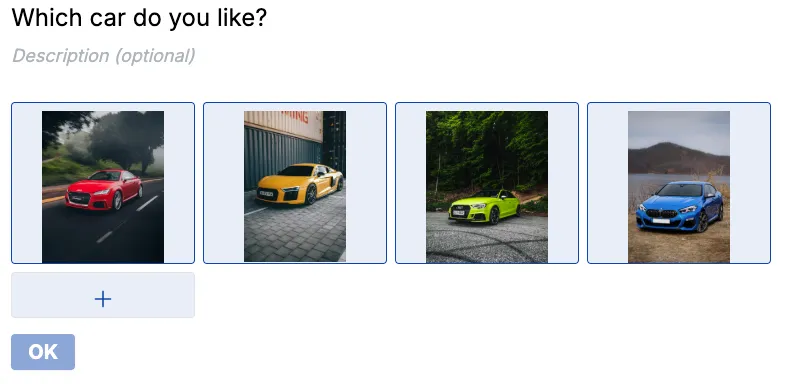
Section titled “Show labels”By default, Show labels is switched on. This displays the text below each picture. The example above had the labels switched on. Here’s what the choices look like with labels turned off:
Supersize
Section titled “Supersize”This will make your images bigger. Here’s an example with supersize ON:
Allow multiple selection
Section titled “Allow multiple selection”Allow respondents to choose multiple answers for your question.
Randomize options
Section titled “Randomize options”You can randomize the possible answers, so each time someone fills in the form, the choices will appear in a different order.
Other Option
Section titled “Other Option”Allow respondents to provide an answer not listed by enabling an ‘Other’ option.