
Multiple choice question
Formware’s Multiple Choice question lets your respondents choose one or more options form a list of choices. Multiple Choice questions are an essential part of quizzes, exams, tests, surveys, and more. Read this guide to use this durable question type in your forms.
Add a multiple choice question to your form
Section titled “Add a multiple choice question to your form”- Open the form that you would like to edit and click on the
+ Add Contentbutton to open the list of available question types. - Select
multiple choice. - Now you can write your question text and add a description if you like.
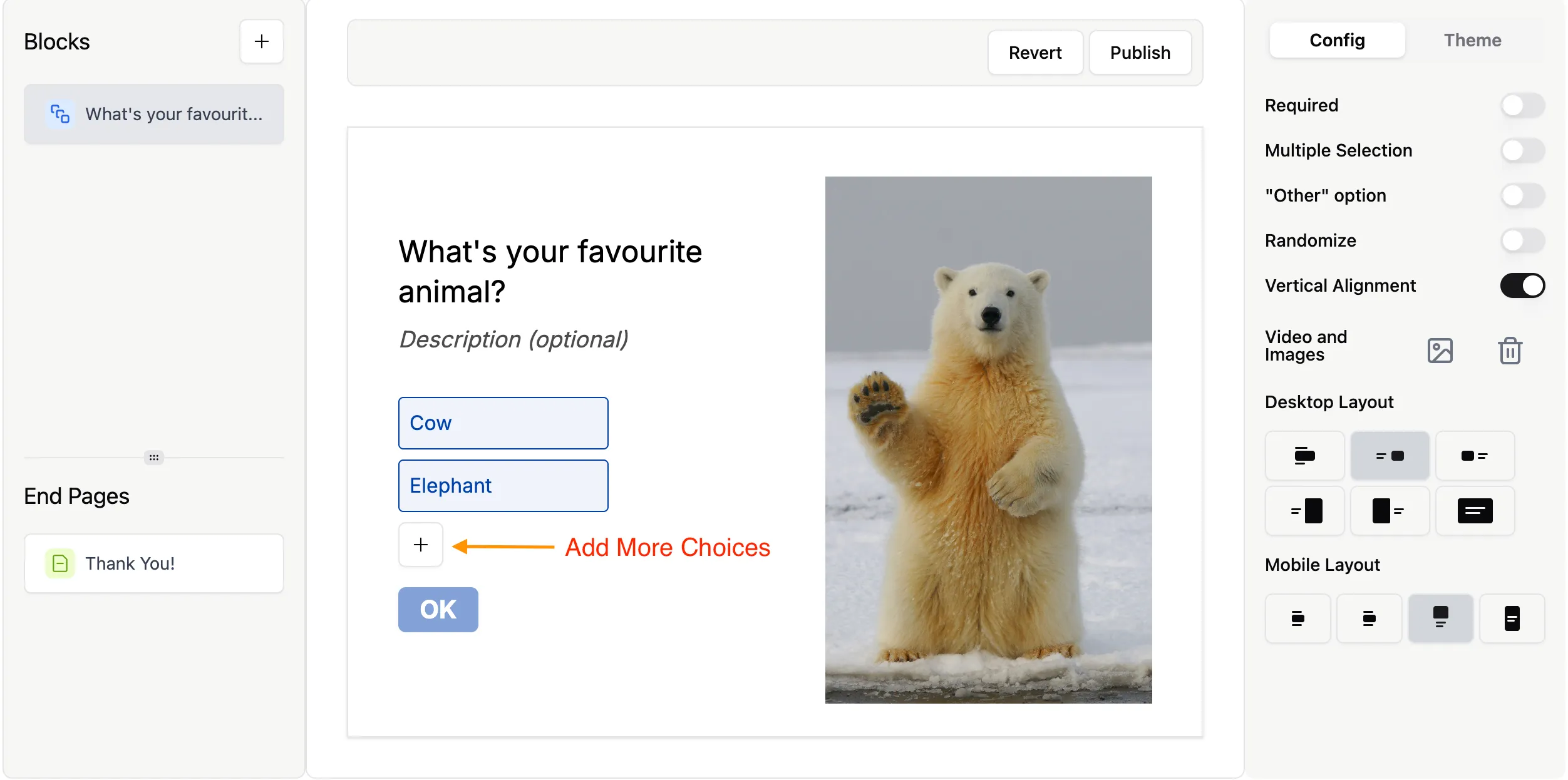
- Next, proceed to enter your choices in the center of the screen.
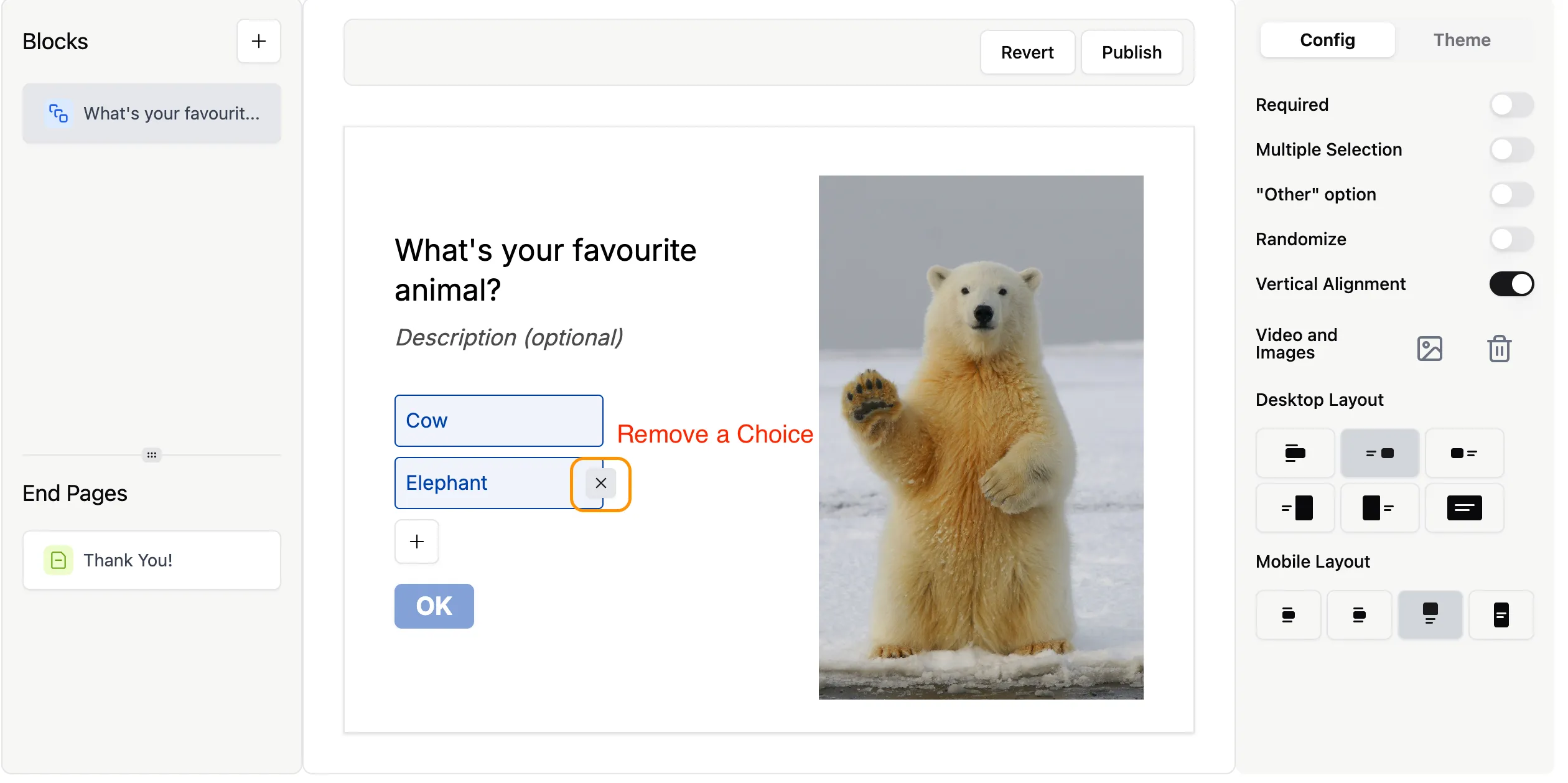
To remove any answer choices you don’t want to use, simply hover over the choice label and a x button will appear. Click x to remove a choice
By default, respondents can choose one option from the list. Enable the allow multiple selection option in the settings to allow respondents to select multiple options while answering your form.
Settings
Section titled “Settings”The settings of a multiple choice question can be seen on the right-hand side of the form builder. Here you can customise the following settings:
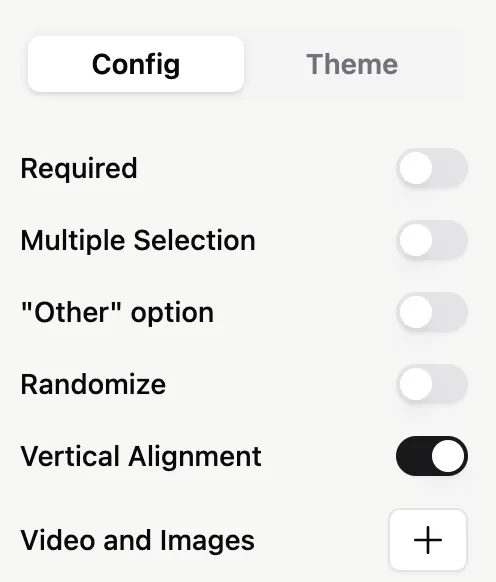
Allow multiple selection
Section titled “Allow multiple selection”Allow respondents to choose multiple answers for your question.
Randomize options
Section titled “Randomize options”Answer randomization helps avoid biased data by displaying answer options in a random order.
Other Option
Section titled “Other Option”Allow respondents to provide an answer not listed by enabling an ‘Other’ option.
Vertical alignment
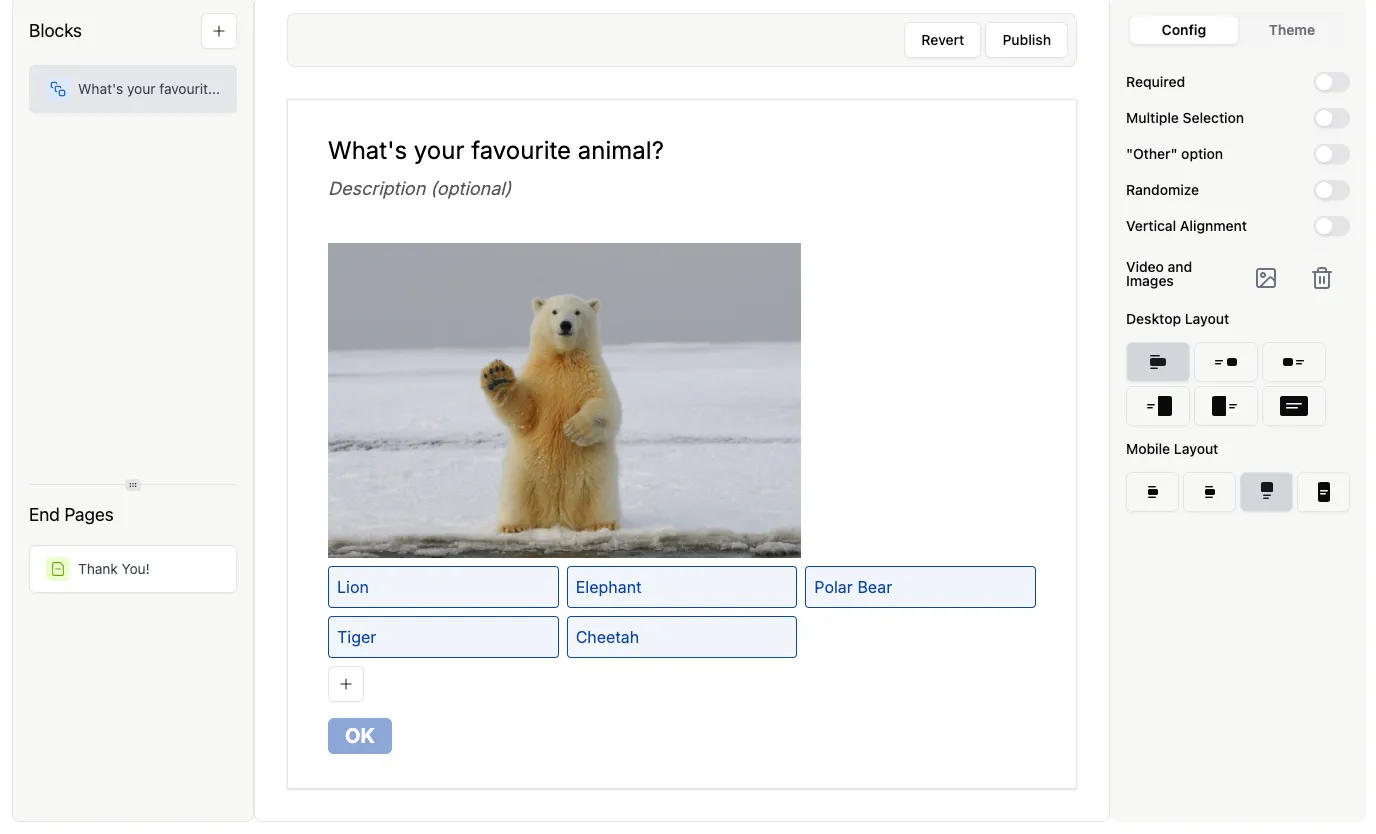
Section titled “Vertical alignment”Toggle Vertical alignment on or off to change how your question is displayed. Here’s how a question looks when vertical alignment is toggled off.
How many choices can I add to a Multiple Choice question?
Section titled “How many choices can I add to a Multiple Choice question?”There’s no limit! You can add as many as you like, though your Formware will look better if you group answers in smaller groups.