
Contact Info question
You can ask for the following details in the Contact Info question type:
- First Name
- Last Name
- Phone Number
- Company
Keep reading to learn how to include or remove specific details and further customize the Contact Info question type.
Add a Contact Info question to your form
Section titled “Add a Contact Info question to your form”1. Open the form that you would like to edit and click on the + Add Content button to open the list of available question types.
2. Select Contact Info.
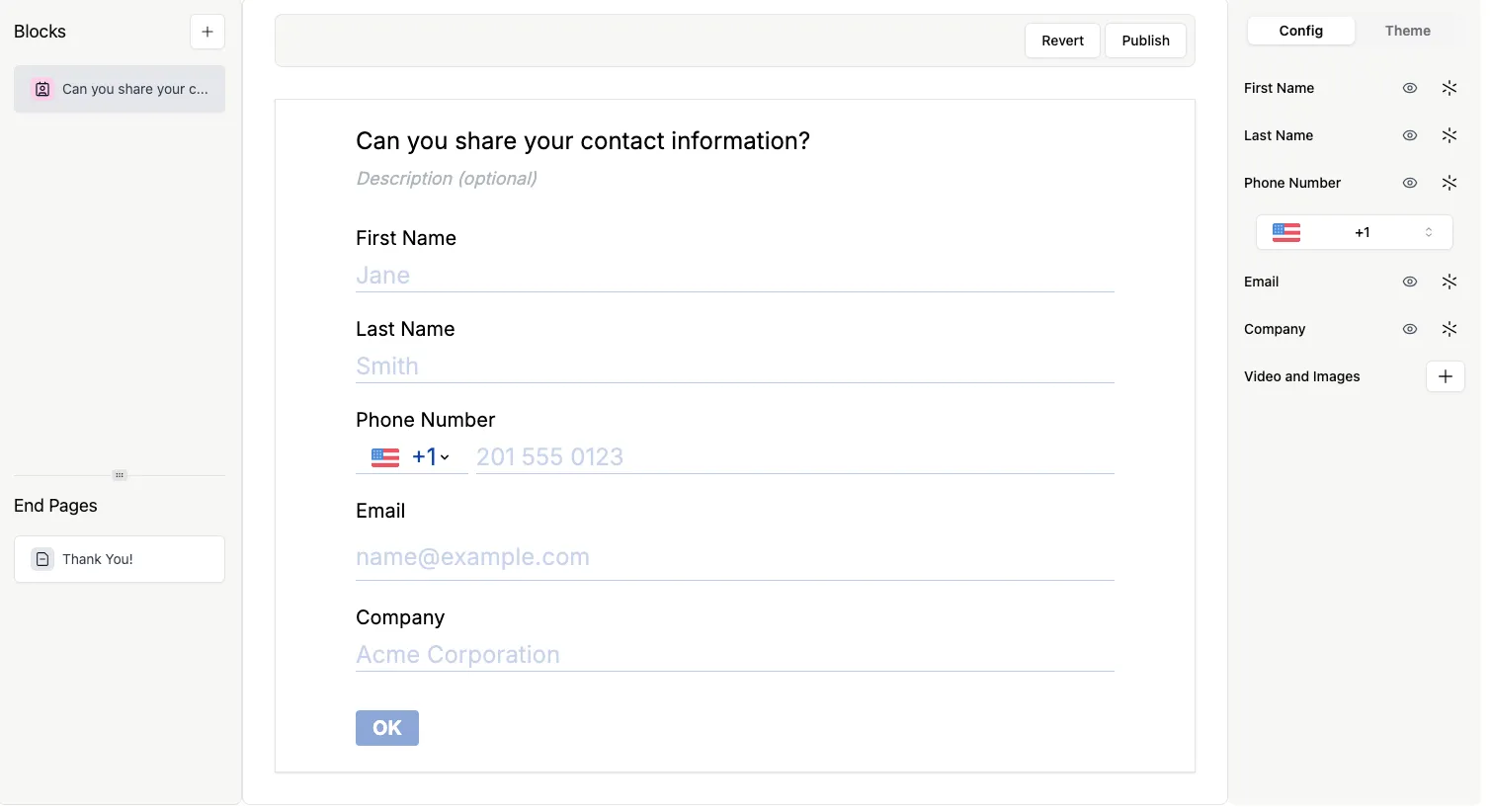
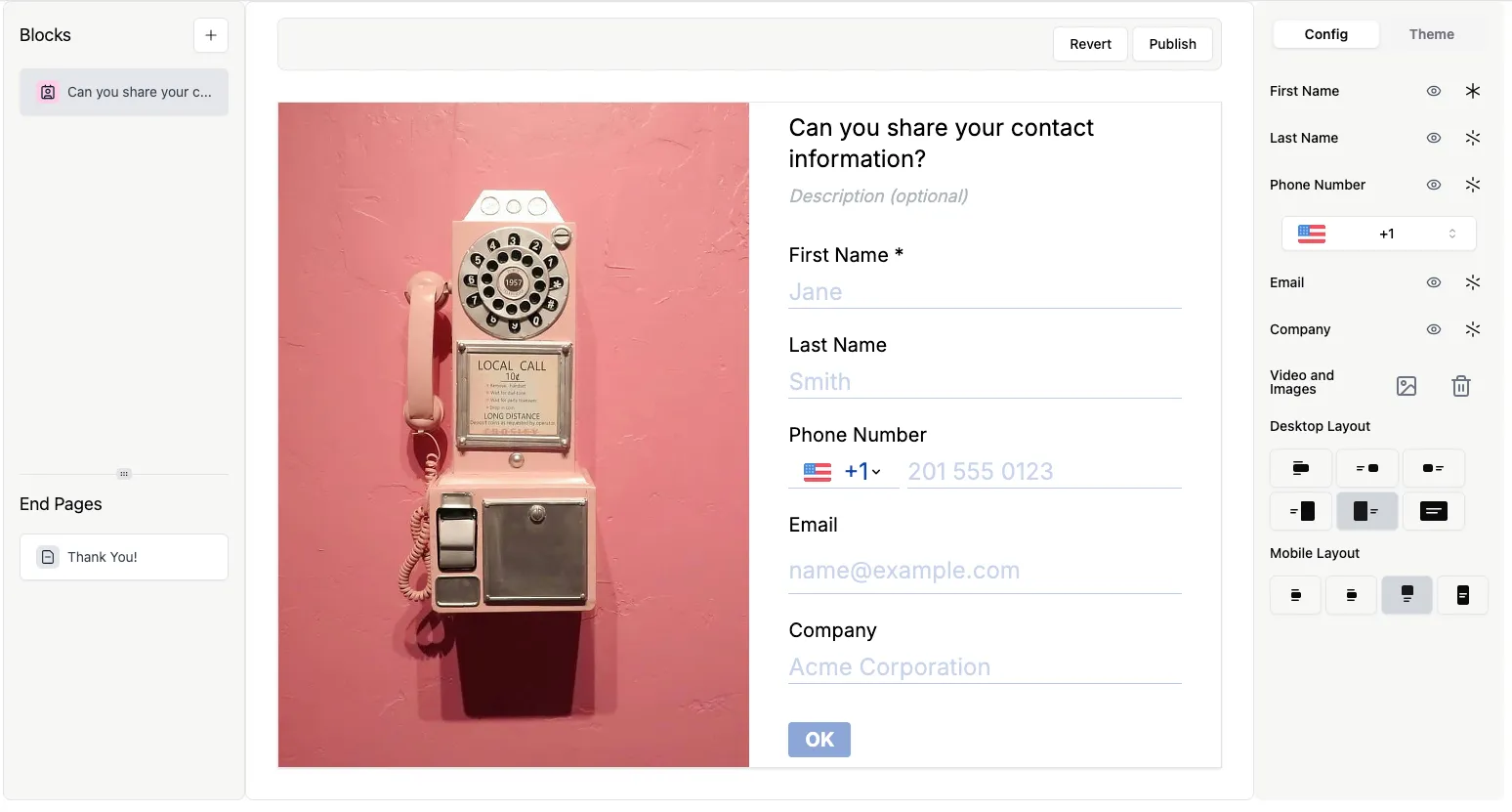
3. Now you’ll see the Contact Info question type with all the contact detail questions displayed on a single page.
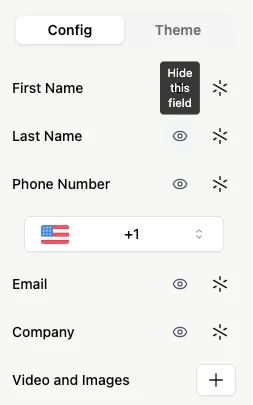
4. Click the eye icon to hide a field…
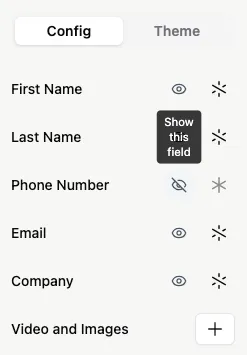
5. …or click the crossed-out eye icon to show a field within the Contact Info question type.
6. You can also make a field required by clicking the crossed-out asterisk…
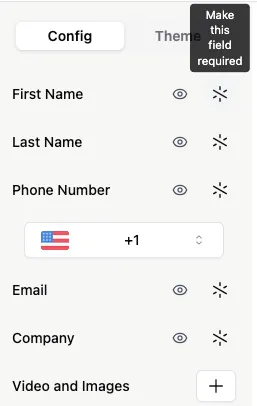
7. …or make it optional again by clicking the asterisk.
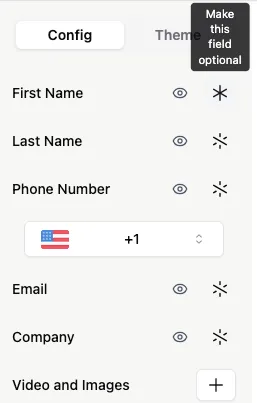
If you set any field within the Contact Info question type as required, the entire Contact Info question will be marked as required on the form. Still, respondents can skip the optional fields and submit the form.
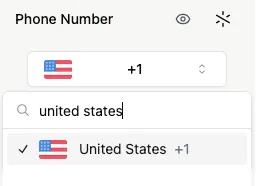
8. To change the default country code of the Phone Number field, click the dropdown arrow and search for a specific country or scroll through the list. You can read more about the Phone Number question here.
9. Click the + next to Videos and Image to add eye-catching visuals to your Contact Info question.
 >
>