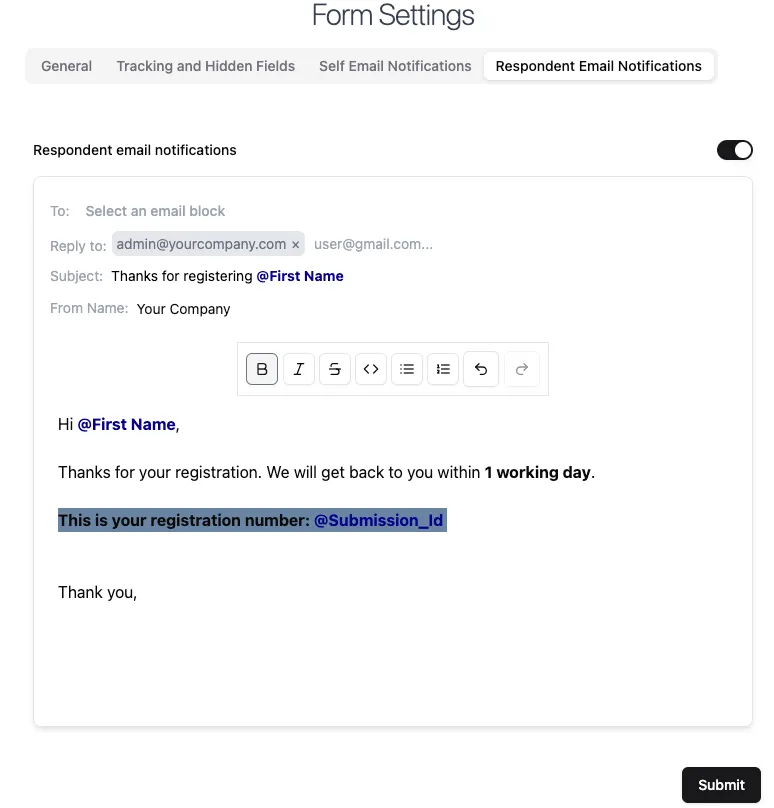
Respondent email notifications
Formware has two types of email notifications: self email notifications and respondent email notifications.
Use respondent notifications to send an email to your respondents after form submission. Common use cases are sharing a summary of form responses, thanking your respondents, or sharing a score of a quiz or test.
How it works
Section titled “How it works”Go to your form settings and click on Respondent Email Notifications tab. Here you can turn on the Respondent email notifications toggle to automatically send an email to your form’s respondents whenever they completely fill a form.
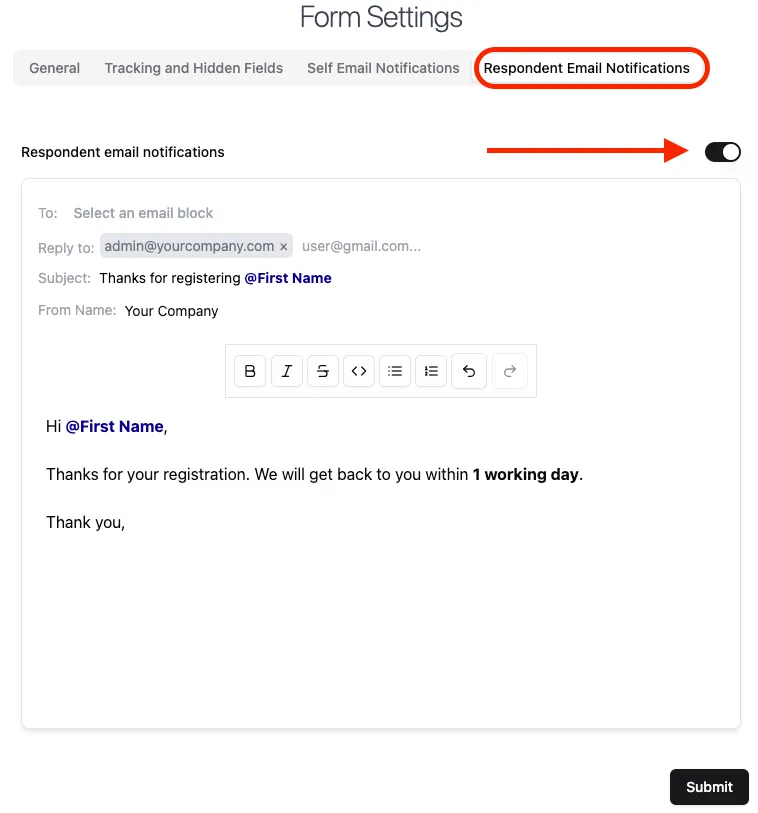
Customizing email fields
Section titled “Customizing email fields”Below are the different email fields you can modify for respondent email notifications.
To field
Section titled “To field”If you have added one or more email question in your form, you can select it to set the To value dynamically based on the respondent’s answer.
Reply to
Section titled “Reply to”The email address of your Formware account is used as the default email address for Reply-To. This will allow the respondents to be able to reply to your email. Remove of modify the default value if required. To add new email addresses, simply paste a comma separated list or type the email addresses one by one.
Subject
Section titled “Subject”The default subject is Your Formware Submission for @Form_Name. Write anything you want in the subject field or type @ to insert form data.
From name field
Section titled “From name field”By default, the emails are sent from Formware and the domain noreply@formware.io. You can customize the name of the sender, but the email domain of the sender is not customizable yet.
Email body
Section titled “Email body”Customize the content as you like and type @ to get a list of responses to insert. Select text to apply text formatting.