

Inventory Form Template
Once a year — or once a quarter — the operation stops, the clipboards come out, and a room full of people discovers how wrong the numbers have quietly become. The counting itself is rarely the problem; the capture is. Handwritten tallies get transposed on the walk back to the desk, damaged cartons get remembered but never recorded, and three weeks later nobody can reconstruct what the counter actually saw.
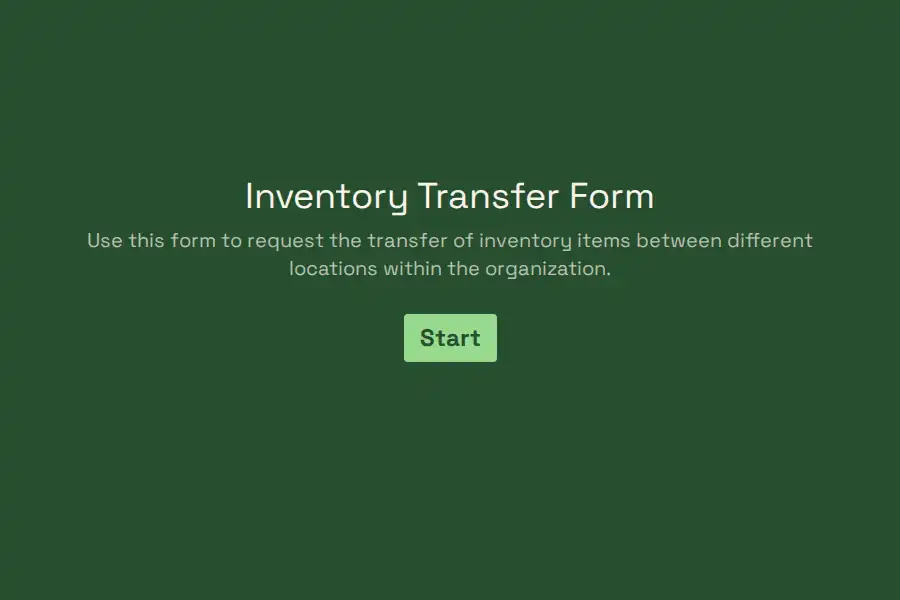
This inventory form template moves capture onto the phones your team already carries. Every counter becomes a live data source: quantities, condition, and photographic proof recorded at the shelf, not reconstructed from memory at a desk.
Setting Up Count Day
Build the form once, then shape it to the event:
- Post a shareable link at each count zone’s entrance — counters tap and start immediately, with no app to install and no login to forget.
- Assign territory with a dropdown so every submission declares exactly which aisle or bay it covers.
- Walk the whole flow on your own phone in preview mode first, then publish when the count officially begins.
Operations counting across several sites should duplicate the form per location, so each site’s count lives in its own clean, separately archivable set.
What Gets Recorded at the Shelf
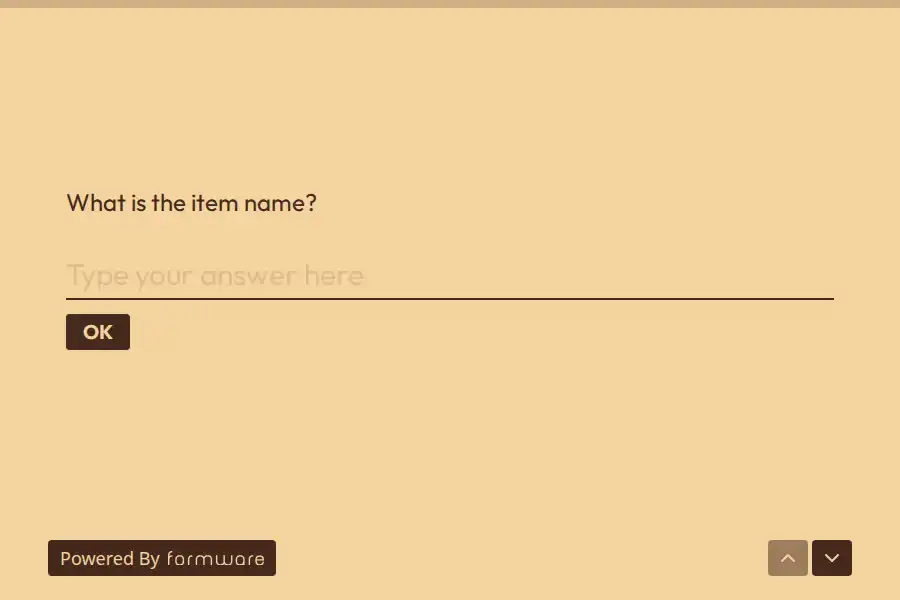
- Identity and tally. Item name or SKU, then the physical figure on a number field — what was counted, not what the system hopes is there.
- Condition at a glance. A multiple choice — sellable, damaged, quarantined — applied per item, replacing the sticky notes that used to say ask Dave about aisle 4.
- Photo proof. A file upload for the moments that generate arguments: the crushed pallet, the shelf label matching no known SKU, the bay that should hold forty units and holds six.
Photos End the Debates
The photo field is the quiet upgrade. A discrepancy with an attached image resolves from a desk in ninety seconds; the same discrepancy without one costs a second trip to the floor, an interrogation of whoever counted the zone, and usually a shrug. Counters should photograph everything they flag — the timestamped image is the evidence that makes write-offs defensible and investigations short.
Closing the Count
As submissions land, the response view becomes the reconciliation sheet: compare counted figures against system stock, chase variances while the day is still fresh, and export the complete set for finance. Count day ends with a defensible number instead of a pile of paper to decode.
For documents that formalize operational results like this one, browse the report sub-category.
Frequently Asked Questions
What is worth photographing during a count?
Anything flagged and anything expensive: damage, label mismatches, empty bays where the system expects stock, and every high-value item. The rule of thumb — if a figure would get questioned in review, attach the image that answers the question before it is asked.
How do we stop the same shelf being counted twice?
Draw zone boundaries that don’t share a shelf, assign one counter per zone through the dropdown, and fix assignments before the first link gets tapped. Overlapping territories — not sloppy counting — cause nearly every double count.
Does every location need its own form?
One form happily covers a site, since each submission names its zone. Separate copies per location earn their keep when sites carry different item ranges, or when finance wants each branch’s count archived on its own.
Who should do the counting?
People who recognize the items, counting zones they don’t manage day to day. The person who runs a bay is the person most likely to see what should be there rather than what is — and count day exists to catch exactly that.